What is a monitoring location (a.k.a. Datasource)
What a monitoring location is, how it relates to the underlying "datasource", and where to find and manage your locations.
A monitoring location is the named place on your network where Clarity collects air quality measurements — it's what you see and manage throughout the Dashboard. Under the hood, that continuous stream of measurements is a datasource (its ID starts with the letter D). The Dashboard leads with "monitoring location"; "datasource" is the older name for the same entity, and you'll still spot the D… ID in a location's detail panel.
For step-by-step tasks — deploying a node, pairing modules, replacing hardware, changing power, stopping — see Node management on Dashboard. This page explains what monitoring locations are and how they relate to your devices and data.
What is a monitoring location?
A monitoring location is the named place on your network where measurements are collected — for example a school, a roadside site, or a park. You'll find your locations under SENSOR NETWORK → Monitoring Locations in the left sidebar, and each row on that page is one monitoring location.
Behind each location is a datasource — the continuous stream of air quality measurements, fed by a source device (a Clarity Node or a reference monitor) that pushes its readings into the stream. The location carries annotations (a name, a group, and tags) so you can identify and organize it, and accessing its data requires a subscription. The underlying datasource has an ID that starts with the letter D, which you'll see in the location's detail panel. In day-to-day use you work with the monitoring location; "datasource" is just the technical name for the data stream beneath it.
Why the location is decoupled from the device
A monitoring location adds flexibility because the location and its data stream are kept separate from the physical device:
-
Device replacement — Keep one continuous data stream for a site even when the hardware is swapped out for wear or malfunction. Long-term monitoring data stays unified regardless of device changes.
-
Device relocation — When you move a device to a new site, you can either keep feeding the existing location or start a new one — so data from different sites stays separate and organized.
Finding your monitoring locations
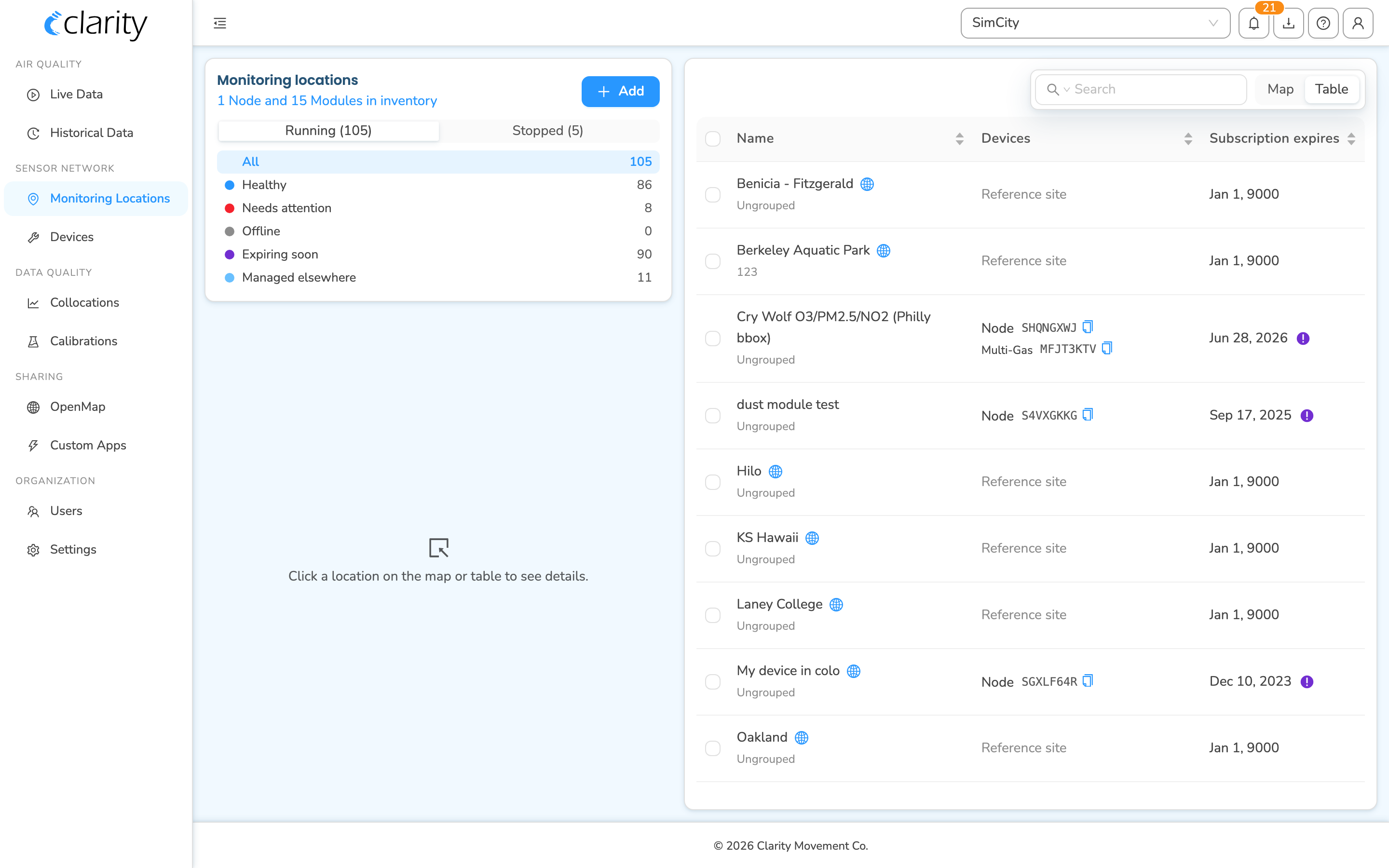
Open Monitoring Locations from the sidebar (under SENSOR NETWORK). The page has two halves:
- Left column — a control card titled Monitoring locations with your fleet filters, plus a details panel that fills in when you select a location.
- Right pane — your locations as a Table or a Map, with a search box. Switch views using the Table / Map toggle in the top-right of that pane. (Table is the default.)
Running vs. stopped
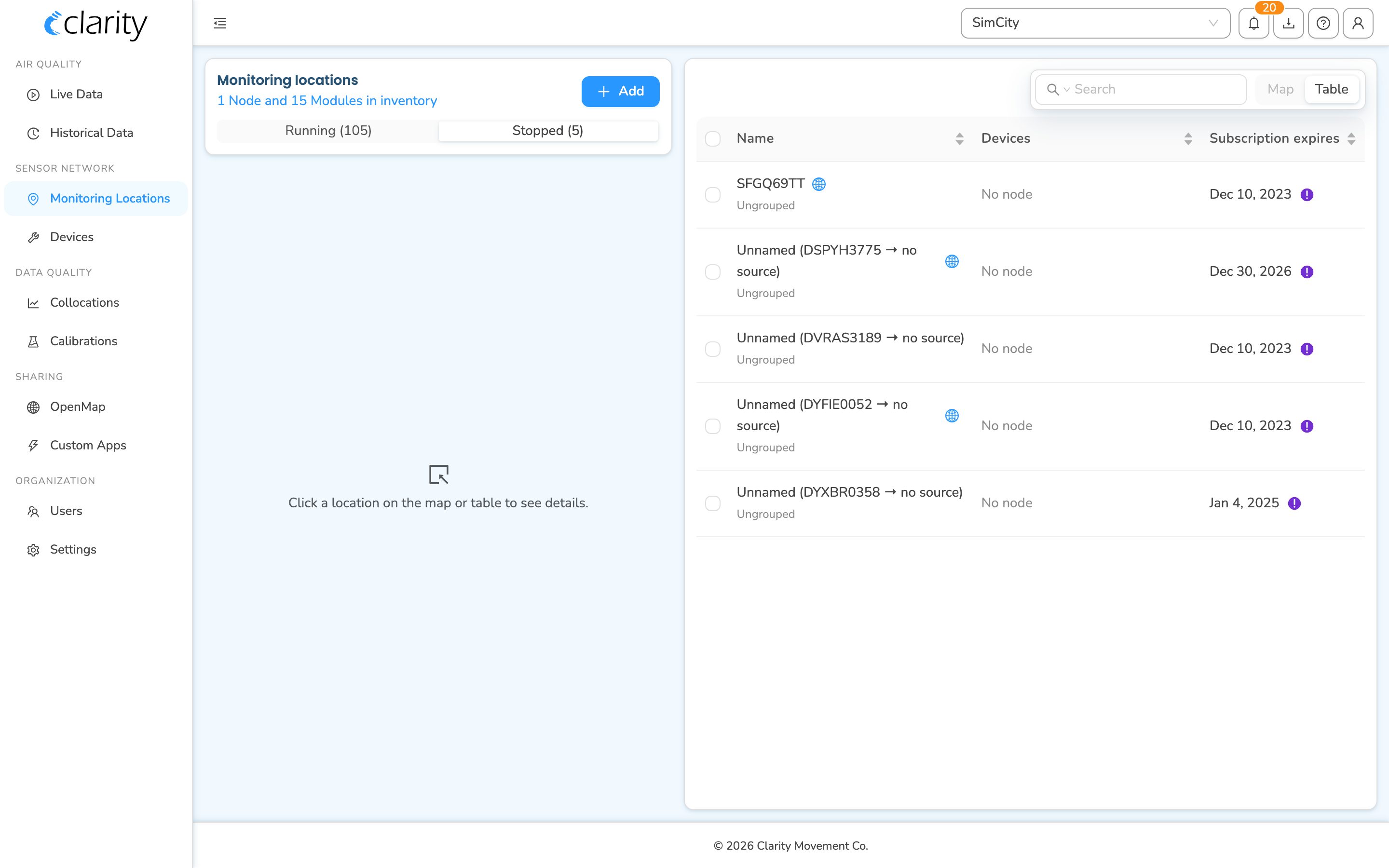
The control card has a Running / Stopped toggle near the top:
- Running — locations with a device currently streaming measurements (the default view). Below the toggle you can refine by status:
- All
- Healthy
- Needs attention
- Offline
- Expiring soon (the subscription is close to lapsing)
- Managed elsewhere (a shared or reference location your org reads but doesn't manage)
- Stopped — archived locations with no device attached. A stopped location keeps its historical measurements and can be resumed at any time.
The Map view is disabled while the Stopped filter is active — stopped locations have no live position to plot, so the page falls back to the Table.
The inventory hint
If you have unpaired nodes or modules waiting to be deployed, a small line appears under the page title — for example "1 Node and 15 Modules in inventory." Click it to jump straight to the Devices page with the Inventory devices tab pre-selected.
Inspecting a single location
Click any row in the table (or a marker on the map) to open that location's detail panel in the left column — one view of everything about the location. It shows:
- Identity — name, group, tags, the datasource
D…ID (click to copy), and an OpenMap badge if the data is public. - Devices — the attached node and any paired modules, with health, last reading, battery, signal, and power source.
- Diagnostics — the per-node health drawer (activity, operational status, alarms).
- Alarm rules — the measurement alarm rules covering this location.
- OpenMap sharing — whether the location's air quality is public (Public / Private).
- Data access — subscription type, expiry (with an "Expired" / "Expiring soon" tag), sharing status, and deployment history.
- Deployment — site context: mini-map, indoor/outdoor, height, distance to road, and deployment photo.
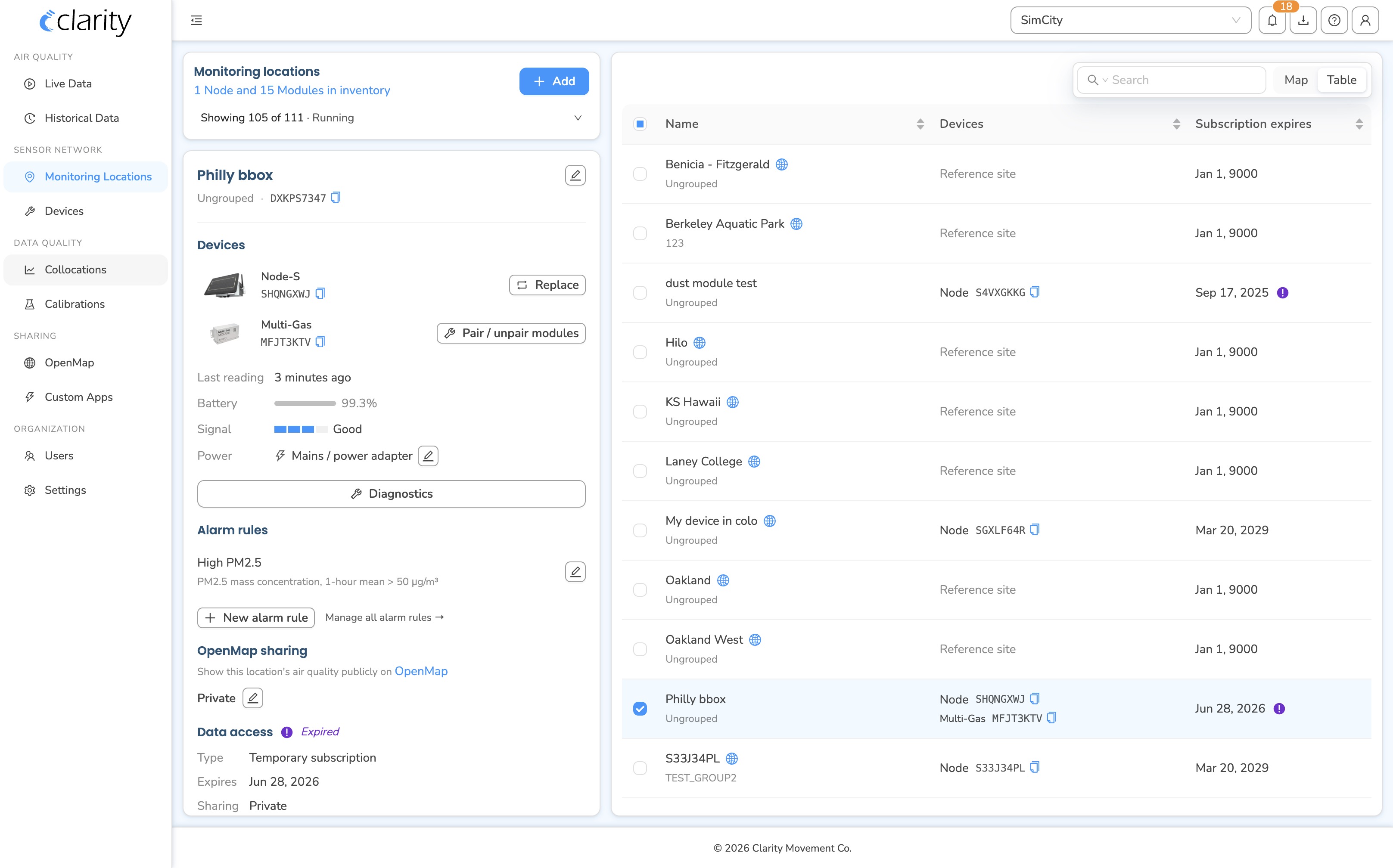
The panel is also where you run a location's actions — Replace, Pair / unpair modules, Change power, Tune placement, and Stop — covered step-by-step in Node management → Lifecycle actions on a location card.
The Data access and Identity sections also show whether your subscription is Licensed (you own it) or Shared (another org shares the data with you), who it's shared with, the source of measurements, and the OpenMap status.
Editing a location's name, group, and tags
In the detail panel, click the pencil next to the location name to rename it, assign or create a group, and add tags. Keep these up to date — they're what you search on across your whole organization. For more, see Name, group and tag your monitoring locations.
Avoid naming a location after the Clarity Node's ID — if you ever replace the node, the name will no longer match the hardware and cause confusion.
Viewing a location's measurements
To see a location's measurements, use the Historical Data page (AIR QUALITY → Historical Data). You can go there directly, or use the Historical Data cross-page link in a location's detail panel.
On Historical Data, click a location's marker on the map (or use Load historical data to pick a time range), then choose the parameter from the dropdown at the top-left. The page draws the measurement time series and statistics for your selected locations and parameter. You can open the Advanced charts row for scatter, deviation, temporal heat-map, wind-rose, and other views.
Historical Data is a multi-location explorer (map + time series + advanced charts) — you select one or more locations to chart.
Downloading a location's data
Click Download data in a location's detail panel to queue an export (finished exports live on the Downloads page in the sidebar). See Download your air quality data for formats, batches, and scheduling.
Working with several locations at once
Select multiple rows (using the checkboxes) or multi-click / lasso on the map. The left panel switches to a batch view listing your selection, with bulk actions:
- Download data for all selected locations
- Set group
- Edit tags
- Manage OpenMap sharing
- a cross-page link to open the whole selection in Historical Data
Managing the lifecycle: deploy, stop, resume, replace, relocate
Most lifecycle actions live right in the Monitoring Locations detail panel (or in the device wizards). Here's what each one does and where the full steps live in Node management on Dashboard:
- Deploy a node (start a new location) — configuring a node from inventory creates a new Running monitoring location for its measurements. → Configuring a node
- Stop (archive) a location — returns the node to inventory and marks the location stopped; its historical data is preserved and subscriptions are detached. → Stop a monitoring location
- Resume a stopped location — bring it back online with any inventory node (it doesn't have to be the original). → Resume a stopped location
- Replace a node — swap the hardware while keeping the same location and its history. → Replace a node
- Pair / unpair modules — attach or detach add-on modules from the location's Devices section. → Pair a module on Dashboard
- Change power / Tune placement — update how the node is powered, or nudge its coordinates. → Edit the node's deployment
Relocating a node to a new site — a choice
Because the location is decoupled from the device, you decide what happens to the data when you move a node:
- Start a fresh location at the new site — stop the location at the old site, physically retrieve and move the node, then deploy it at the new site. The two sites' data stays cleanly separated (original → Stopped, new → Running).
- Keep the same location — if you're only fine-tuning placement at the same site, use Tune placement to nudge the coordinates without interrupting the stream.
Reference-site locations are the exception: Clarity Cloud manages them automatically, they appear as Managed elsewhere, and you can add one via + Add → Add a reference site.
Where your devices live
Your nodes and modules — deployed and in inventory — live on the Devices page (SENSOR NETWORK → Devices). For a tour of its tabs and row actions, see Node management → Understanding the Devices page.
What's next
Still need a hand? Email us at support@clarity.io or create a support ticket, and our team will get back to you.
Was this helpful?