Node management on Dashboard
The Node-S is the building block of Clarity's Sensing-as-a-Service. It's built to withstand harsh weather over years in the field, and it houses the power, connectivity, and protection for a range of low-cost sensors that monitor particulate matter, nitrogen dioxide, temperature, and relative humidity. You can extend a Node-S with add-on Modules (for example Multi-Gas or Black Carbon).
This article walks through managing your nodes from the Clarity Dashboard: where to find them, how to deploy (configure) a node, how to pair modules, and how to run the lifecycle actions: replace, change power, edit details, and stop a monitoring location.
Node management is split across two pages: the Devices page, your hardware inventory and deployed nodes, and the Monitoring Locations page, the running and stopped locations your nodes feed.
New to how locations, datasources, and devices relate — or what "running" vs "stopped" means? Start with What is a monitoring location for the mental model. This page is the hands-on guide to the tasks.
Finding your nodes
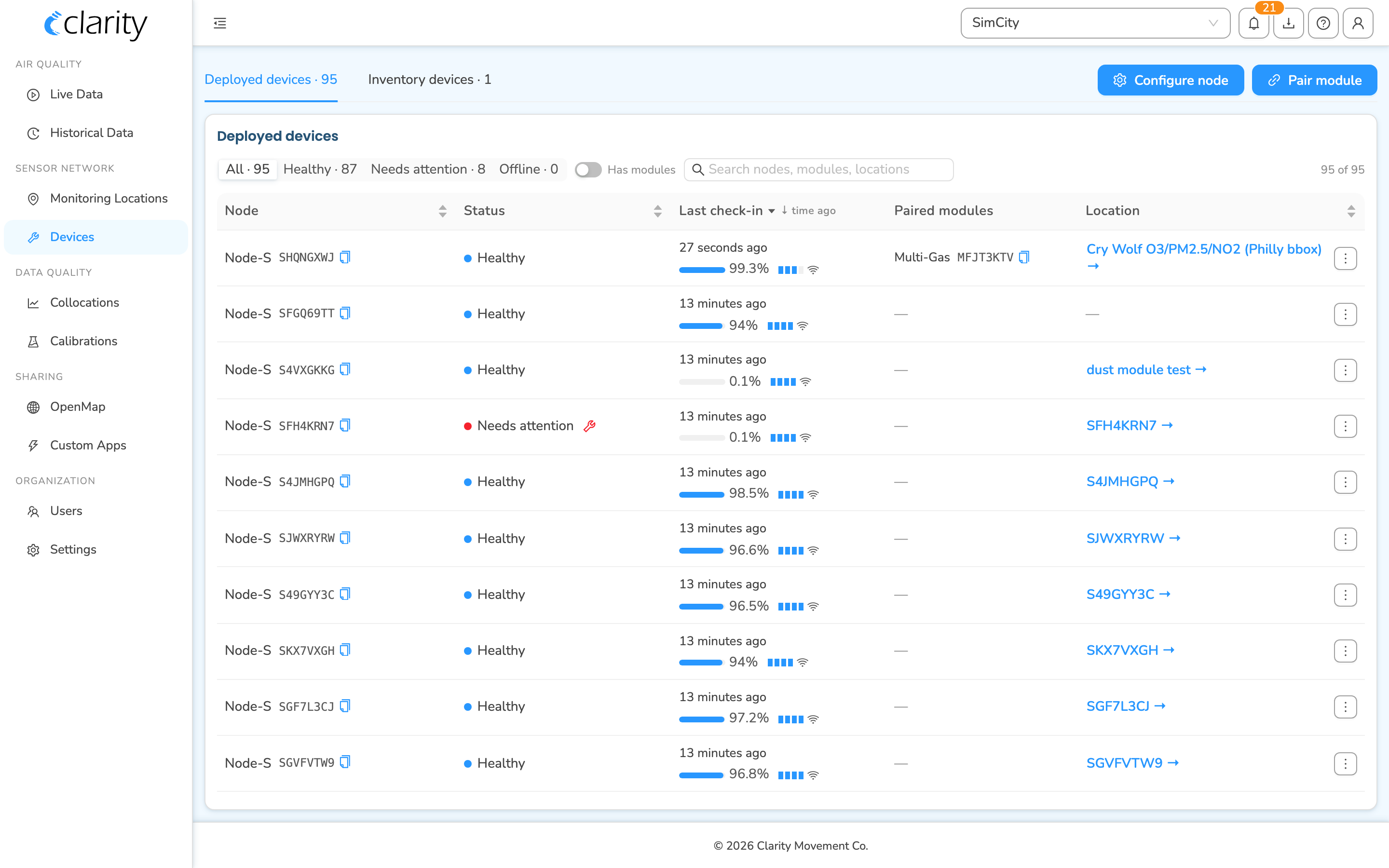
The left sidebar is grouped into sections. Node management lives under SENSOR NETWORK:
- Monitoring Locations: the locations your nodes record to.
- Devices: every node and module your organization owns.
Other groups you'll see in the sidebar: AIR QUALITY (Live Data, Historical Data), DATA QUALITY (Collocations, Calibrations), SHARING (OpenMap, Custom Apps), and ORGANIZATION (Users, Settings).
Understanding the Devices page
The Devices page is a single unified view of all the hardware your organization owns, split into two tabs at the top:
- Deployed devices: nodes that are configured and reporting, or recently reported, to Clarity Cloud. Each row shows the node, its health status, last check-in with battery and signal, any paired modules, and the monitoring location it feeds. The tab label carries the count, e.g. Deployed devices · 95.
- Inventory devices: nodes and unpaired modules that are ready to deploy or pair. The tab label carries the count, e.g. Inventory devices · 1.
Above the tabs, two buttons are always available in the top-right:
- Configure node: starts the node deployment wizard.
- Pair module: starts the module-pairing wizard.
Both buttons require an org admin or technician role. If you don't have one, the buttons are disabled with a tooltip explaining why — contact your org admin.
The Deployed devices tab
Each deployed row carries a row-actions menu, the ⋮ kebab icon at the right edge of the Location column. It contains:
- Diagnostics: opens the per-node diagnostics drawer for activity, sensor and module status, and alarms.
- Manage monitoring location: jumps to this node's location on the Monitoring Locations page, where the lifecycle actions live.
- Open in Live Data: opens the node's measurements in Live Data.
- Load historical data: opens the node's data in Historical Data.
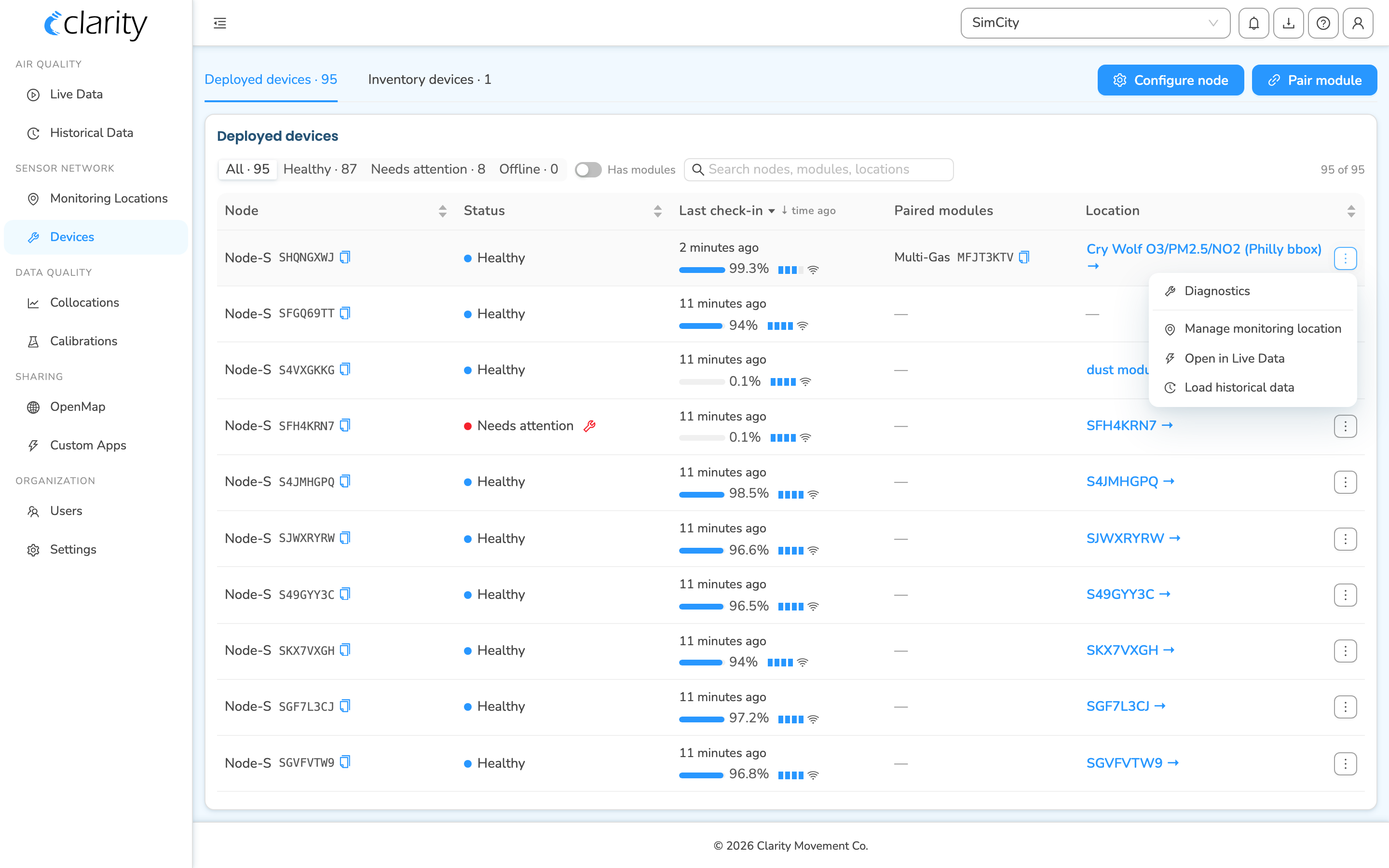
On rows that need attention or are offline, a wrench shortcut also appears next to the status dot for one-click Diagnostics. The location name in the Location column is itself a link to Monitoring Locations.
Stop, Replace, Edit, Change power, and Pair/Unpair all live on the location's card in Monitoring Locations (open it via Manage monitoring location). Compatible modules lives on the Inventory devices tab. See the relevant sections below.
The Inventory devices tab
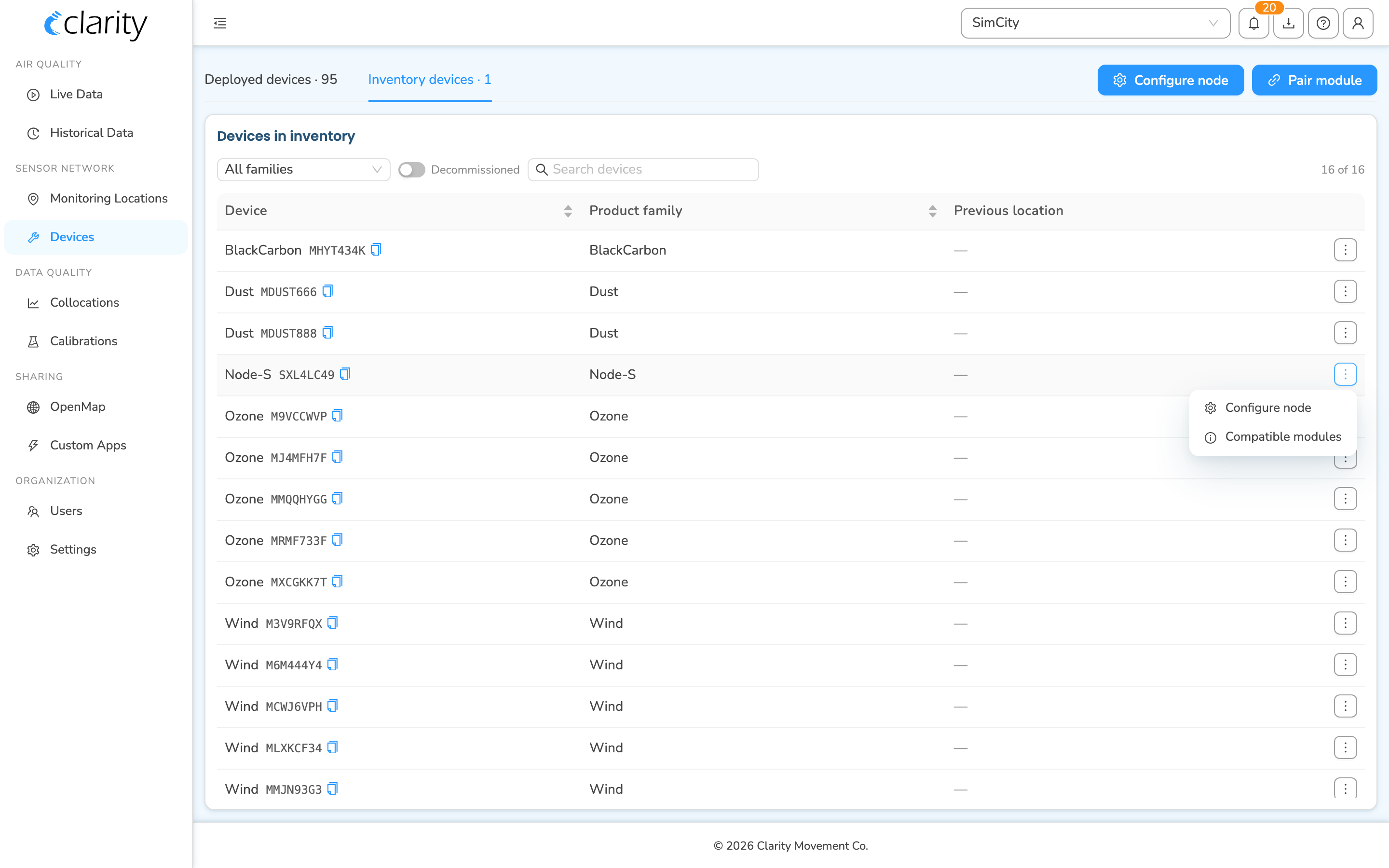
The Inventory tab lists standalone nodes, purchased but not yet deployed, and unpaired modules. You can filter by product family, search, and toggle Decommissioned to include retired, read-only nodes.
Each inventory row has a ⋮ menu:
- For a node: Configure node, which opens the deployment wizard pre-seeded with that node, and Compatible modules, which lists module types that pair with this node.
- For a module: Pair module, which opens the pairing wizard pre-seeded with that module, and Compatible nodes, which lists nodes this module can pair with.
Understanding the Monitoring Locations page
Monitoring Locations is where you manage the locations your nodes record to. The left column has a control card that splits locations into Running and Stopped, with quick refinements for Running (Healthy, Needs attention, Offline, Expiring soon, Managed elsewhere). The right pane shows the locations as a Table or a Map, with the toggle in the top-right.
Click a location in the table, or a marker on the map, to open its detail card in the left column. That card is the home for the node lifecycle actions.
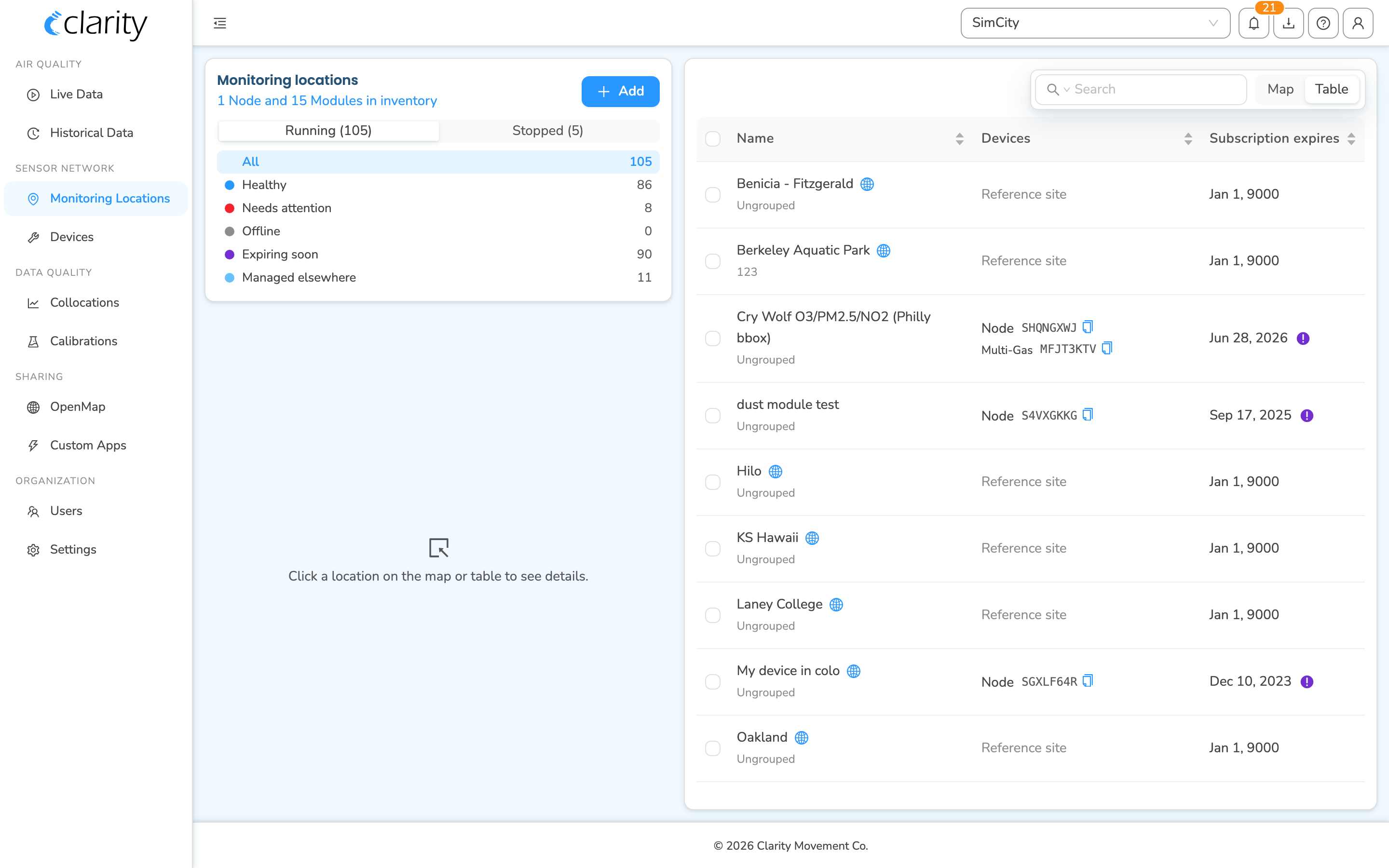
To add to your network, use the + Add button. Depending on your role you'll either pick between Deploy a Clarity node, Pair a module, and Subscribe to a reference monitor, or go straight to the inventory picker.
Configuring (deploying) a node
Configuration assigns a node to a location, creates a new monitoring location to stream its measurements, and establishes secure communication with Clarity Cloud.
To start the wizard, either:
- Scan the QR code on the node, or
- Open Devices, click Configure node in the top-right, and pick a node from inventory, or
- Open Devices → Inventory devices, find the node, and choose Configure node from its ⋮ menu.
The wizard title reads Deploy Node <id>. It opens with a short pre-deployment guide, and you can switch on "fast mode" to skip the guide on future deployments, then walks you through these steps:
- Name the monitoring location: choose a name for the new monitoring location the node will record to. Tip: For field deployments, name it for the site (e.g. "Main Street"). For collocations, use something descriptive like "Collocation at Laney College for A20DDFG4".
- Confirm the location: set the node's deployment site by latitude/longitude. You can type the coordinates, drag the map pin, or use Use my location. Also set Position (Indoor / Outdoor), and optionally Height from ground and Distance from road.
- How is this node powered?: choose the Power source (the default solar panel / power adapter, or an external option). If you pick an external option, enter the Power module ID. A note links to the EPS deployment guide for power-hungry modules.
- Choose a photo: optionally upload a photo of the deployed device to help identify it later.
- Review: the wizard shows a "What will happen" summary. Click Configure to deploy.
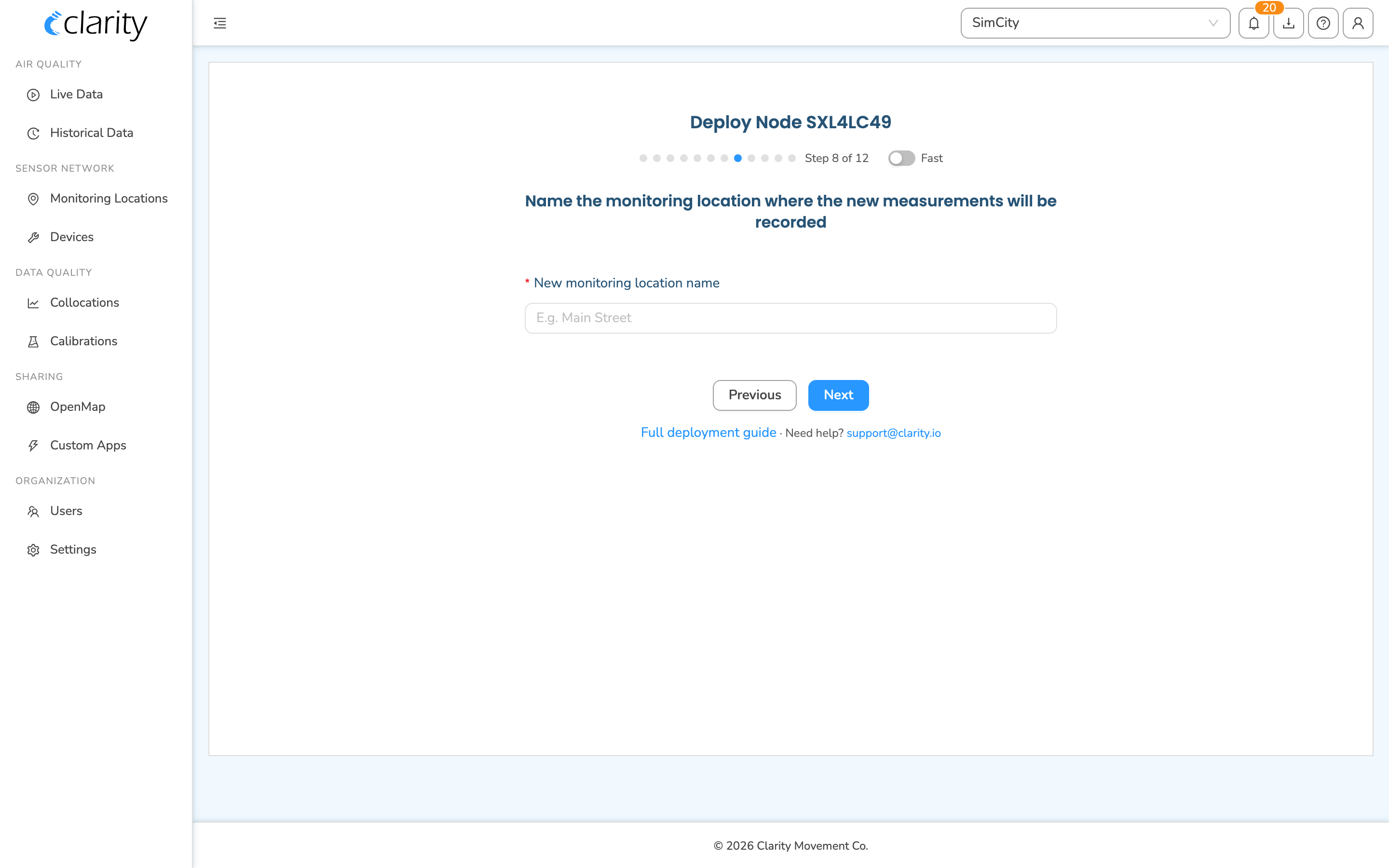
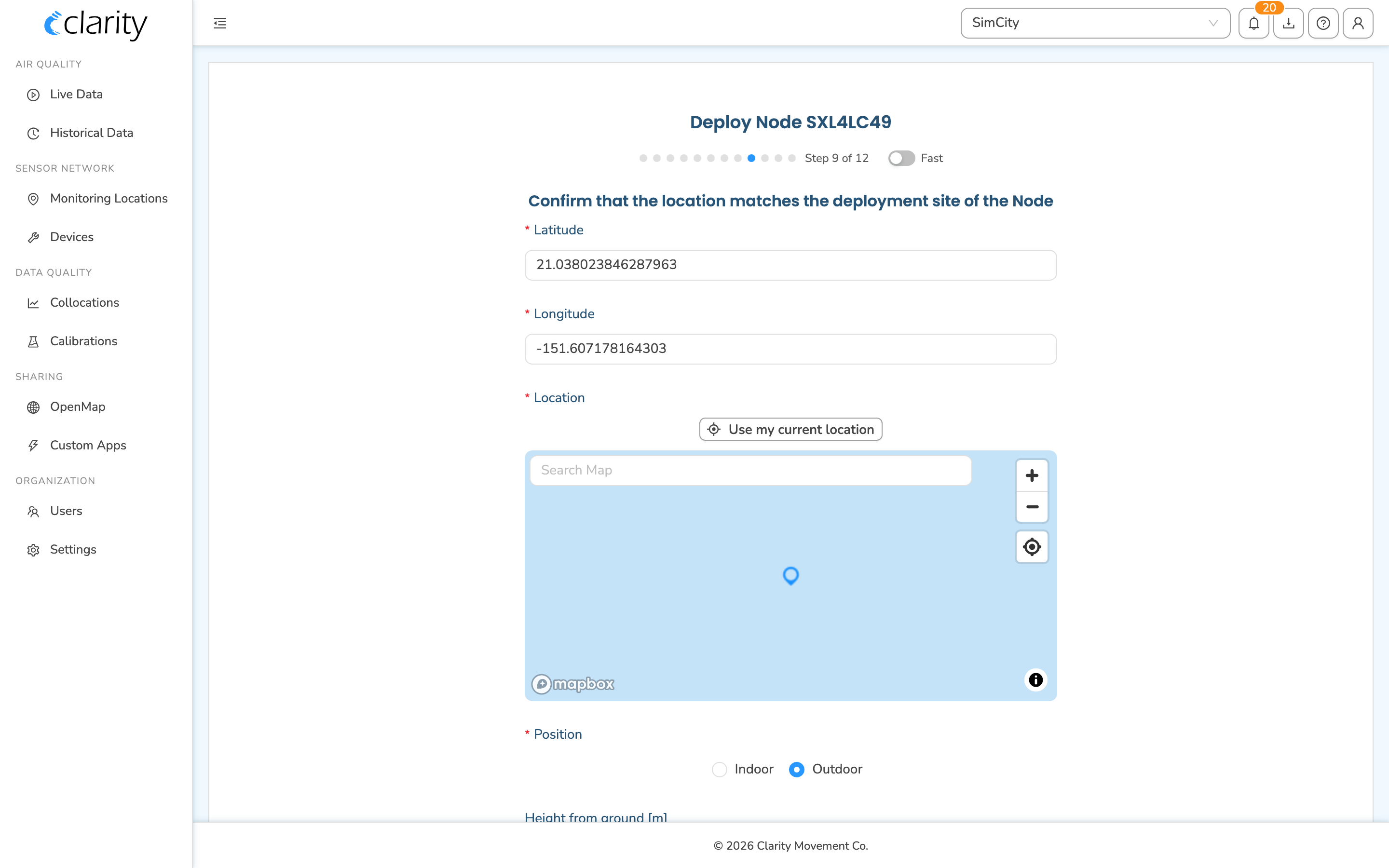
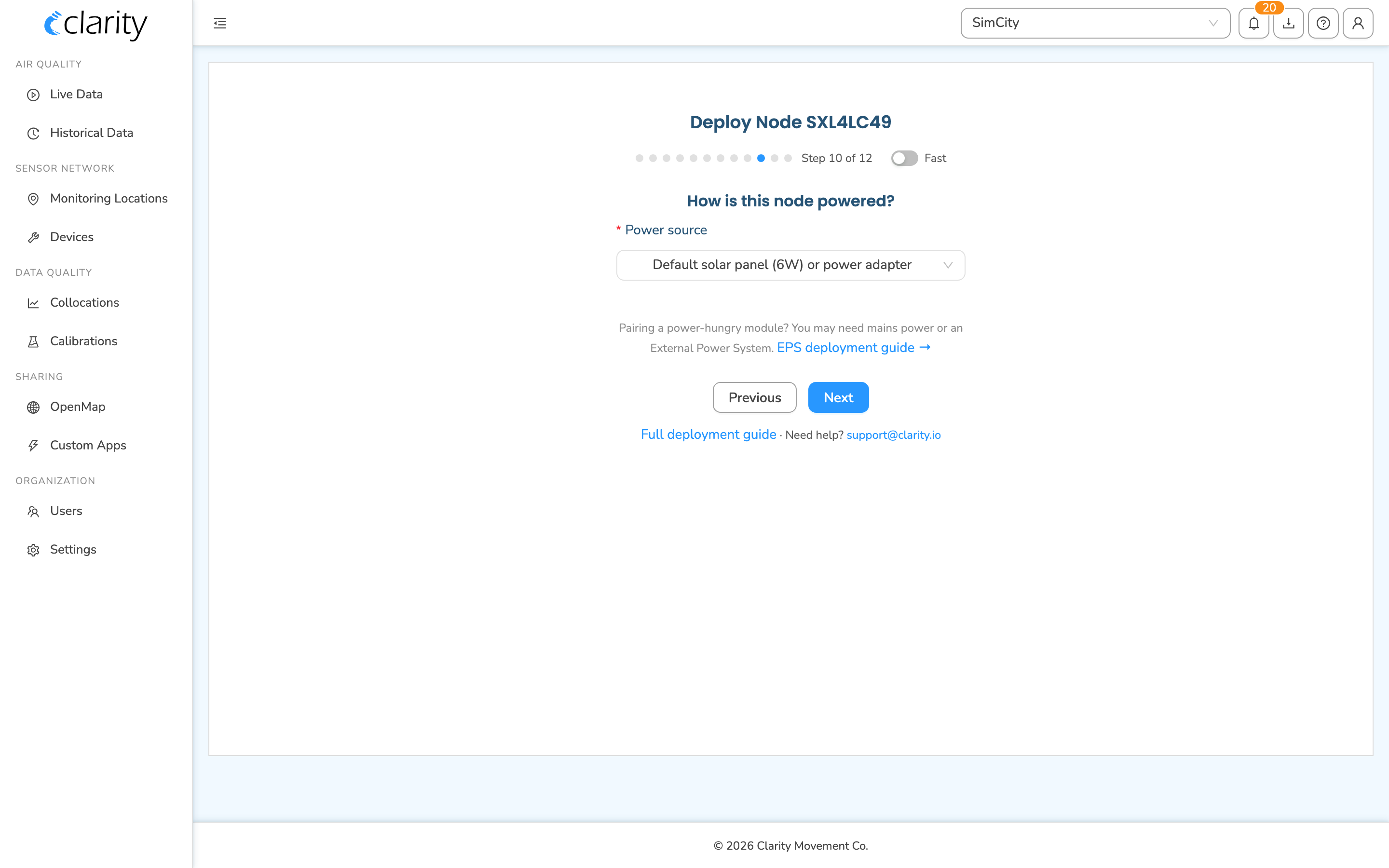
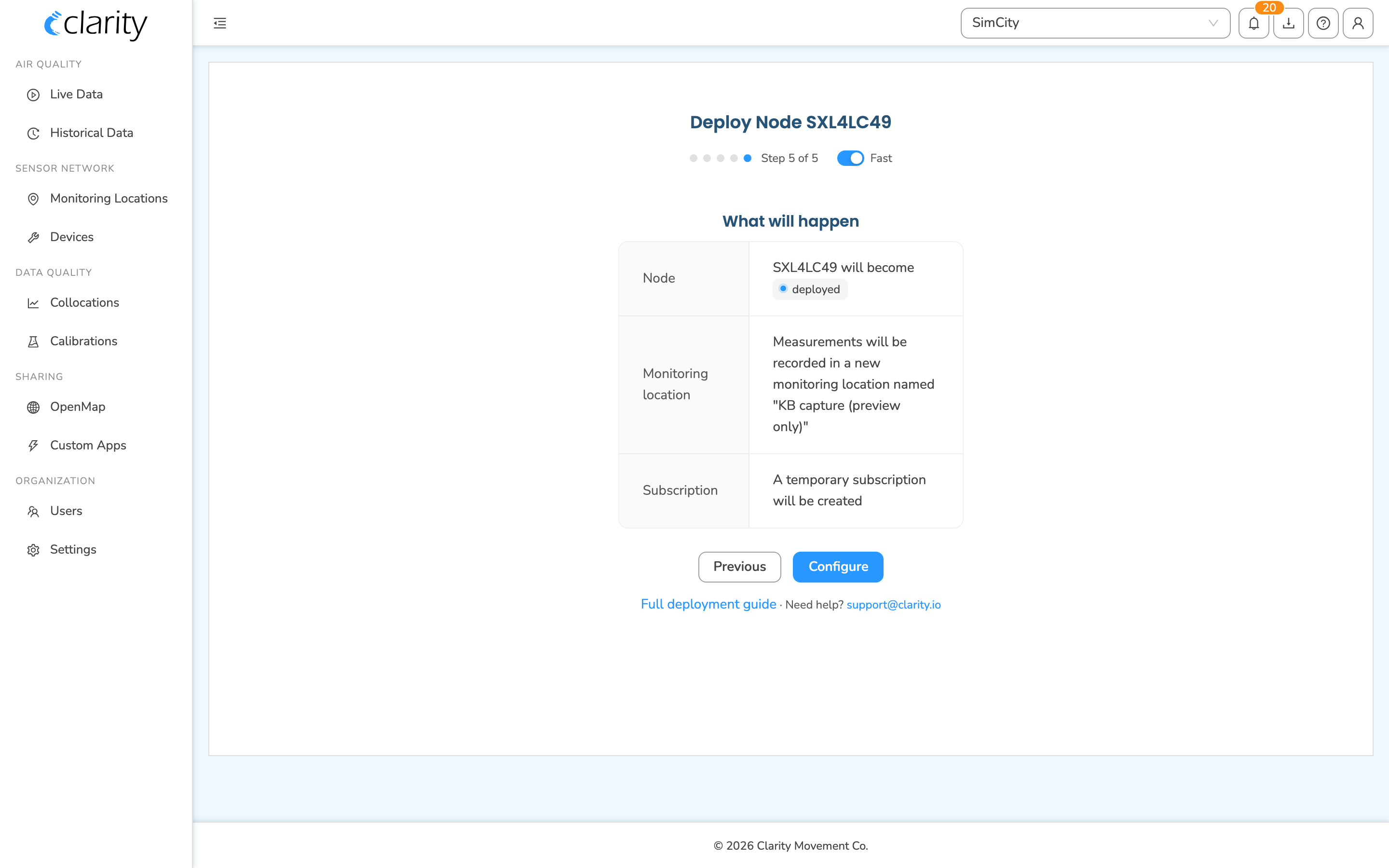
After you submit, the wizard doesn't just confirm, it shows a live deployment status tracker (Configured → Connecting → Receiving data) so you can watch the node come online, plus a "Pair a module?" card if you want to add a module right away. From there, Go to Monitoring Locations takes you to the new location's card.
If you open the configure flow on a node that's already deployed, the wizard shows an "already deployed" view with the live status tracker instead of the deployment form — there's nothing to configure.
Pairing a module
Add-on Modules (Multi-Gas, Black Carbon, Dust, Ozone, Wind) attach to a node to expand what it measures. Pairing happens in a guided Pair module wizard — start it from the Pair module button on the Devices page (or a module's ⋮ → Pair module on the Inventory tab), or pair in place from a node's location card in Monitoring Locations (Devices → Pair / unpair modules). The wizard only lets you pick compatible, available nodes, so it can't create an invalid combination.
For the full walkthrough — every wizard step, pairing from a location card, and unpairing — see Pair a module on Dashboard.
Viewing compatible modules / nodes
To see compatible modules or nodes, use the Devices → Inventory devices tab and the row ⋮ menu:
- On a node: Compatible modules: shows the module types that pair with this node and how many you have available.
- On a module: Compatible nodes: shows which nodes this module can pair with.
For the full lookup — including the reverse check and how compatibility is enforced when you pair — see Checking Node-S and module compatibility.
Lifecycle actions on a location card
Open a node's location card from Monitoring Locations by clicking the location in the table or map, or from the Devices page via ⋮ → Manage monitoring location. The card is where the node lifecycle actions live.
Replace a node
Use Replace to swap out a node, for a fault or end of life, while keeping the location and its history running on the same monitoring location.
- On the location card, in the Devices section, click Replace next to the node row.
- In the Replace node in <location> modal, pick a Replacement node from inventory.
- Review the "What will happen" summary: the replaced node moves to inventory; the replacement is configured at the same location and coordinates.
- Click Confirm.
Edit the node's deployment
Editing is split into focused, in-place edits on the location card:
- Edit name, group, and tags: click the pencil next to the location name in the card header.
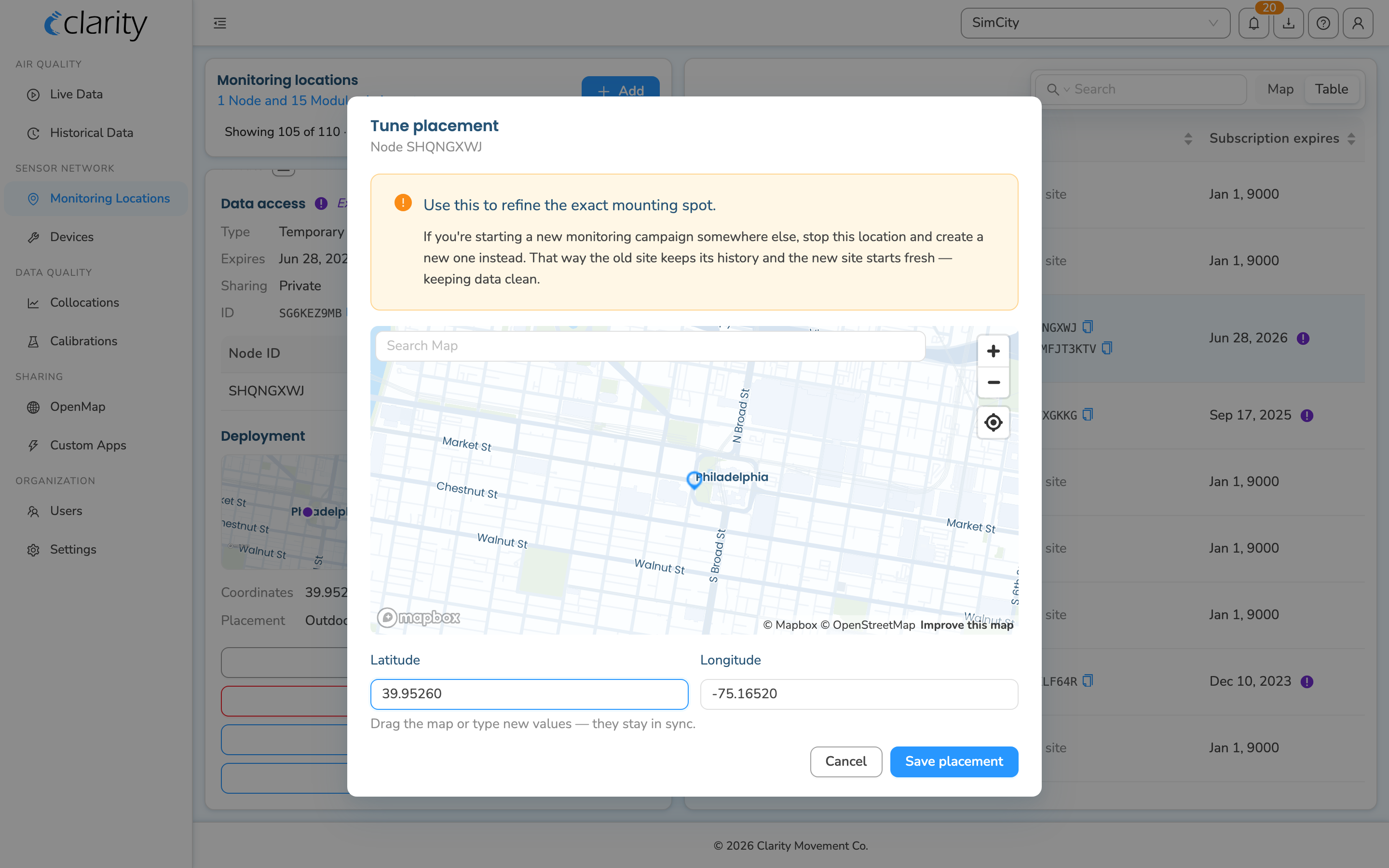
- Tune placement: refine the exact lat/lon mounting spot. Open it from the Deployment section, where it's labeled "Tune placement" with the subtitle Node <id>.
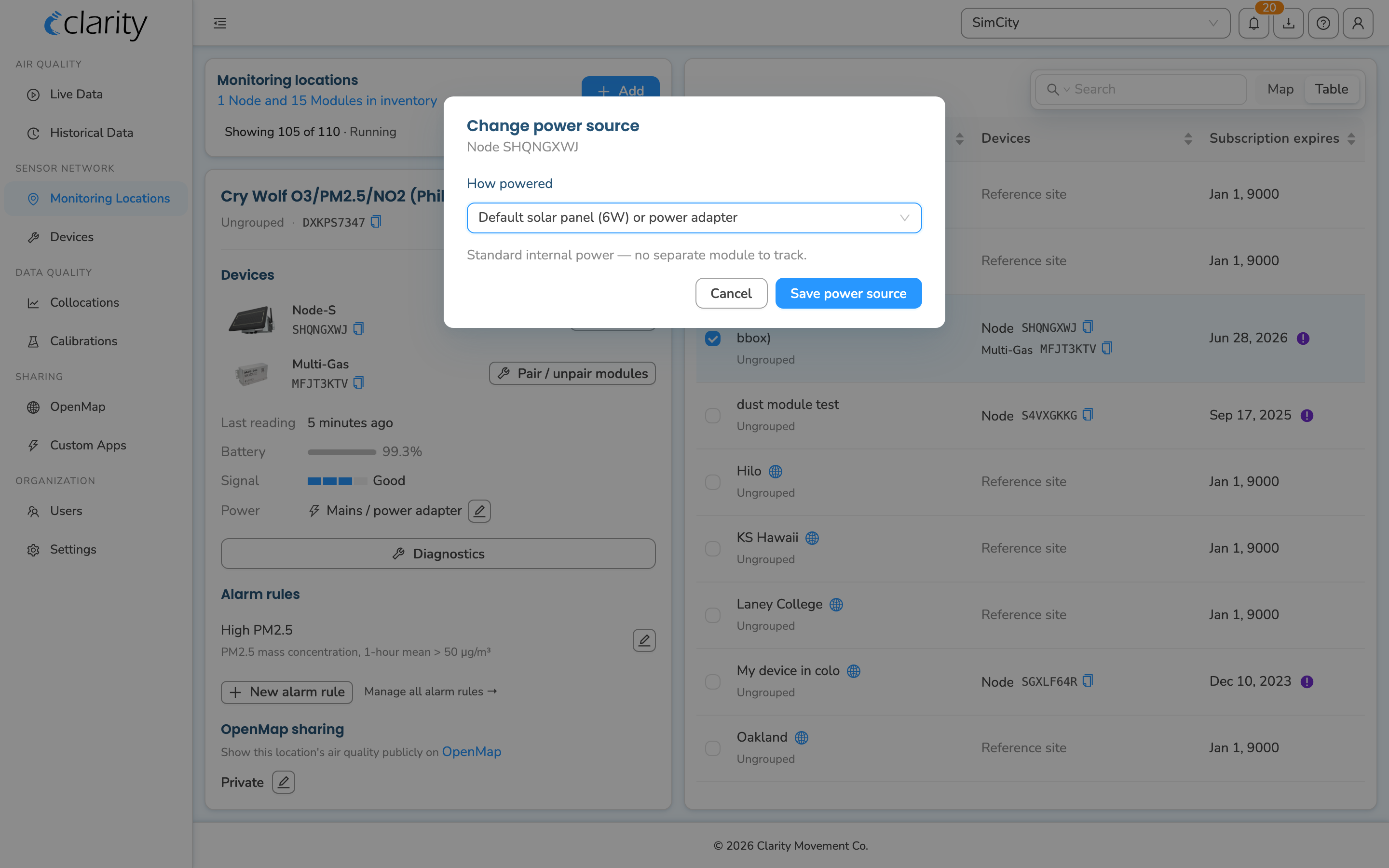
- Change power source: update how the node is powered. Click the pencil next to the Power row in the Devices section. The card flags a mismatch if the node reports a different supply than what's configured (e.g. configured as EPS but running on mains).
Stop a monitoring location and return a node to inventory
Stopping is useful when you want to retire a location or move a node to a new site, so the new site streams to its own fresh location.
- On the location card, click Stop monitoring location, the red button in the bottom actions.
- The Stop recording data modal shows a "What will happen" summary:
- The node moves to inventory.
- The monitoring location becomes stopped and preserves its historical data.
- Any attached subscriptions are detached, and any paired modules are unpaired.
- Expand Good to know for tips (historical data is preserved, you can resume later with any inventory node, etc.).
- Click Confirm.
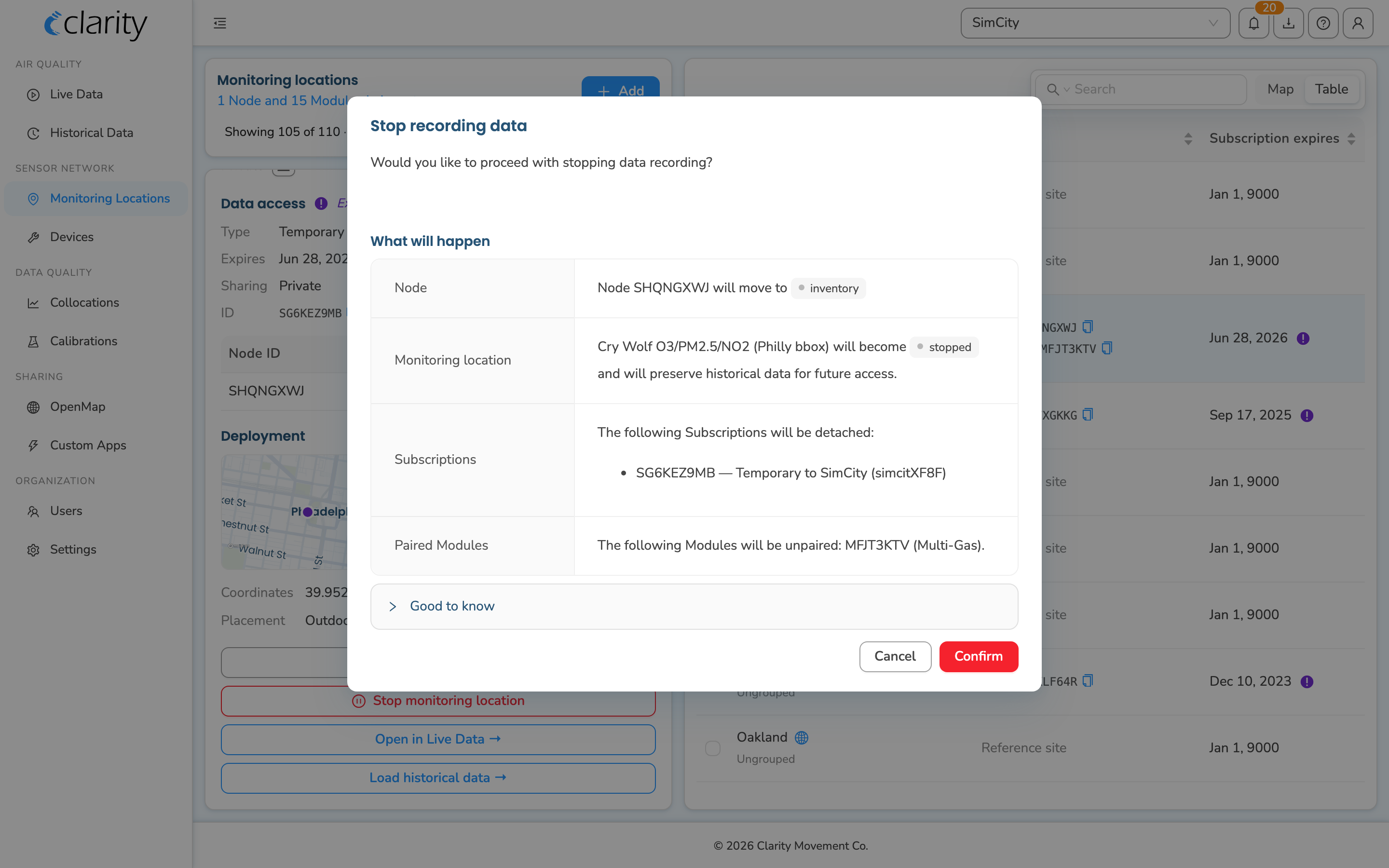
The button on the location card is Stop monitoring location; the confirmation modal it opens is titled Stop recording data.
Resume a stopped location
A stopped location keeps its history and can be brought back online. Filter to Stopped on Monitoring Locations, open the stopped location, and in its Devices section choose Attach node from inventory, which opens the Resume monitoring location modal. You can resume with any node from inventory, it doesn't have to be the original.
Node status and diagnostics
For detailed health information, open the Diagnostics drawer. It's available from:
- A deployed device row on the Devices page, via ⋮ → Diagnostics or the wrench shortcut on unhealthy rows.
- A location card on Monitoring Locations, via the Diagnostics button in the Devices section.
The drawer shows the node's activity histogram, per-sensor and per-module operational status, and alarms, the deep per-node view.
Downloading data
To export a location's measurements, open its card on Monitoring Locations and click Download data.
What's next
Still need a hand? Email us at support@clarity.io or create a support ticket, and our team will get back to you.
Was this helpful?