How do I unpair a Module from a Node-S?
An add-on Module sends its data through the Clarity Node-S it is paired to. After you physically disconnect a Module from a Node-S, you should also unpair it in Dashboard. If you don't, Dashboard keeps the Module "paired" in software and will raise the Module paired but not detected alarm for that node.
Unpairing happens from the location card of the node's monitoring location. The quickest path is to find the location in Monitoring Locations, open its card, and use the Pair / unpair modules control on the Devices section.
Before you start
- You need an org admin or technician role to pair or unpair modules. If those controls are grayed out, ask your org admin.
- Unpairing only removes the software pairing. It does not stop the location or change any subscriptions.
Unpair a Module (recommended path)
-
Log in to the Clarity Dashboard.
-
In the left sidebar, under SENSOR NETWORK, open Monitoring Locations.
-
Find the monitoring location whose Node-S has the Module paired to it. Use the search box at the top-right of the table/map pane, where you can search by location name, node ID (
A…), or the module ID (M…). Select that one location so its card opens in the left-hand panel. -
In the location card, look at the Devices section. You'll see the Node-S row and, beneath it, each paired module. On the first module row, click Pair / unpair modules.
-
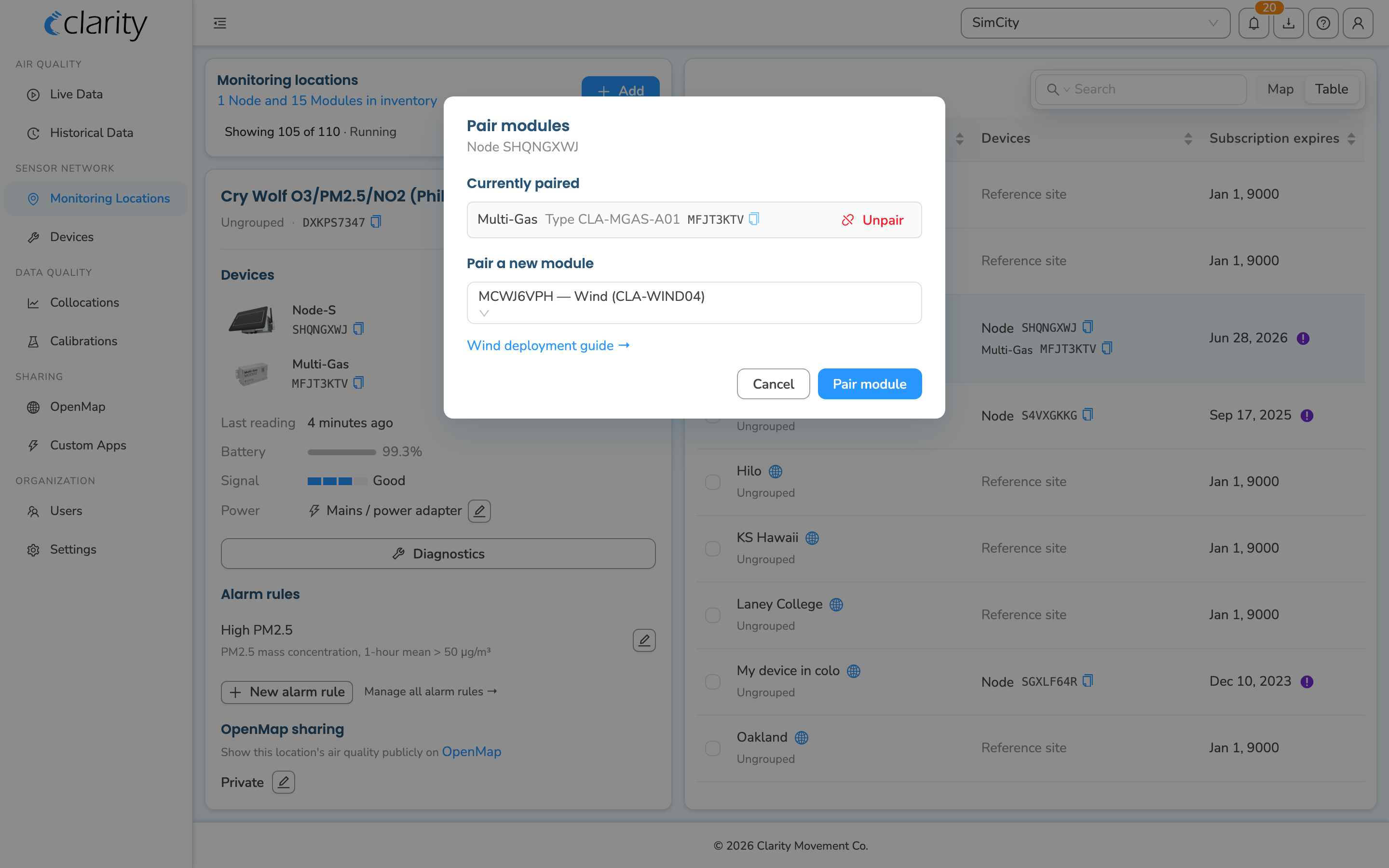
The Pair modules dialog opens, titled with the node ID (e.g. Node A8ZB28CY). Under Currently paired, each module is listed with its name, type, and ID, and a red Unpair button on the right.
-
Click Unpair next to the Module you removed.
-
A confirmation dialog appears: "Unpair <module name> (<module ID>) from this node?" Click the red Unpair button to confirm.
-
Dashboard shows a "Module unpaired." confirmation. The module disappears from the Currently paired list, and the location card refreshes. You can unpair additional modules from the same dialog, or close it when you're done.
Once the Module is unpaired, Dashboard will stop raising the Module paired but not detected alarm for that Node-S.
If the location is stopped or has no module showing
- If the node is not currently deployed to a running location, it lives on the Devices page under the Inventory devices tab rather than on a location card. A standalone module with no node also lives there. The Devices page has no unpair action in its row menu, so to unpair you must work from the node's location card while it is deployed. If the module is already showing as unpaired in inventory, there is nothing further to do.
- If you opened a location card and the Devices section of a stopped location says No node attached, there is no module to unpair there, the pairing is tied to the node, not the location.
What's next
Still need a hand? Email us at support@clarity.io or create a support ticket, and our team will get back to you.
Was this helpful?