How do I find my Organization ID (Org ID) on Dashboard?
Your Organization ID (Org ID) is the unique identifier for your organization on Clarity Dashboard. You'll often need it when contacting support or working with the Clarity API. Here's where to find it.
Find your Org ID
- Log in to Dashboard.
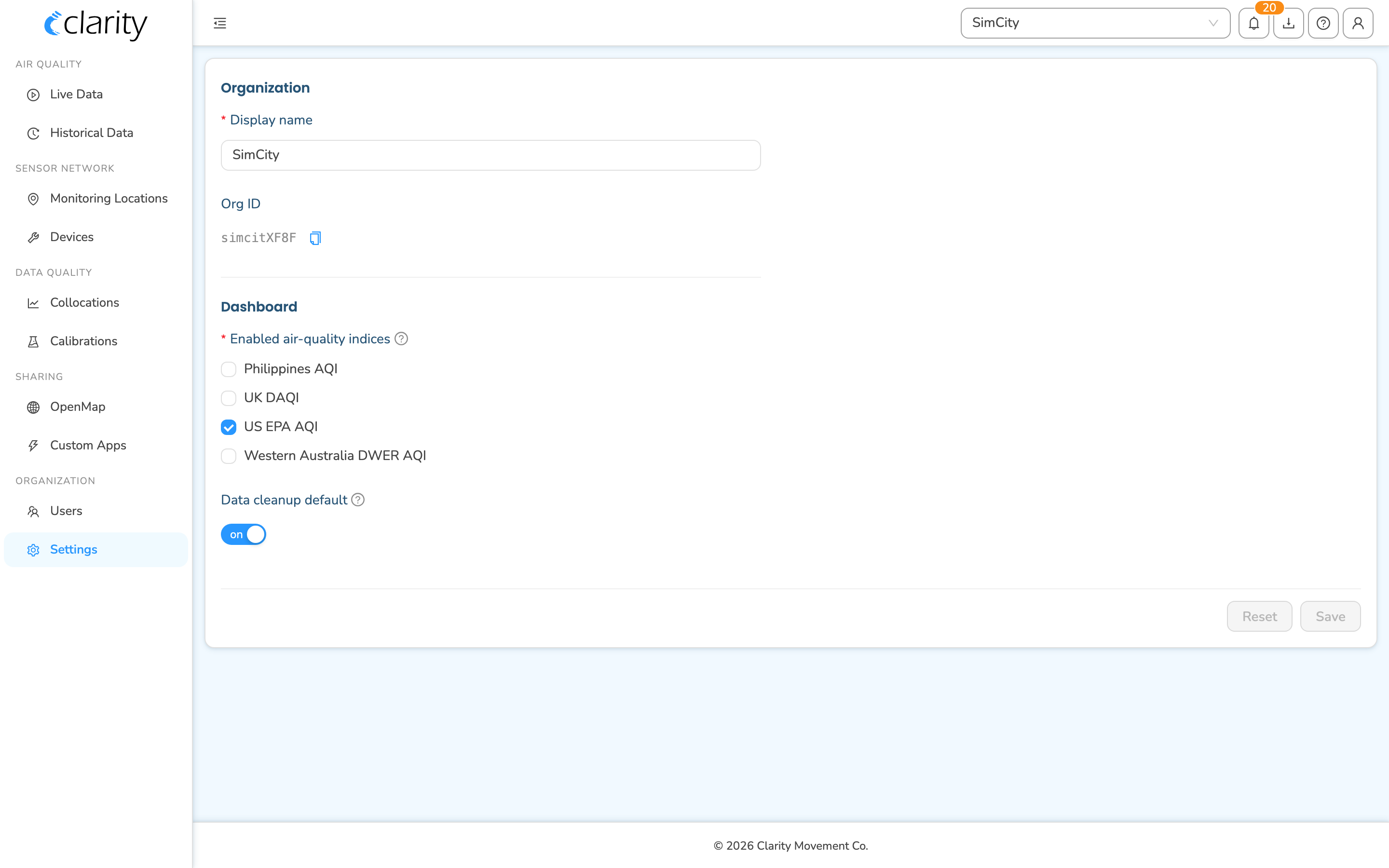
- In the left sidebar, scroll to the Organization group near the bottom and click Settings.
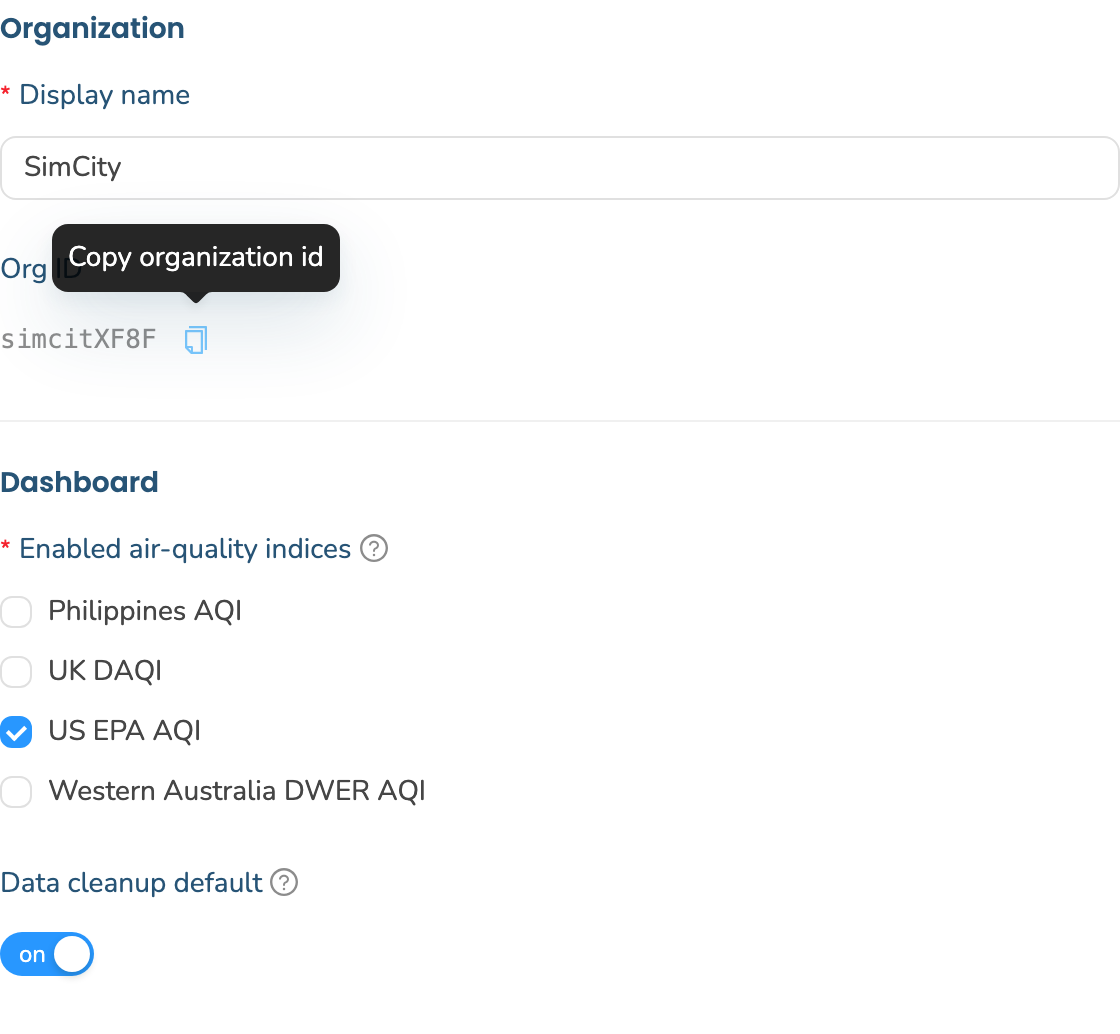
- The Settings page opens on a single card. In the first subsection, Organization, you'll see your organization's Display name and, just below it, the Org ID field.
- The Org ID is shown as a read-only value. Click the copy icon next to it, labeled Copy organization id, to copy the ID to your clipboard.
Good to know
- Settings is admin-only. The Settings page is visible to organization admins. If you don't see Settings in your sidebar, ask an admin in your organization to grab the Org ID for you, or contact Clarity support.
- The Org ID is read-only here, it's an identifier, not an editable setting. You can change your organization's Display name on the same screen, but the Org ID never changes.
- Old links still work:
/organization/settingsredirects to/settings, so any saved bookmark lands you in the right place.
What's next
Still need a hand? Email us at support@clarity.io or create a support ticket, and our team will get back to you.
Was this helpful?