Finding your API key on Dashboard
How to access your personal API key on Clarity Dashboard.
If you are going beyond advanced data analysis and working with our API on an automation or integration project, it might be a good idea to set up an Application instead of using your personal API key. Applications can be managed by Org Admins and can remain active even if a user is removed from the Organization. Details on how to set up an Application and obtain an Application API key can be found here.
Your personal API key lets you programmatically access your Clarity data, run advanced analyses, and integrate it with other platforms. Here is where to find it.
Locate your personal API key
-
Log into your Clarity Dashboard.
-
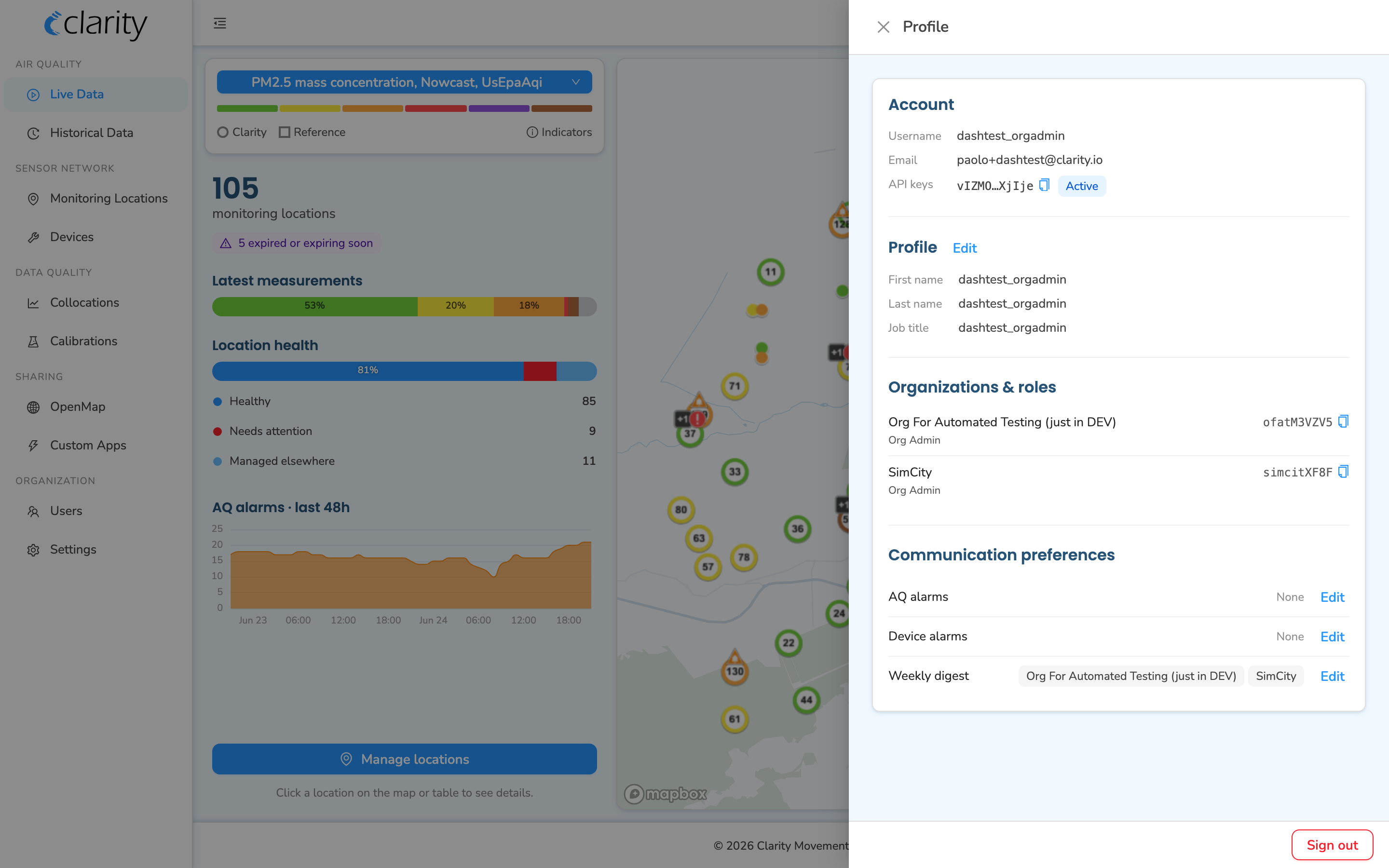
In the top-right corner of the topbar, click the person icon, the last icon on the right, after the alarm bell, downloads, and help icons. Hovering it shows the tooltip "Profile". Clicking it opens the Profile panel, which slides in from the right side of the screen.

-
In the Profile panel, look at the Account section at the very top. It lists your Username, Email, and API keys.
-
Each key is shown masked (for example
abc12…xy789) with a status tag of Active or Disabled beside it. To copy the full key, click the copy icon next to the masked value, and the complete key is copied to your clipboard. The copy icon is only available for keys tagged Active; disabled keys cannot be copied.- If you do not have a key yet, this row reads "No API keys." Contact your Org Admin or Clarity support if you need one provisioned.
-
With your API key, you can now programmatically access your Clarity data, perform advanced analyses, and integrate it with other information on existing or third-party platforms.
Please refer to the API Documentation Guide for more details on how to programmatically access your data.
Good to know
The Profile panel groups everything about your account in one place. Below the Account section you will also find:
- Profile: your first name, last name, and job title, with an Edit link.
- Organizations & roles: the organizations you belong to and your role in each.
- Communication preferences: your email opt-ins.
- A Sign out button anchored at the bottom of the panel.
You do not need any of these to retrieve your API key, it is always in the Account section at the top.
What's next
Still need a hand? Email us at support@clarity.io or create a support ticket, and our team will get back to you.
Was this helpful?