Sharing live air quality data on your website by embedding OpenMap widgets
OpenMap is a ready-made way to share live air quality data with your community right on your own website. This article shows you how to build an embeddable widget, either the full interactive map or a single live reading, and paste it into your site.
Before you start
- Make sure your data is published on OpenMap first. See making your data public on OpenMap.
- You'll need access to edit your website's HTML to paste in the embed code.
1. Open the Widget Builder
This is where you'll design and generate your embed code.
- Go to your map:
- For OpenMap, open map.clarity.io/world.
- For OpenMap Plus, go to your custom white-label map address.
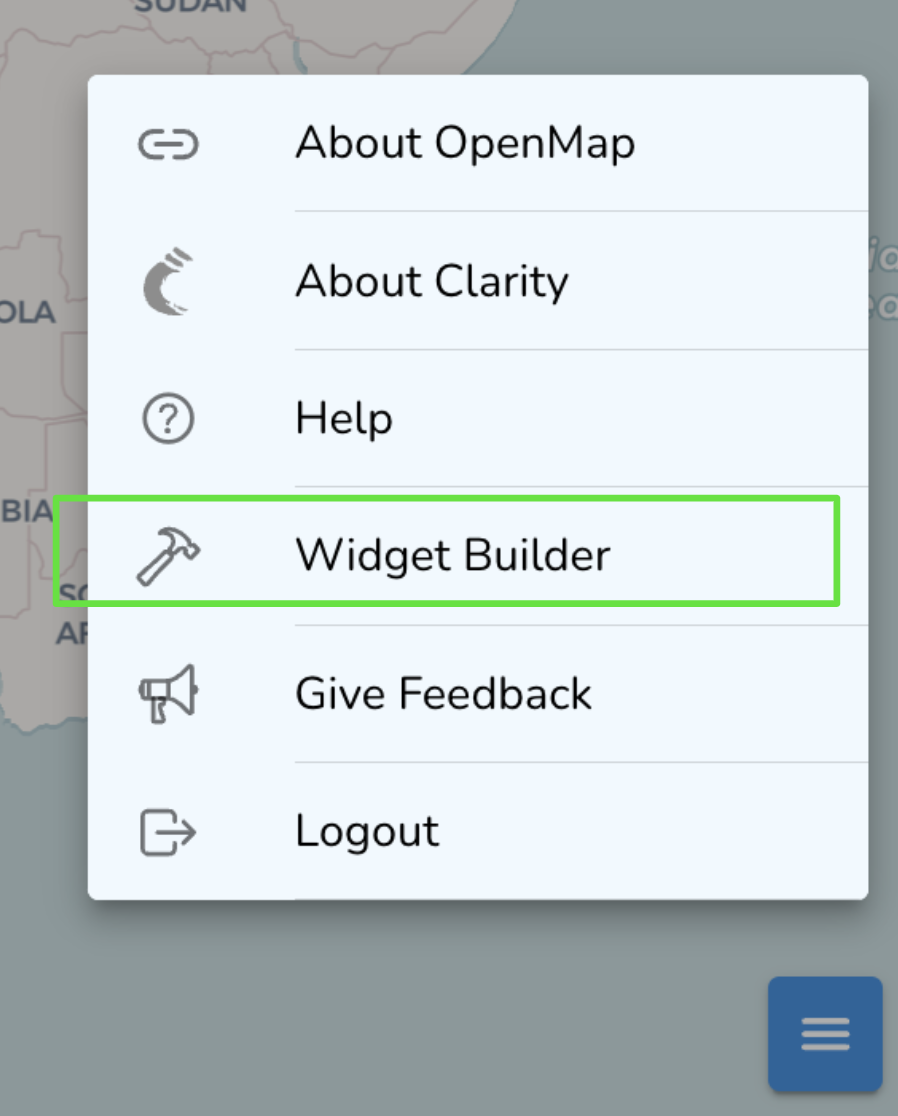
- Click the hamburger menu in the bottom-right corner.
- Select Widget Builder.
2. Choose your widget
Pick the type of widget that fits your site:
- Map: embeds the entire interactive map.
- Current Air Quality: embeds a live reading for a specific Datasource.
3. Customize how it looks
Tailor the widget to your page before you generate the code.
- Use the form to set the widget's width, height, and border.
- For a Map embed, use the preview to zoom, pan, select a Datasource, or search for a location. The embedded map keeps the exact view shown in the preview.
- For a Current Air Quality embed, choose the specific Datasource whose live data you want to show.
4. Copy the embed code
When the preview looks right, click Copy to copy the generated embed code.
5. Add the code to your website
Paste the embed code into the right spot in your website's HTML. The iFrame will appear wherever you place it.
You're done! Your site now shows live Clarity air quality data, updating automatically.
Want something more custom?
If you need more flexibility, you can build your own interface using the Clarity API. It takes some coding, but it lets you create exactly what your project needs. Several projects already run custom public portals this way, including UCLA and Breathe London.
What's next
Still need a hand? Email us at support@clarity.io or create a support ticket, and our team will get back to you.
Was this helpful?