How to change your organization's name on Dashboard
Your organization's name appears throughout Dashboard: in the org switcher at the top of the sidebar, on shared maps and downloads, and on support tickets. If your organization was renamed, merged, or set up with a placeholder, an org admin can update the display name in a few seconds from the Settings page.
Changing the organization name requires admin access. The Settings page is only visible to organization admins. If you don't see it in the sidebar, ask an admin on your team (or contact support@clarity.io).
Quick steps
- Log in to Dashboard.
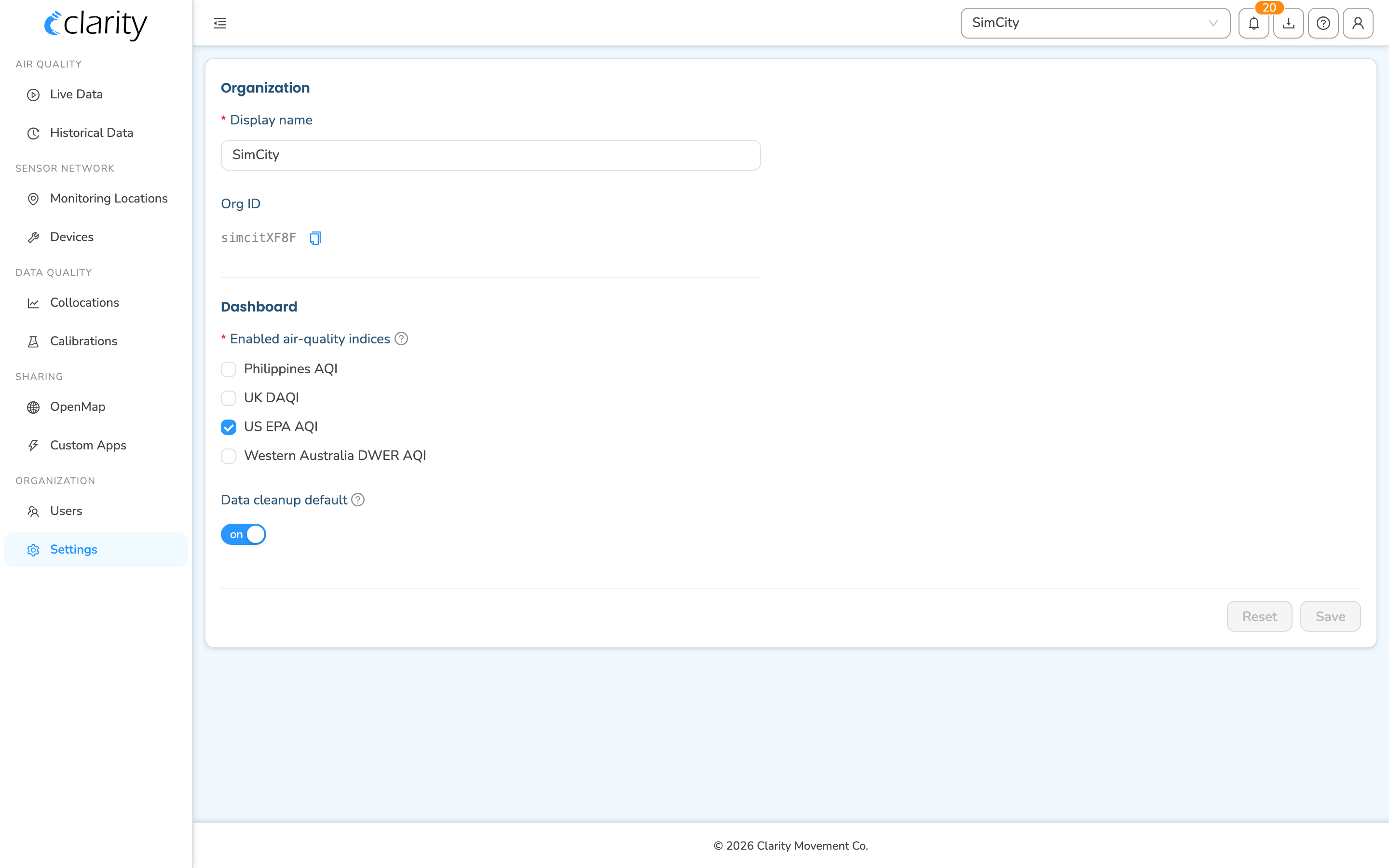
- In the left sidebar, scroll to the Organization group and click Settings.
- On the Settings page, find the Organization section at the top.
- In the Display name field, type the new organization name.
- Click Save in the bottom-right of the card.
That's it: the new name takes effect immediately, and the org switcher at the top of the sidebar updates without a page reload.
Step-by-step
1. Open the Settings page
The grouped sidebar puts organization-level tools together. Look for the Organization group near the bottom of the sidebar, it contains Users and Settings, plus Billing if your org uses funding sources. Click Settings.
You can also go straight there by visiting /<org>/settings in your browser, where <org> is your organization's URL segment.
2. Edit the display name
The Settings page is a single card split into two sections:
- Organization: the Display name field, which is your organization's name, and a read-only Org ID with a copy button.
- Dashboard: organization-wide preferences such as enabled air-quality indices and the data-cleanup default.
Your current organization name is shown in the Display name field. Clear it and type the new name.
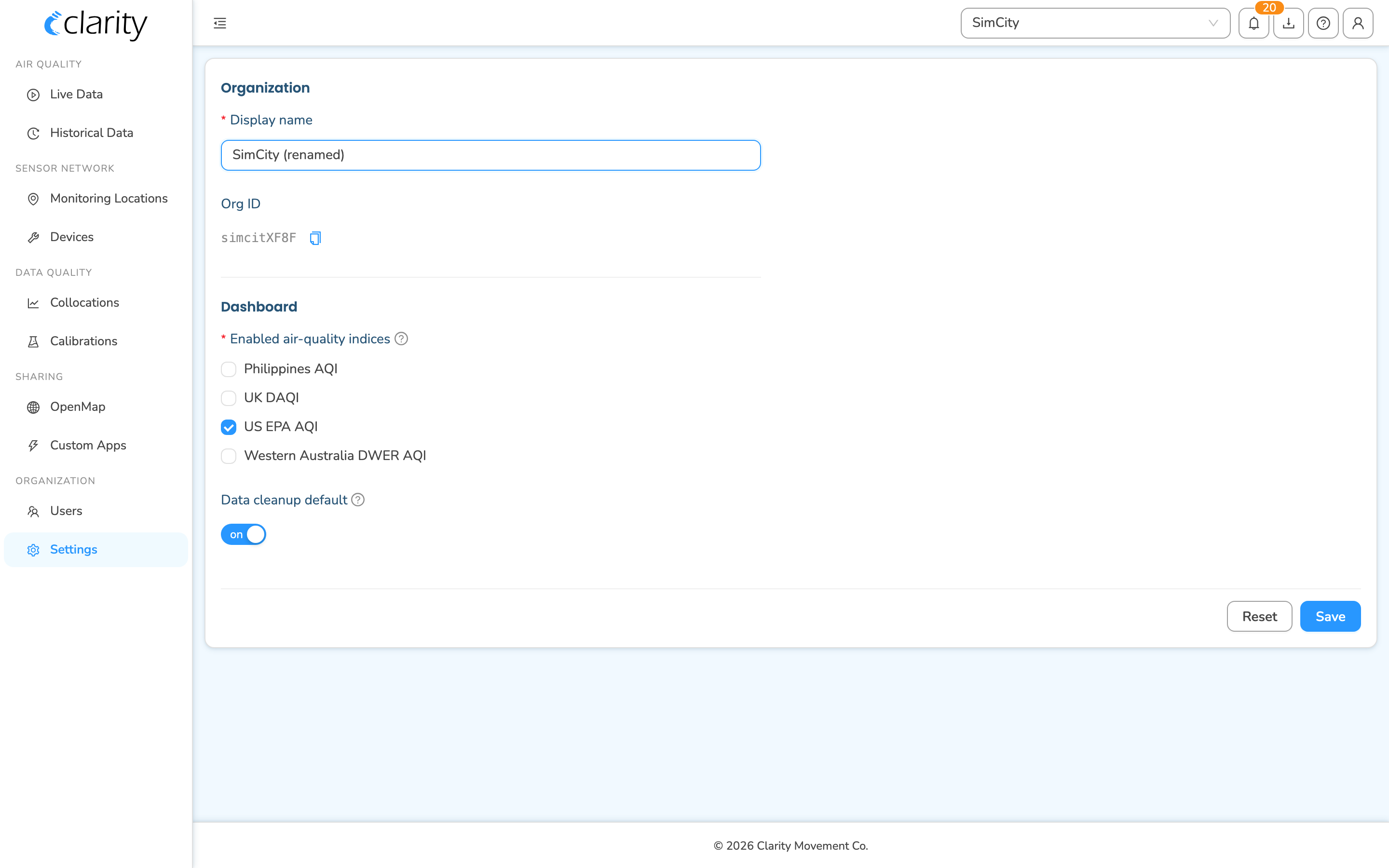
The Org ID next to the display name is a fixed identifier — it does not change when you rename the organization, and it isn't editable. Use the copy button beside it when a support ticket asks for your Org ID.
3. Save
The Save button in the bottom-right of the card stays disabled until you've actually changed something, so you'll know your edit registered when it lights up. Click Save.
- A success message, "Settings saved successfully," confirms the change.
- The new name appears immediately in the sidebar's org switcher; no reload needed.
- Click Reset instead if you want to discard your edits and restore the original values before saving.
Good to know
- Renaming is non-destructive. Changing the display name updates the label only. Your monitoring locations, devices, users, data, and your Org ID are all unaffected.
- The name is shared. Because the display name shows up on OpenMap, custom apps, and downloads, pick a name your audience will recognize.
- One Save covers the whole page. The Organization and Dashboard sections share a single Save / Reset pair, so if you also tweak a Dashboard preference, both save together.
What's next
Still need a hand? Email us at support@clarity.io or create a support ticket, and our team will get back to you.
Was this helpful?