How do I customize CSV file columns when downloading measurements?
When you download a report, you don't have to take the default columns, you can choose exactly which metrics and QC columns to include. This is especially handy when you're using Add-on Modules. This article shows you where those settings live.
So you know: Customizing columns happens inside the report dialog, so start by requesting a report.
1. Open the advanced settings
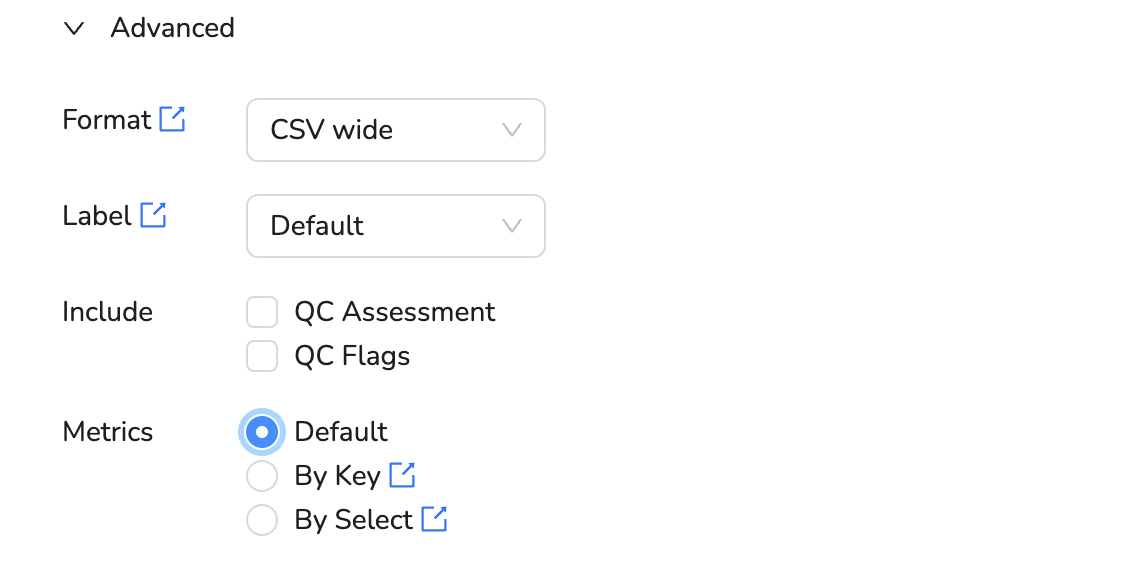
In the report customization dialog, open the advanced settings.
2. Choose whether to include QC columns
For each metric, decide whether to include the QC-related columns, QC assessment and QC flag. These are useful for filtering out invalid data during analysis.
3. Choose which metrics to include
You can pick which monitored parameters appear in the file, important to customize when you're using Add-on Modules. There are two ways:
- By key: a UI where you pick metrics one at a time, split into "recent," meaning measured by your network in the last 48 hours, and "other."
- By select: type a filter string, following the API documentation.
You're done! Your report will now include exactly the columns you chose.
What's next
Still need a hand? Email us at support@clarity.io or create a support ticket, and our team will get back to you.
Was this helpful?