Subscribe to device alarms on Dashboard
How to find device alarms in the Dashboard and subscribe to daily device alarm emails.
What is a device alarm?
A device alarm is raised when one of your devices behaves unexpectedly, for example, it stops checking in, its battery runs low, or a sensor reports a fault. A device alarm is a signal that a node may need to be troubleshooted remotely or serviced in the field.
Device alarms are about hardware health. They are different from AQ alarms, which fire when a measured pollutant crosses a threshold you've configured. The two have separate email subscriptions, and AQ alarms have their own bell icon in the topbar.
You can:
- See live device status and open per-node diagnostics on the Devices page.
- Subscribe to a daily email digest of active device alarms, per organization, from your Profile.
This article covers both, with an emphasis on subscribing to the email digest.
Where to see device alarms in the Dashboard
The live device overview
In the left sidebar, under SENSOR NETWORK, open Devices.
The page opens on the Deployed devices tab, a table of every node you have in the field. The Status column shows each node's health at a glance:
- A blue dot for a healthy node.
- A red dot for a node that needs attention.
- A gray dot for an offline node.
- A "Waiting for first reading" pill for a node that's configured but hasn't reported yet.
Any node that needs attention or is offline also shows a quick wrench (Diagnostics) button right next to its status dot, so you can jump straight into troubleshooting.
Per-device diagnostics, the device alarm detail
To see the detailed status and the list of alarms for a single node, open that node's Diagnostics drawer. There are two ways to open it from the Deployed devices table:
- Click the wrench button next to the status dot on any node that needs attention or is offline, or
- Open the row's ⋮ row-actions menu and choose Diagnostics.
The Diagnostics drawer slides in from the right and shows:
- A title reading Diagnostics with a Healthy, Needs attention, or Offline health pill, then the node and any paired modules.
- A node activity histogram of recent check-ins.
- Operational status for the node and each paired module.
- An Alarms section listing the node's device alarms.
From the drawer header you can Open support ticket or jump to Manage monitoring location for that node.
Subscribe to device alarm emails
Device alarm emails are a per-user notification preference. You opt in per organization, so you only get digests for the organizations you care about.
Notification preferences are per user — they don't affect others in your organization.
Step 1: Open your Profile
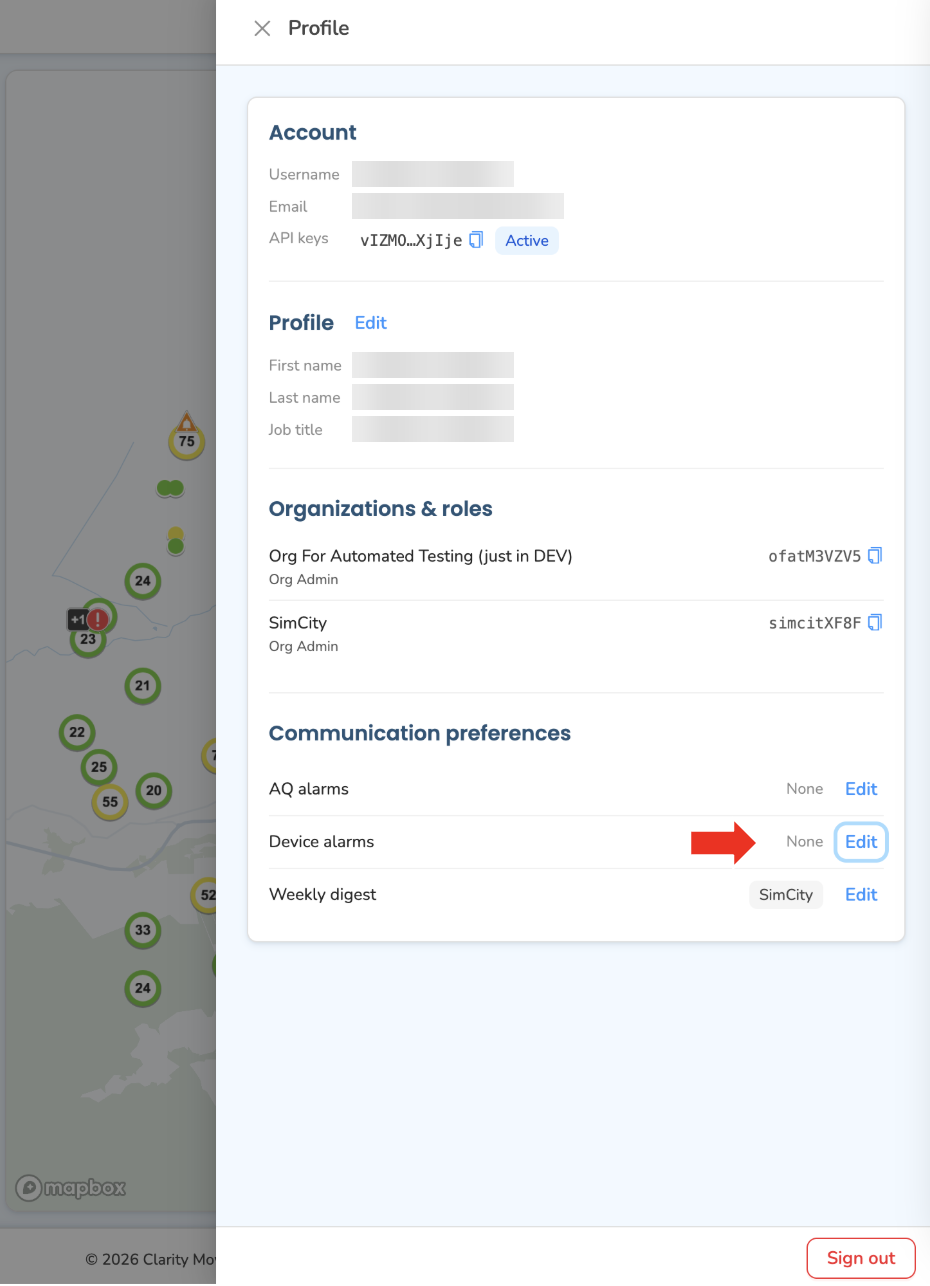
In the topbar at the top right, click the user icon, the person glyph. This opens the Profile drawer from the right. It holds your account details, profile, organizations, and communication preferences in one place.
Step 2: Find Communication preferences
Scroll the Profile drawer down to the Communication preferences section. Above it you'll find Account, Profile, and Organizations & roles.
Communication preferences lists each notification channel as a row:
- AQ alarms
- Device alarms
- Weekly digest
Each row shows the organizations you're currently subscribed to as tags, or None if you're not subscribed to any, with an Edit link on the right.
Find the Device alarms row and click its Edit link.
Step 3 — Toggle the organizations you want
The Device alarms opt-ins modal opens, titled Device alarms opt-ins for <your name>. It lists each organization you belong to, with a switch beside it:
- Toggle on to subscribe to device alarm emails for that organization.
- Toggle off to unsubscribe.
Each toggle saves immediately, you'll see an "Opt-in updated" confirmation. If you can access several organizations, opt in to each one you want separately.
When you're finished, click Done to close the modal.
If you're a guest in an organization, the switch for that org may be disabled — guest users can't subscribe to its communications.
Receiving device alarm emails
If any device alarm is active for an organization you've subscribed to, a daily email digest is sent listing all of that organization's active device alarms. You'll get a separate digest per subscribed organization.
To keep these emails out of spam, add no-reply@clarity.io as a contact.
The email lists each affected device by Device ID and the device alarm type. To investigate, click Visit Dashboard in the email to sign in, then open the Devices page and use the Diagnostics drawer described above to see the full alarm detail for the device.
What's next
Still need a hand? Email us at support@clarity.io or create a support ticket, and our team will get back to you.
Was this helpful?