Deploying your Clarity Node-S (cellular)
- Charge the device for a full 24 hours before deployment. A Node-S that isn't fully charged may fail to complete configuration in the field, or lose power after a few days — resulting in a follow-up visit to the site.
- Keep the solar panel correctly oriented and free of shade, or the Node-S battery will gradually deplete over time.
- Mount the Node-S the right way up to stay weatherproof. The air inlet/outlet must point straight down toward the ground. Incorrect deployment may let moisture into the device and void the warranty.
- No extra SIM card needed — the Node-S ships with an international SIM card pre-installed.
- Questions about deployment? Contact support@clarity.io.
In the box
| Item | Photo |
|---|---|
| 1 × solar panel | 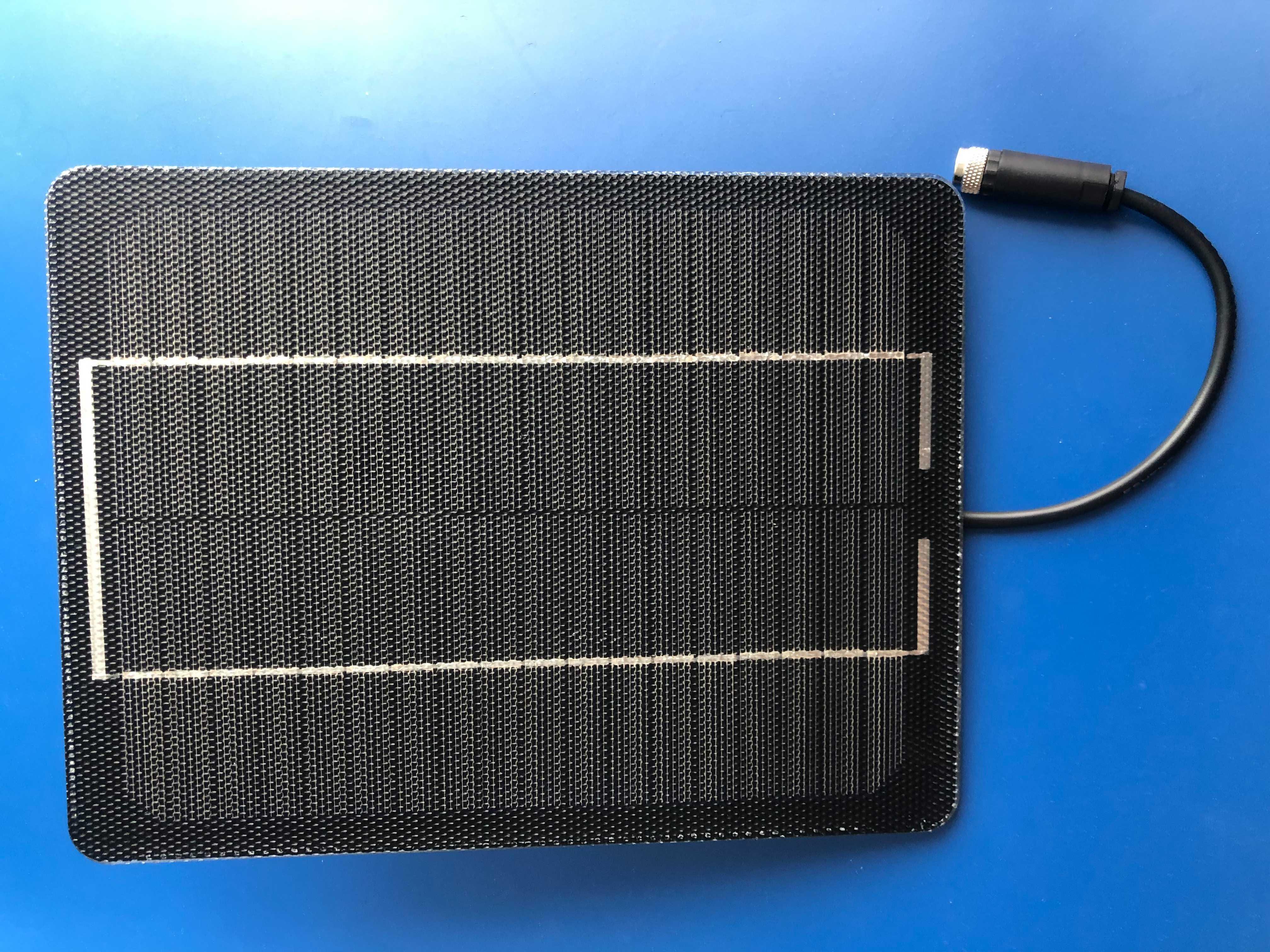 |
| 1 × Clarity Node-S body with 1 solar shield attached | 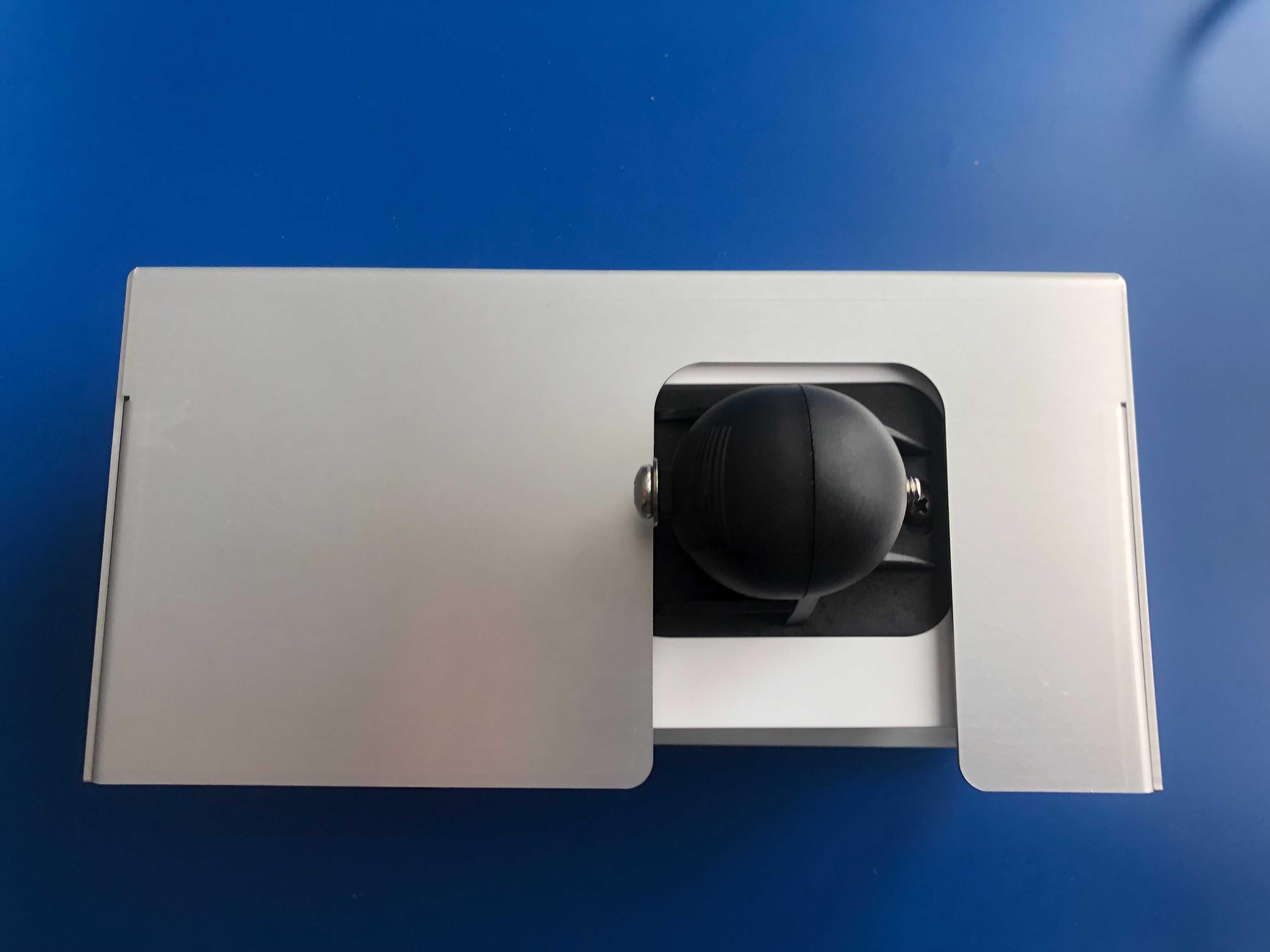 |
| 1 × power adapter with US, EU, UK, and Australia plugs | 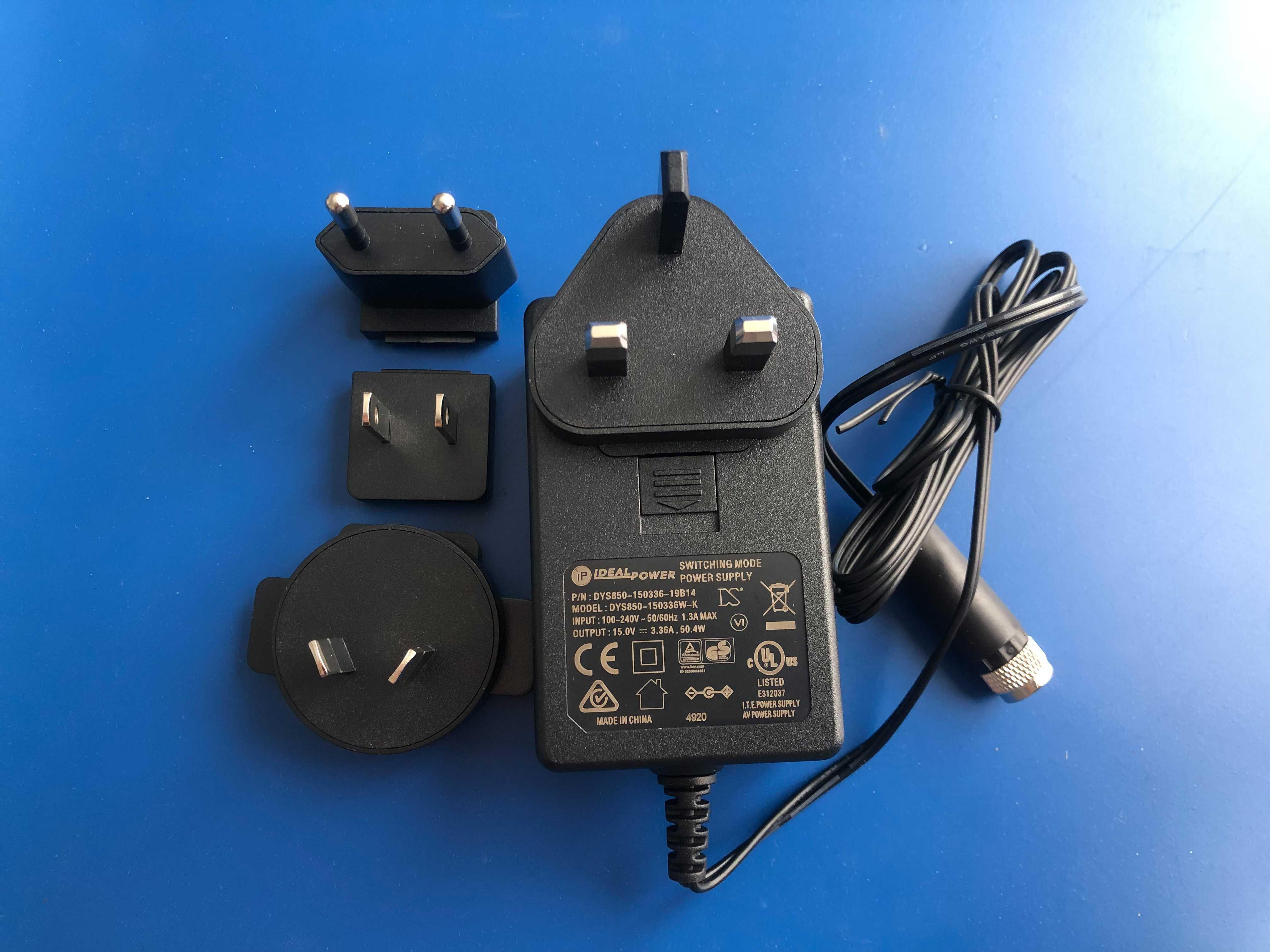 |
| 1 × antenna | 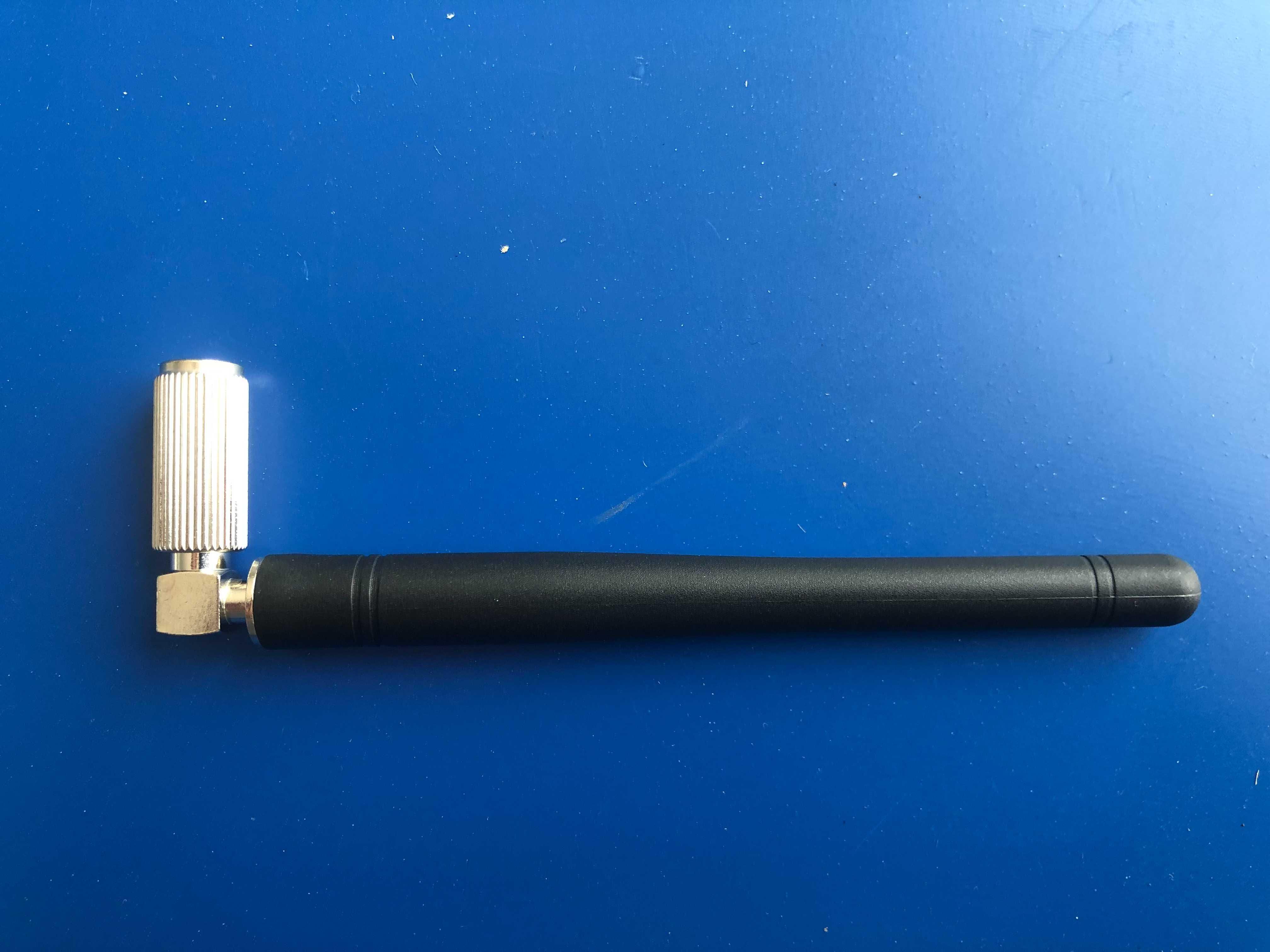 |
| 1 × mounting bracket | 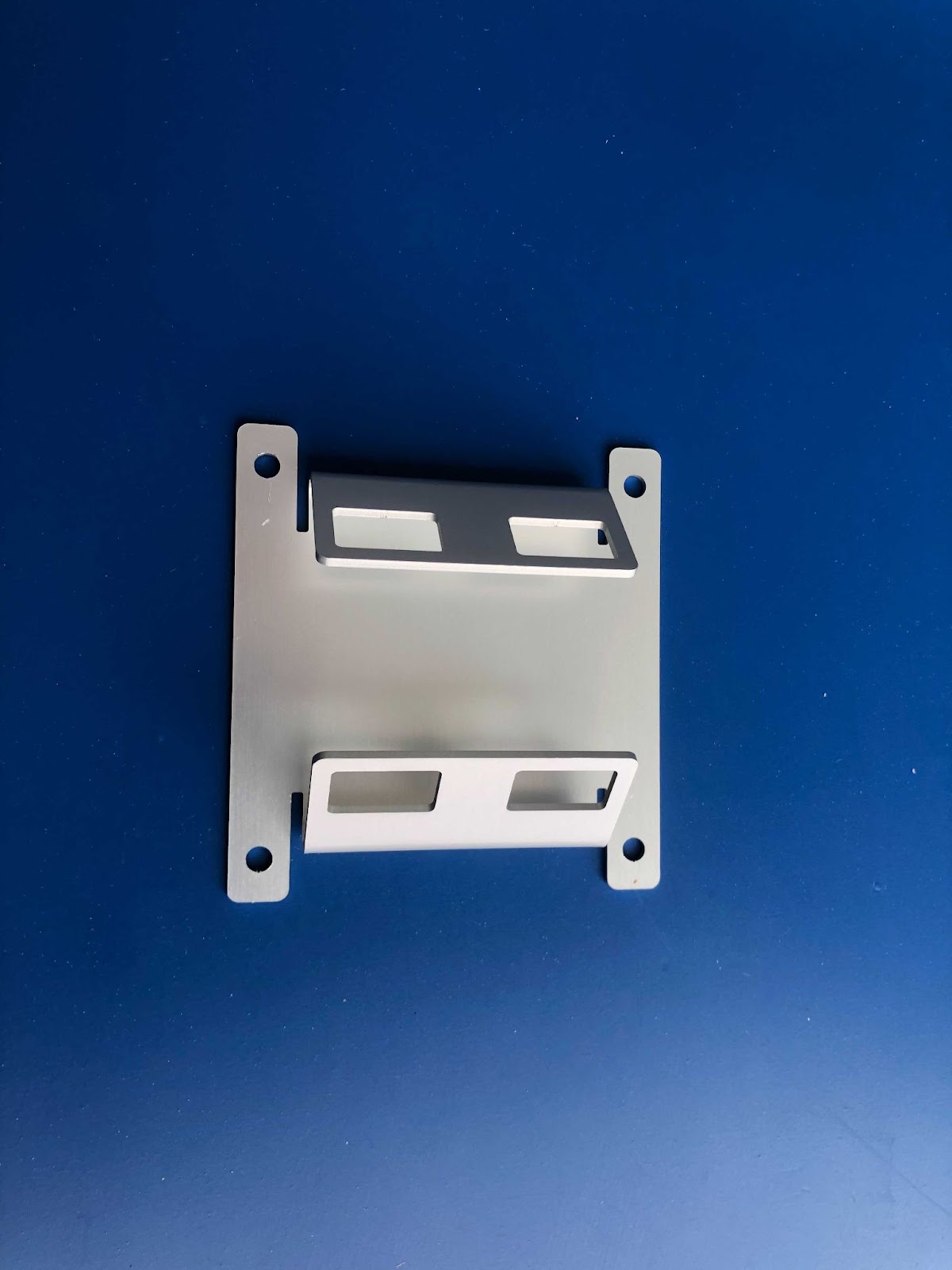 |
| 4 × screws with washers for the mounting bracket | 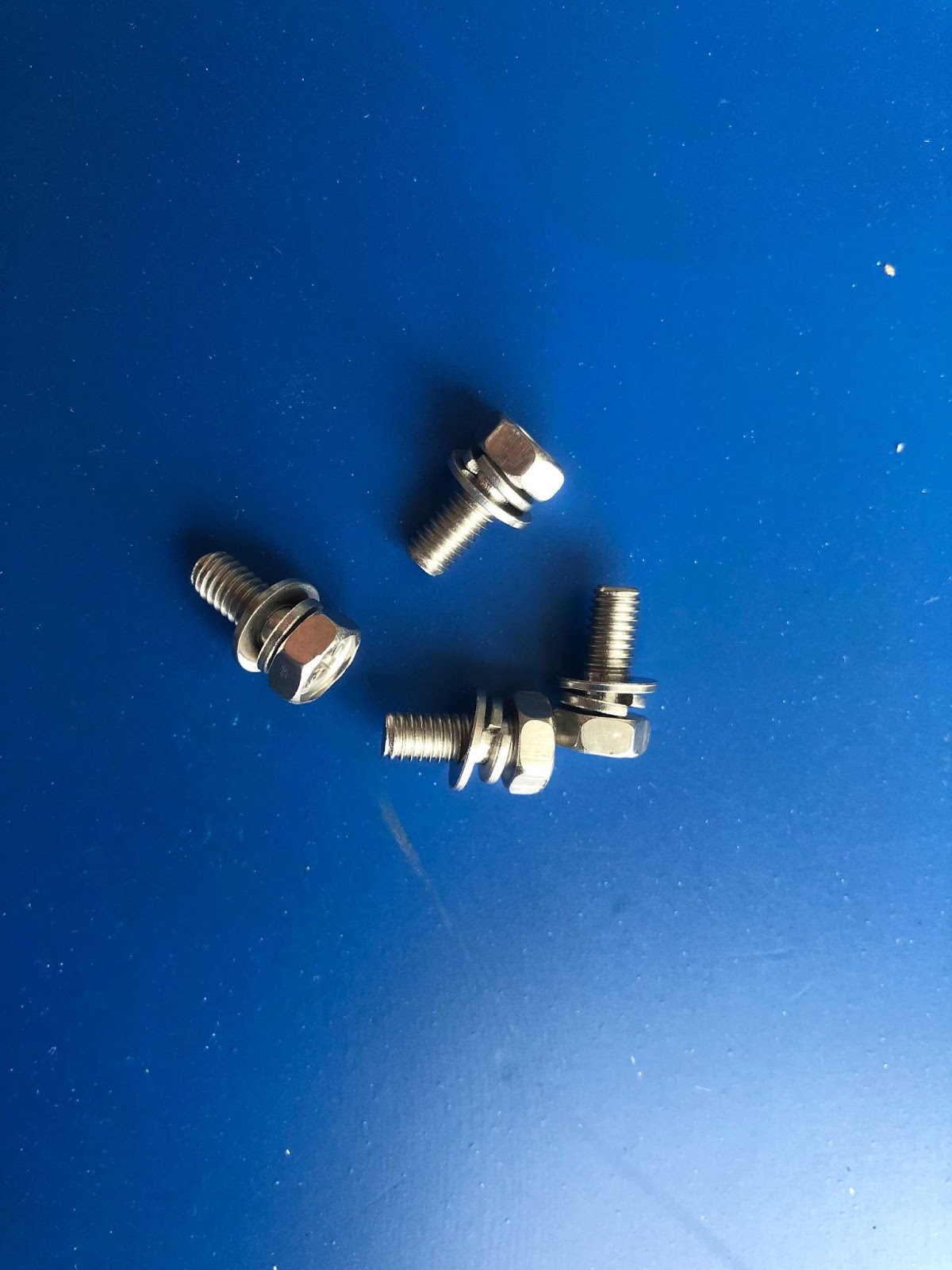 |
| Also needed but not included |
|---|
| A Phillips-head screwdriver |
| Stainless-steel zip ties, hose clamps, binding straps, or screws appropriate for your site(s) |
Assemble the device
| What to do | What you'll see |
|---|---|
| Attach the mounting bracket. The device includes an extra mounting bracket and four (4) screws for securing it to a railing or pole with hose clamps. Rotate and screw the bracket to the Node body to match the direction of the railing or pole. Mounting to a wall instead? Skip the extra bracket and use the flaps on the sides of the shield. | 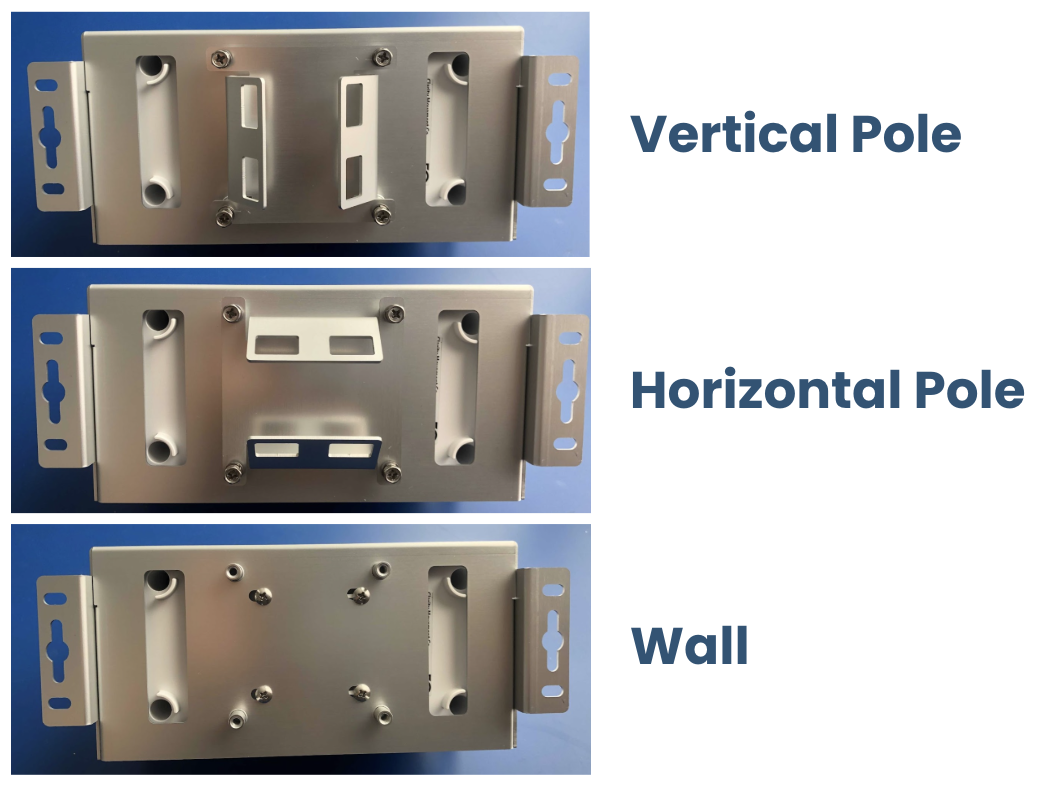 |
| Attach the solar panel. Connect the solar panel to the device, but do not plug the solar-panel cable into the device body yet. | 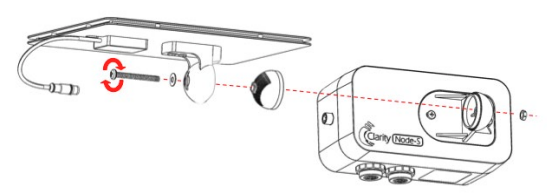 |
| Attach the antenna. Attach the antenna to the device body and orient it upright. | 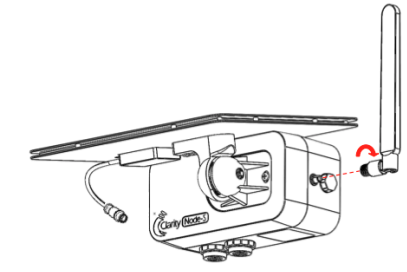 |
What if it doesn't work?
- The bracket won't line up with my pole or railing. Rotate the optional bracket 90° and re-secure it with the screws — it mounts both vertically and horizontally. For a wall or flat panel, skip the optional bracket and use the flaps on the sides of the shield.
- I'm not sure where the solar panel cable goes. Leave it unplugged for now. You'll connect it at the deployment site during the pre-deployment tests — plugging it in early turns the device on and drains the battery.
What success looks like
The bracket, solar panel, and antenna are firmly attached, the antenna points upright, and the solar panel cable is still unplugged from the device body.
Charge the device
Node-S devices must be charged for a full 24 hours prior to deployment. A device that isn't charged before configuration may not complete configuration when deployed.
- Plug the device into an outlet with the provided power adapter. The device plays the Power On sound (single beep). Disregard any subsequent sounds for now.
- Charge for 24 hours. After charging fully — or to store the device — disconnect the external power adapter or solar-panel cable from the device body. Leaving the cable connected keeps the device on and drains the battery.
What if it doesn't work?
- No beep when I plug it in. Try a different outlet and confirm the adapter prongs are fully seated. If it still won't power on, see Troubleshooting power, battery, and charging alarms.
- I hear two low beeps. That's the low-battery signal — keep it charging. See What two low beeps mean.
- It doesn't seem to be charging. Check that you're using the Clarity power adapter (not just the solar panel indoors). For solar charging issues, see Why is my Node-S not charging?
What success looks like
The device played the Power On beep when you plugged it in, and it has charged undisturbed for a full 24 hours.
Configure the node on Dashboard
Configuring on Dashboard is a key step in deploying your Node-S. This assigns a location to your node, creates a new monitoring location for measurement streaming, and establishes secure communication with Clarity Cloud.
Open the configuration wizard
You have three ways to start:
-
Scan the QR code on the bottom of the node. The QR code opens the configuration wizard for that exact node — if you're signed in, Dashboard finds the right organization automatically and lands you on the wizard.
-
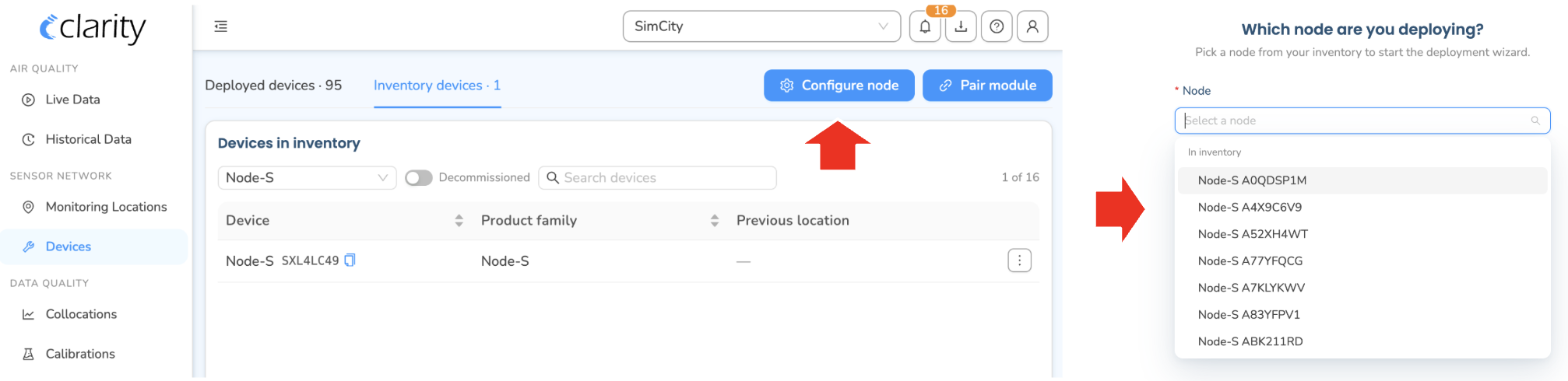
From the Devices page header: Log in to the Clarity Dashboard, open Devices (under SENSOR NETWORK in the left sidebar), and click Configure node in the top-right corner. You'll be asked "Which node are you deploying?" — pick a node from the In inventory group and click Continue.
-
From the Devices page Inventory tab: On the Devices page, open the Inventory devices tab, find the node row, and open the row's ⋮ (Row actions) menu → Configure node.
The Configure node action is available to org admins and technicians. If you don't have a device-management role, the button is disabled with the hint "Requires an org admin or technician role." Contact your org admin if you need access.
Step through the wizard
The wizard is titled Deploy Node <your node ID> and shows a Step N of M indicator across the top. Work through it from the pre-deployment guide to the final review — each step below pairs what to do with what you'll see on screen. Click any screenshot to open it full size.
| What to do | What you'll see |
|---|---|
| Confirm before you start. The opening steps are a short pre-deployment guide — charging, assembly, mounting, and powering on — that ends with this checklist. Done this before? Flip the Fast toggle (top-right of the step row) to skip straight to the form steps; your preference is remembered for next time. | 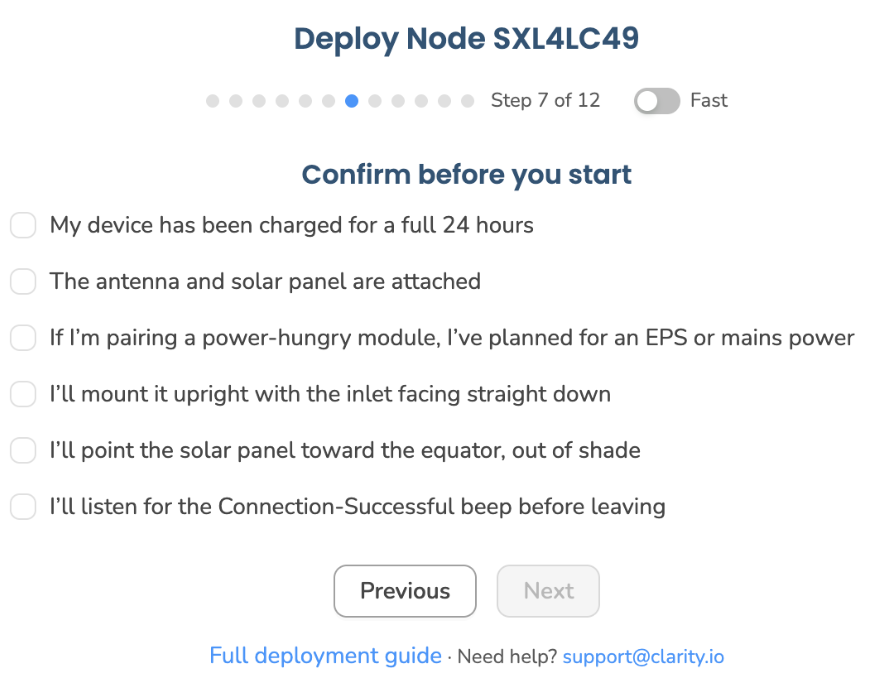 |
| Name the monitoring location. Enter a New monitoring location name — where the node's measurements will be recorded. Tip: name field deployments after the place (e.g. "Main Street"); for collocations use something descriptive like "Collocation at Laney College for A20DDFG4". | 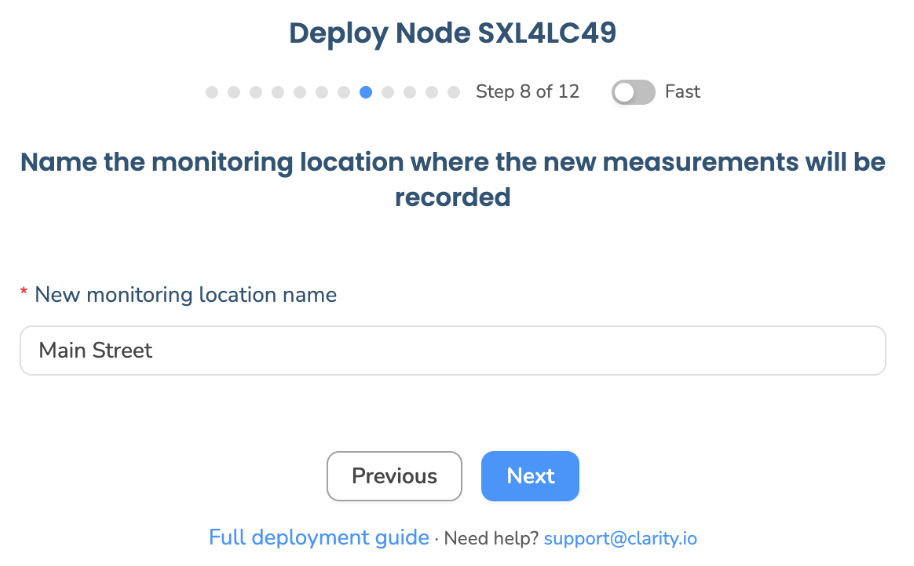 |
| Confirm the location. Set the node's deployment site: enter Latitude and Longitude manually, drag the pin on the embedded map, or click Use my location. Choose Position (Indoor or Outdoor), and optionally enter Height from ground [m] and Distance from road [m]. | 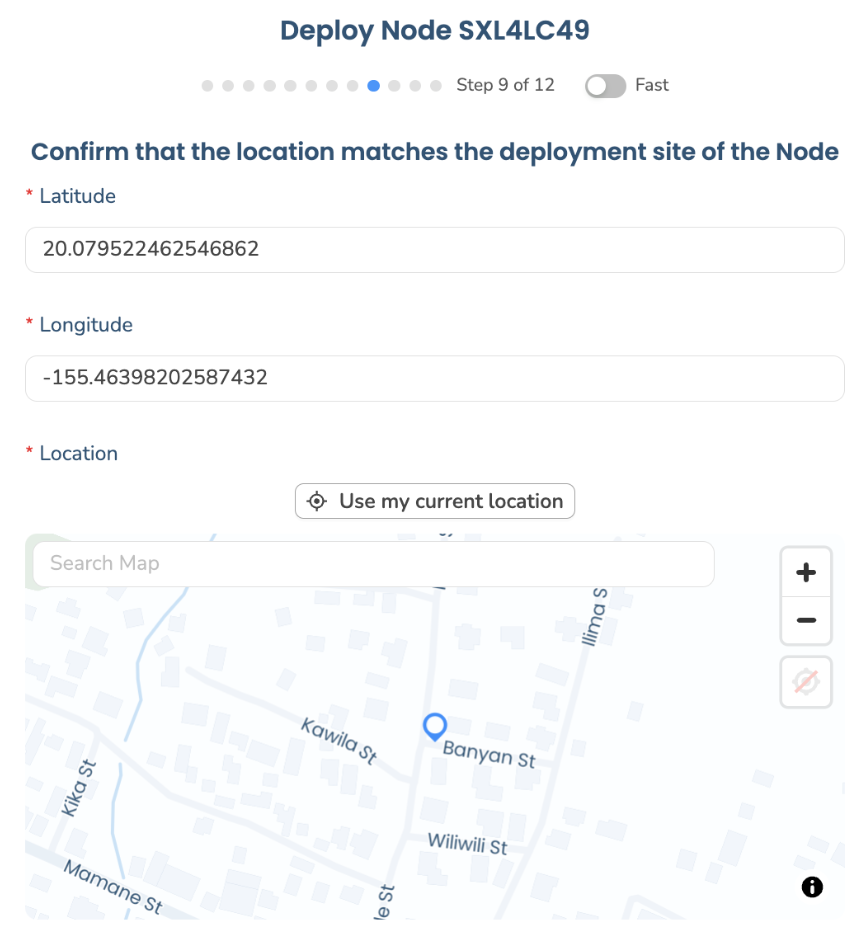 |
| How is this node powered? Pick a Power source. The default is the standard solar panel / power adapter. If you're using Clarity's External Power System (EPS) — used with certain power-hungry add-on modules — choose that option and enter the Power module ID (the serial number on the EPS battery pack). | 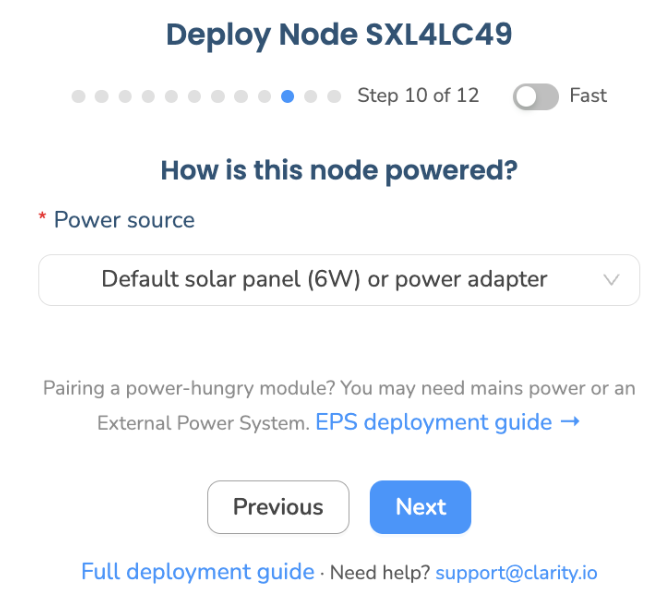 |
| Add a photo (optional). Upload a photo of the deployed device to help identify it later. When you add an image, an edit modal lets you crop and rotate it before saving. | 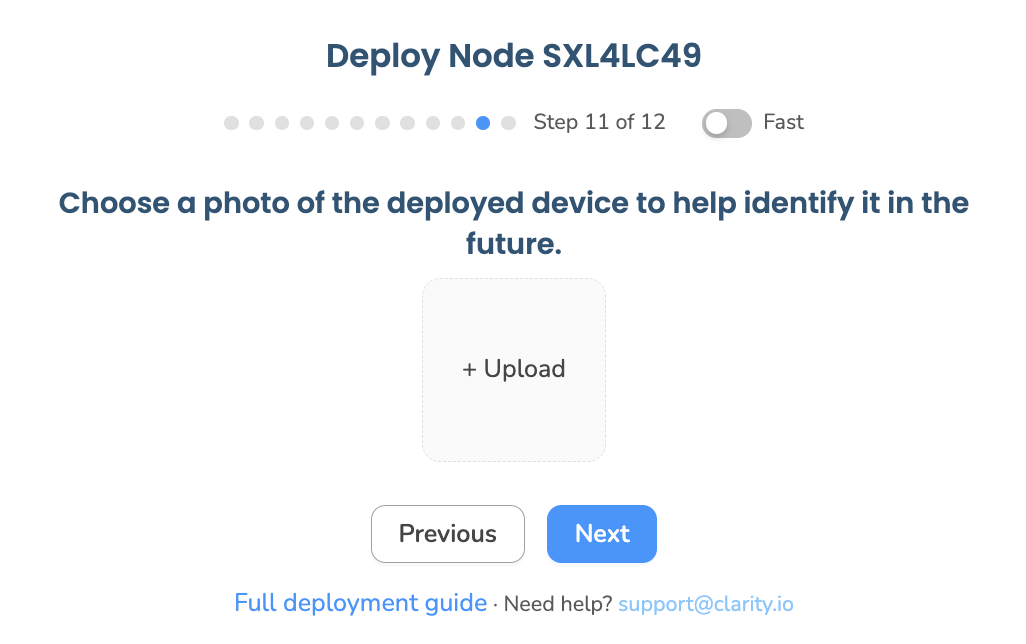 |
| Review and configure. The What will happen summary shows three rows — Node (becomes deployed), Monitoring location (the new location you named), and Subscription (which one is used or created). Click Configure to submit. | 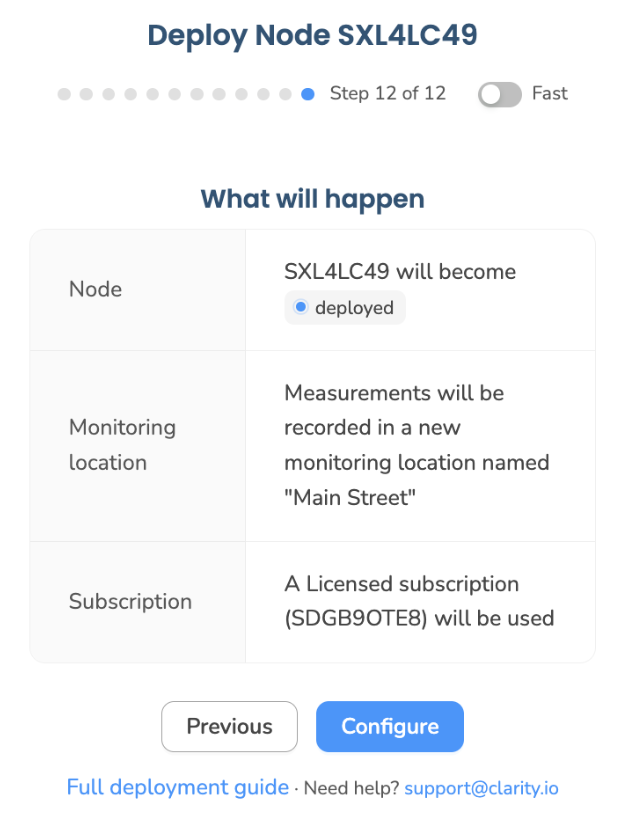 |
For more detail, see the What is a monitoring location guide.
Watch it come online
After you click Configure, the success screen shows a live Deployment status tracker with three stages:
- Configured
- Connecting to Clarity Cloud
- Receiving data
The tracker polls automatically and also shows the last reading, battery, and signal as soon as they arrive — usually within 2–20 minutes depending on cellular strength. You don't need to keep this screen open; data keeps flowing either way. When you're done, click Go to Monitoring Locations.
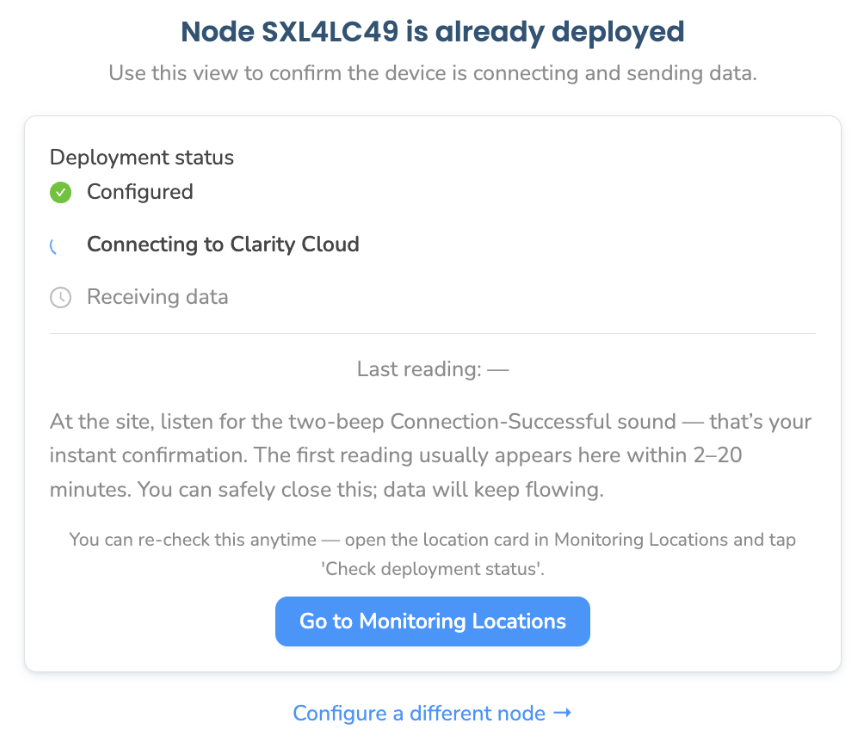
You can re-check this status anytime: open the location card in Monitoring Locations and click Check deployment status.
What if it doesn't work?
- The node isn't in the "In inventory" group. Confirm you're signed in to the right organization (check the Org Selector at the top right) and that the node hasn't already been configured (look in the Deployed devices tab). If it's still missing, email support@clarity.io with the node ID.
- The Configure node button is disabled. It requires the Technician or Org Admin role — contact your org admin for access.
- Scanning the QR code doesn't open the right node. Sign in to the Dashboard first, then start the wizard from the Devices page instead (Configure node in the top-right corner).
- I don't know the latitude/longitude. Drag the pin on the embedded map or click Use my location — you don't need to type coordinates by hand.
What success looks like
You clicked Configure and the Deployment status tracker appeared, showing the Configured stage and the monitoring location name you entered.
Have a module to add?
If your node uses an add-on module, the success screen also offers a Pair a module? card with a Pair a module button and quick links to each module family's deployment guide. You can also pair later from the Devices page (Pair module in the header, or a module's ⋮ menu → Pair module).
Pre-deployment tests
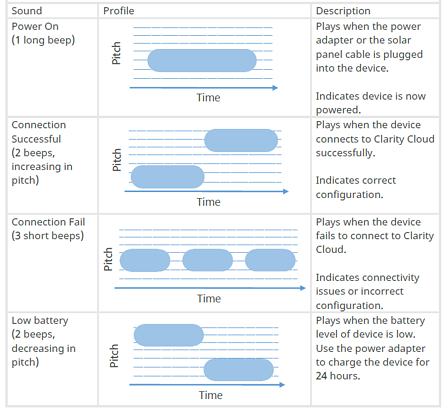
At the deployment site, plug the solar-panel cable or mains-power connector into the device. The device plays the Power On sound and attempts to connect to Clarity Cloud. Listen for the result:
- Connection Failure (beep beep beep): Confirm the device has been configured on Dashboard first. If that doesn't resolve it, contact support@clarity.io.
- Low Battery sound: Charge the device for at least 24 hours before continuing.
- Connection Successful sound (two beeps): Proceed to deploy the device.
After a successful connection, wait for the first data point to reach the cloud and appear on Dashboard — anywhere from 2 to 20 minutes depending on cellular strength. The fastest way to confirm this is the Deployment status tracker (open the location in Monitoring Locations → Check deployment status). You can also see a node's freshness in the Last check-in column on the Devices page (Deployed devices tab).
What if it doesn't work?
- I hear the Connection Failure sound (beep beep beep). Confirm you configured the node on Dashboard before powering it at the site. If it was configured, the issue is usually signal — see Troubleshooting a weak signal alarm.
- I hear the Low Battery sound. Charge the device for at least 24 hours, then try again.
- It connected, but no data after 20 minutes. Check the Deployment status tracker and confirm you're looking at the right monitoring location. See Confirming your device is uploading data.
What success looks like
You heard the Connection Successful sound, and within about 20 minutes the Deployment status tracker reaches Receiving data (the Last check-in column on the Devices page shows a recent time).
Deploy the device
- Mount the device to a pole or wall using stainless-steel zip ties, hose clamps, binding straps, or screws appropriate for your site (not provided). Make sure the inlet and outlet face downward and are unobstructed, with at least 250 mm / 10 in of clearance below the inlets.
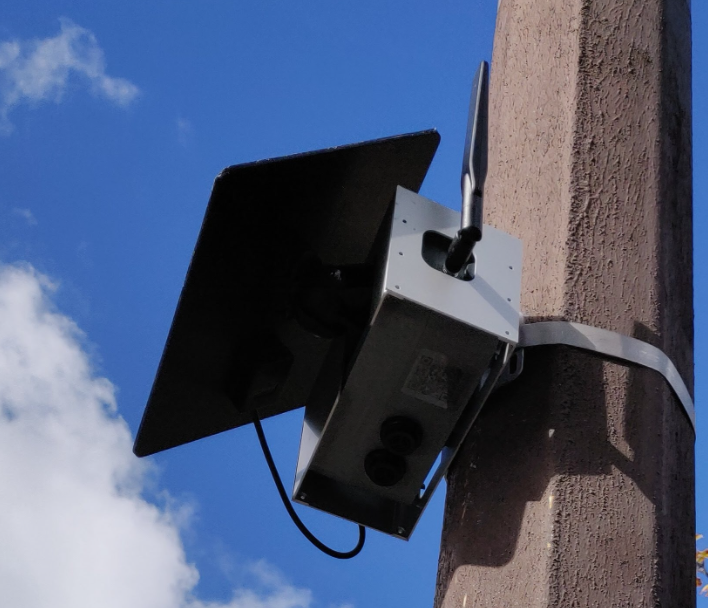
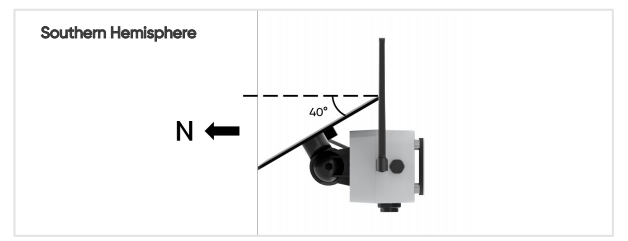
- Orient the solar panel south (northern hemisphere) or north (southern hemisphere) at the optimum angle. Find the optimum angle for your site with the solar angle calculator.
The optimum solar-panel angle varies between winter and summer if you're not near the equator. Use the more conservative winter angle — provided summer still brings plenty of direct sun.
What if it doesn't work?
- Data stopped after I mounted it. Check that mounting didn't kink or unplug the solar panel cable, and that the antenna is still upright. If the signal is weak at the final spot, see Troubleshooting a weak signal alarm.
- I can't point the inlet straight down at this spot. Pick a different mount — pointing the inlet sideways or up can let moisture in. The inlet must face down with at least
250 mm(10 in) of clearance below it. - The battery keeps dropping. The solar panel may be shaded or angled wrong. Re-aim it toward the equator at the angle from the calculator, and clear any obstructions.
What success looks like
The inlet points straight down with clearance below it, the solar panel faces the sun at the recommended angle, and data keeps arriving on the Dashboard.
Congratulations — the device is online and uploading data
To access the data, see "How to access the data from your Clarity devices."
Have Clarity modules to deploy?
Continue with the relevant guide:
- Wind Module deployment guide
- Ozone Module deployment guide
- Black Carbon Module deployment guide
- Dust Module deployment guide
- Multi-Gas Module deployment guide
- External Power System deployment guide
What's next
Still need a hand? Email us at support@clarity.io or create a support ticket, and our team will get back to you.
Was this helpful?