Deploying the Clarity Dust Module
This guide walks you through pairing, assembling, connecting, and field-deploying the Clarity Dust Module with a Clarity Node-S.
- You must charge, assemble, and configure the Clarity Node-S before connecting the Dust Module. If you haven't configured the Node-S yet, follow the Node-S deployment guide first.
- Not all Node-S versions can pair with the Dust Module. Check Node-S and module compatibility first. (Dashboard also checks compatibility for you during pairing — incompatible nodes are greyed out.)
- The Dust Module requires the Node-S to run on external power. The solar panel can be removed. Use mains power or a Clarity External Power System (EPS); a 50 W EPS may be needed depending on the site.
- The Dust Module must be oriented correctly to stay weatherproof. The long inlet tube must point straight up toward the sky. Incorrect deployment can let in moisture and void the warranty.
- When not in use, store the module in its original packaging. If you need to return a unit to Clarity, ship it in the original packaging to prevent damage.
In the box
| Item | Photo |
|---|---|
| 1 × Dust Module | 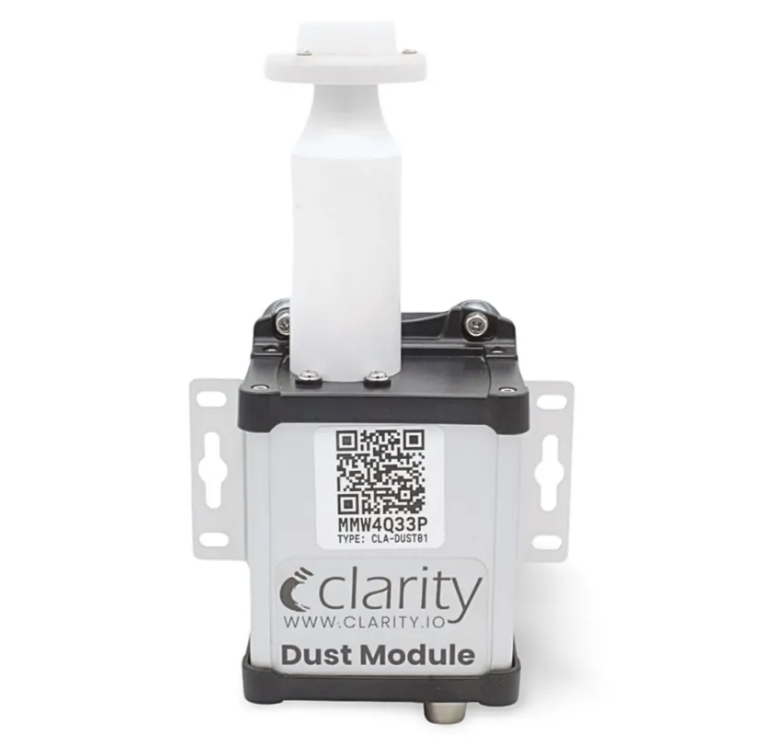 |
| 1 × accessory-module-to-node cable (8-conductor, M12 male-male, 2 m) | 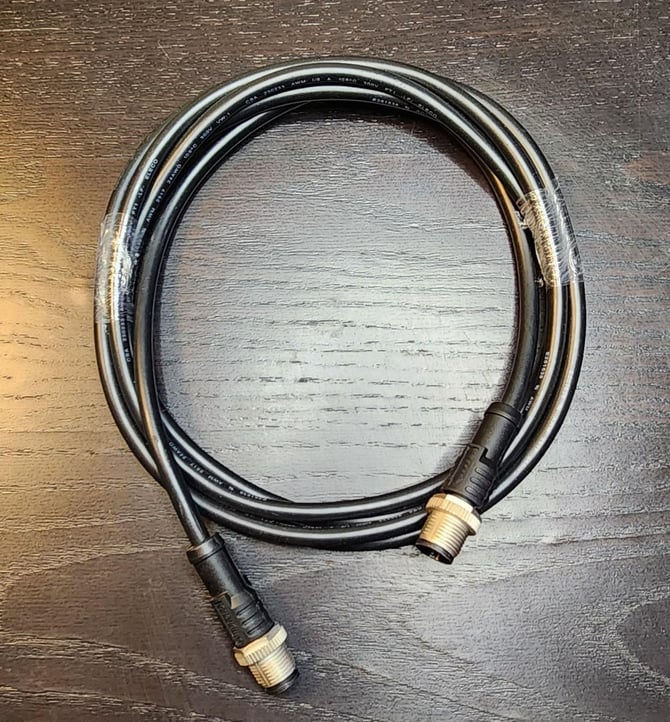 |
| 1 × module mounting plate | 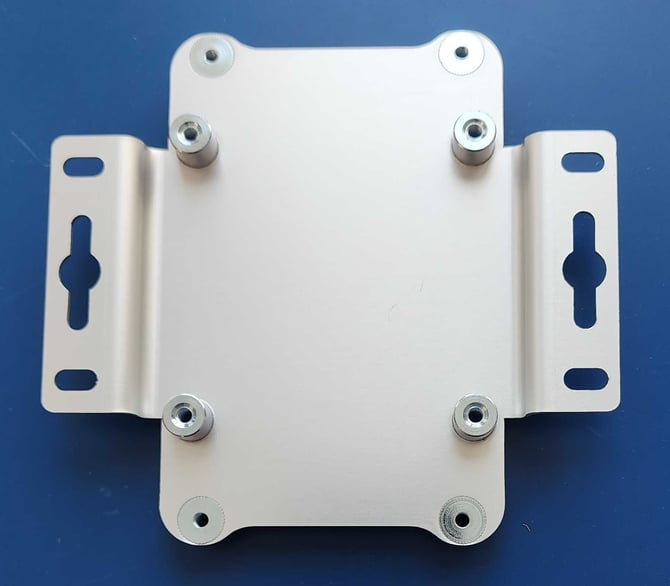 |
| 1 × pole mounting bracket | 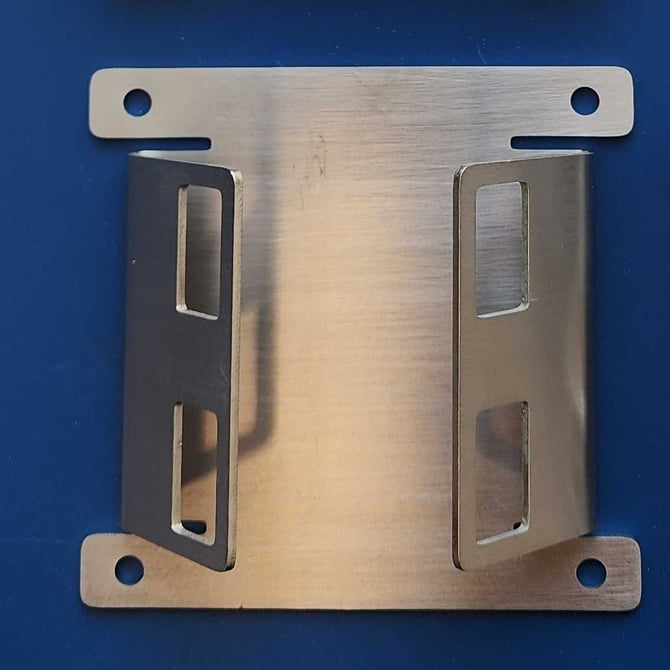 |
| 8 × screws with washers (for both mounting brackets) | 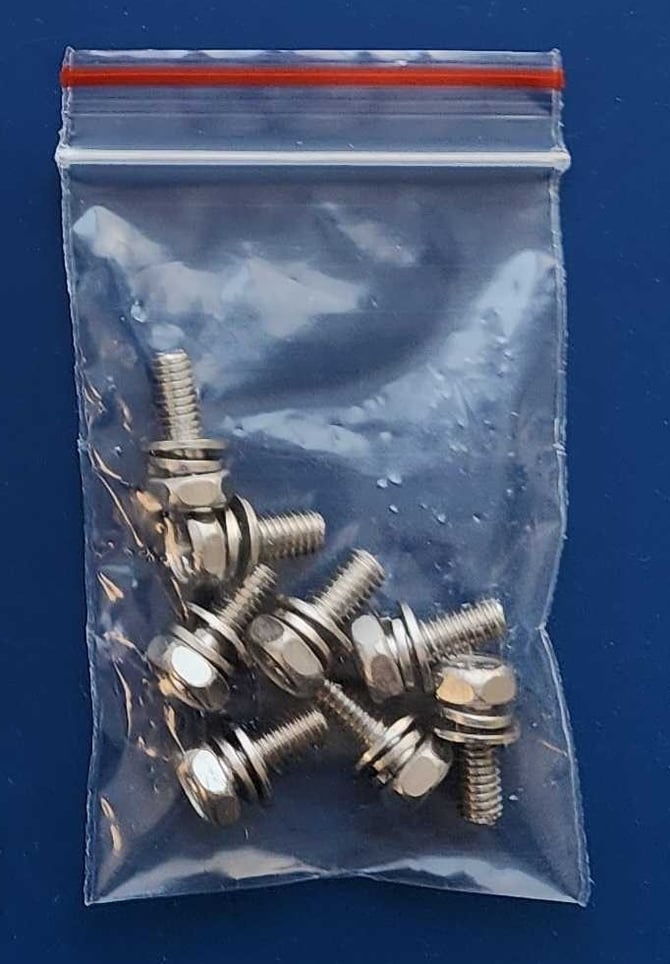 |
| Also needed but not included |
|---|
| A Phillips-head screwdriver |
| Stainless-steel zip ties, hose clamps, binding straps, or screws appropriate for your site |
Pair the module in Dashboard
To use an accessory module it must be paired with a Node-S. Pairing tells the Clarity system the two are connected, so the module's data can flow to the Clarity cloud.
Pairing uses the guided Pair module wizard, which works the same way for every accessory module: open the Devices page, choose the module, pick a compatible node, and pair. The wizard runs the compatibility checks and power advisories for you. For the full click-by-click walkthrough, follow Pair a module on Dashboard.
- Configure the Node-S first. It must be set up before you can pair a module — see the Node-S deployment guide.
- You need an org admin or technician role. Without one, the Pair module button is disabled ("Requires org admin or technician role") — ask your org admin.
- Moving a module from another node? See How to unpair your module first.
What to confirm for the Dust Module
When the wizard shows the deployment guide cards and the Confirm before you pair checklist, they cover requirements specific to the Dust Module:
- Inlet faces up: the inlet tube must face straight up toward the sky; leave at least 25 cm (10 in) of clearance above so rain can't splash in. Pointing it down or sideways lets water in and voids the warranty.
- Bring external power: Dust draws more than the standard solar panel sustains; plug the Node-S into mains or use a Clarity EPS, where a 50 W unit may be needed. The solar panel can be removed.
- Give the inlet room to breathe: aim for 270° of free airflow around the inlet (180° minimum); don't mount flush against a wall or in a tight corner.
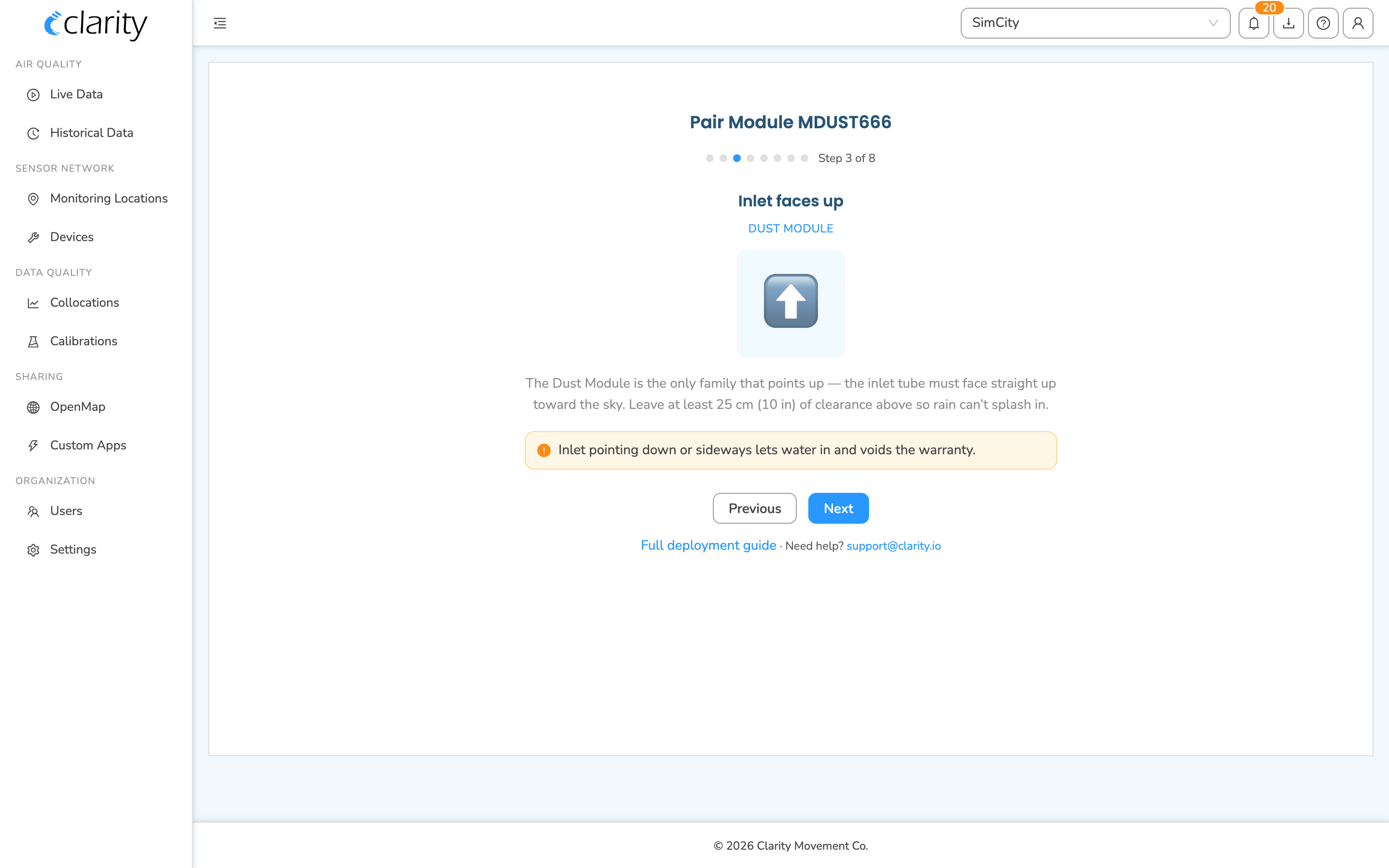
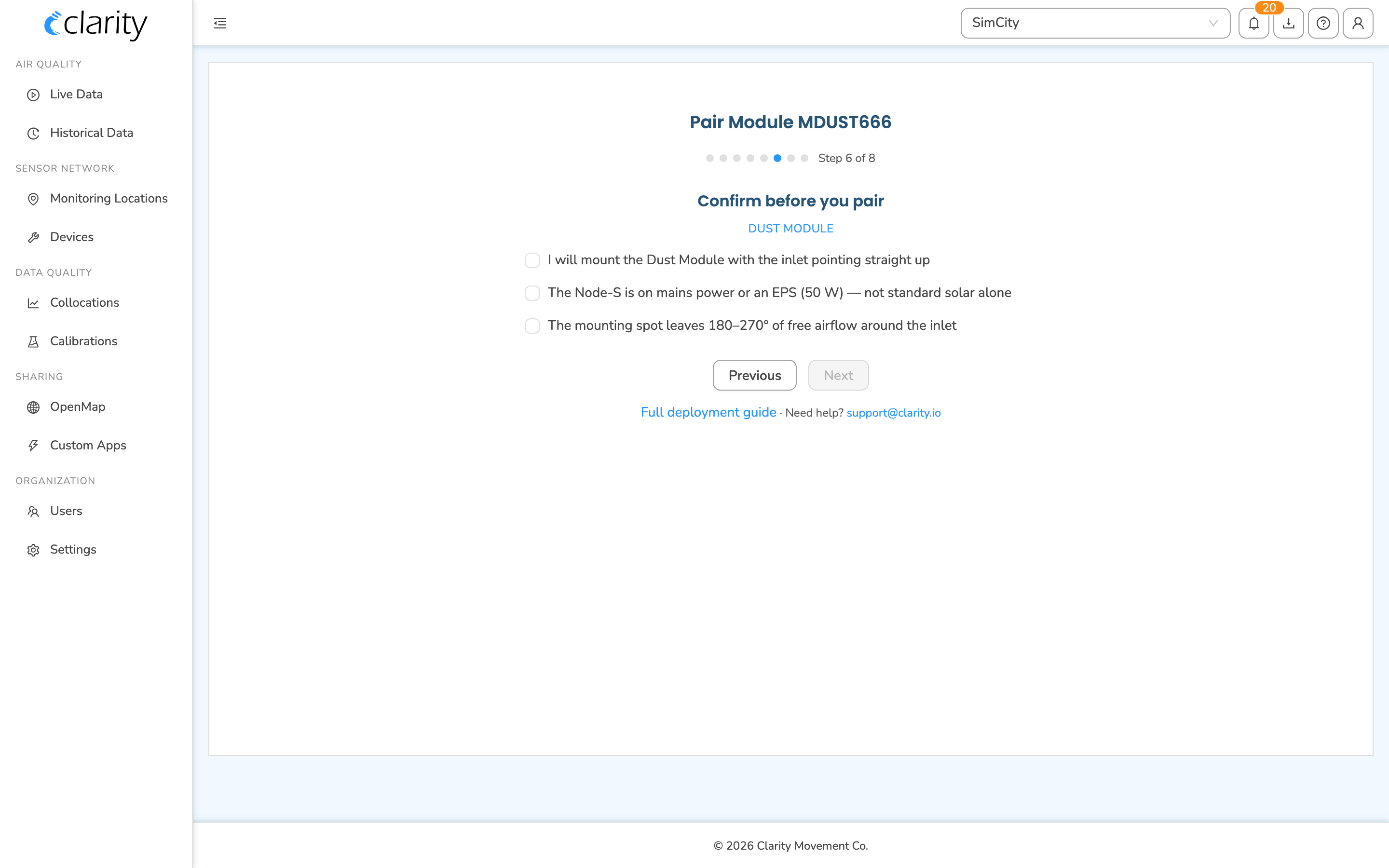
The Confirm before you pair checklist asks you to tick each item before you can continue. For the Dust Module these are:
- "I will mount the Dust Module with the inlet pointing straight up"
- "The Node-S is on mains power or an EPS (50 W), not standard solar alone"
- "The mounting spot leaves 180-270° of free airflow around the inlet"
What if it doesn't work?
- The module isn't in the wizard's "In inventory" group. Confirm you're in the right organization and have the Technician or Org Admin role. If it shows under Already paired, unpair it first.
- The node I want is greyed out. It's either incompatible or already has a module of the same family — check Node and module compatibility.
- Still stuck? Email support@clarity.io with the node and module IDs.
What success looks like
The wizard showed the Module paired confirmation, and the Dust Module appears paired with your Node-S on the Devices page.
Check module status in Dashboard
After pairing, confirm the module is recognized and reporting.
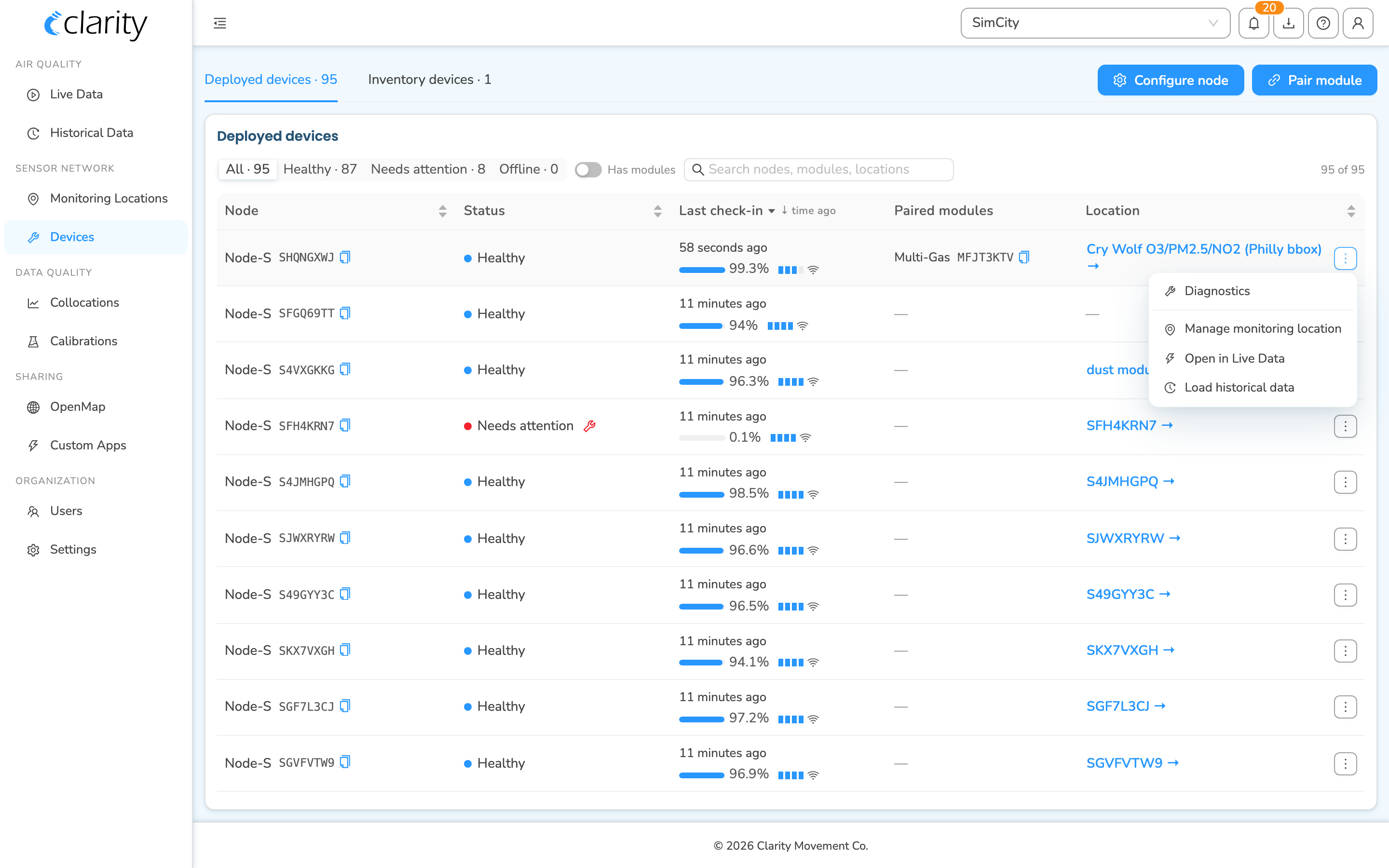
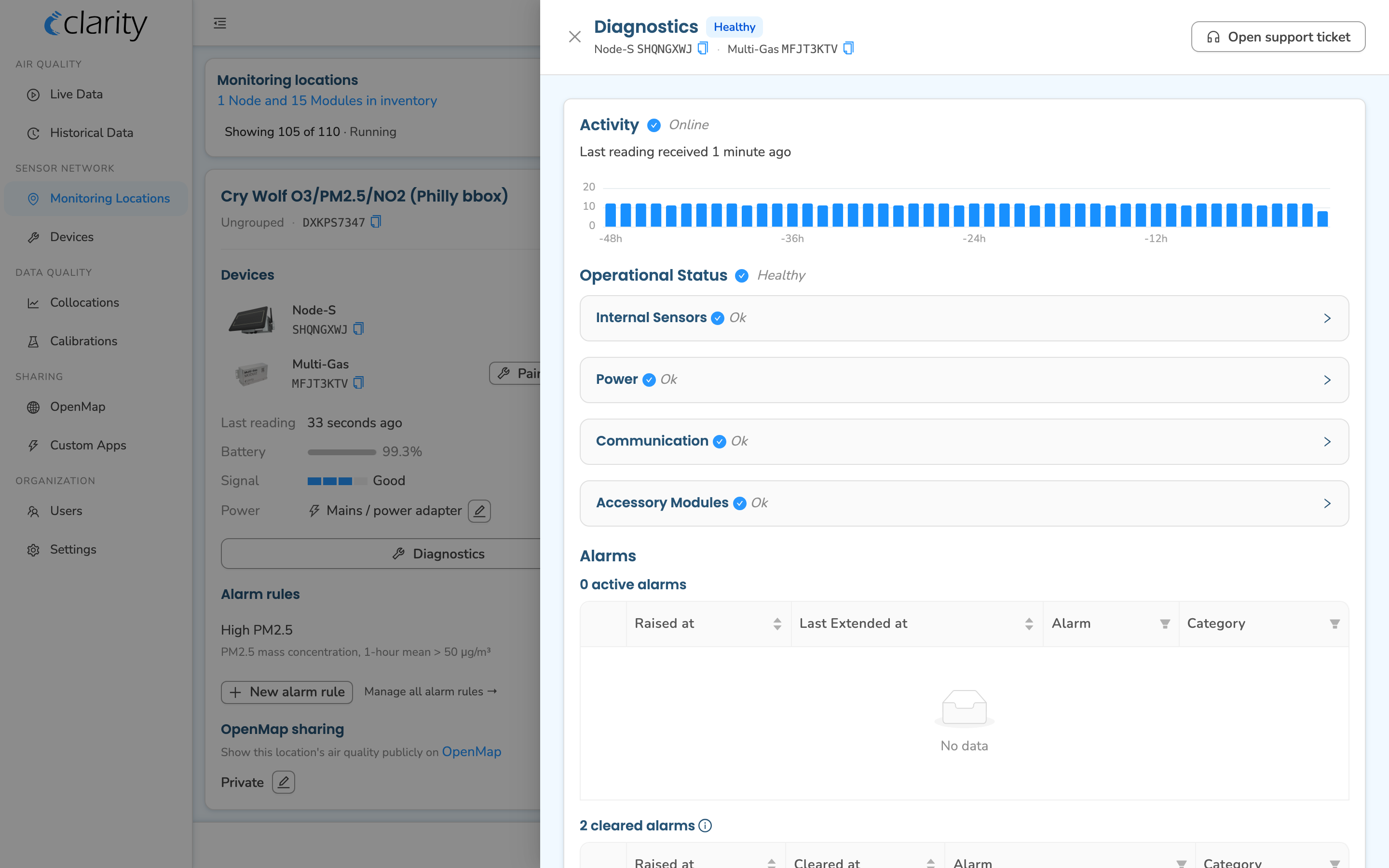
Go to Devices (under SENSOR NETWORK) and stay on the Deployed devices tab. Find your node's row — the search box matches by node ID, module ID, or monitoring location name, whichever is handiest. Its paired module appears in the Paired modules column, and the Status dot reflects the combined health of the node and its paired modules (Healthy / Needs attention / Offline).
For more detail, open the row's ⋮ menu — you have two options:
- Diagnostics opens the Diagnostics drawer right from the Devices page, showing the node's activity, operational status (including accessory-module health), and any alarms.
- Manage monitoring location opens the location card — your home for deeper lifecycle and management actions (you can open Diagnostics from there too).
Assemble the module
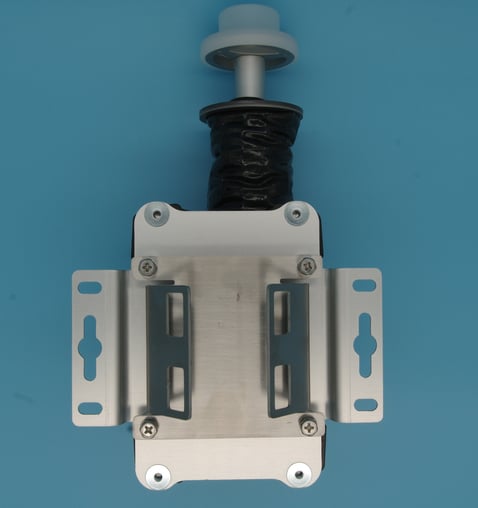
Attach the mounting brackets to the back of the Dust Module. Your box includes a mounting plate, a pole mounting bracket, and eight screws.
- Attach the larger mounting plate to the body of the Dust Module using four screws.
- Attach the optional pole-mount bracket to the mounting plate with the remaining four screws. You can rotate it to match the orientation of your railing or pole.
- Wall or panel mount? Skip the pole bracket and use the flaps on the sides of the mounting plate instead.
What if it doesn't work?
- A part seems missing or won't fit. Check the In the box list at the top of this guide.
- Not sure about orientation. Follow the photos above; if still unsure, email support@clarity.io before mounting.
What success looks like
The Dust Module is fully assembled with all parts secured.
Connect the module to the Clarity Node-S
Run a connection test before deploying in the field, to confirm data is uploading to the Dashboard.
The Dust Module requires the Node-S to be externally powered, so the Node solar panel is not needed.
- Power on the Clarity Node-S: plug the external power adapter into the Node-S body first.
- Plug the power adapter into the external power source. The Node-S plays the Power On sound.
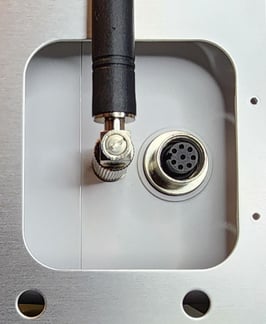
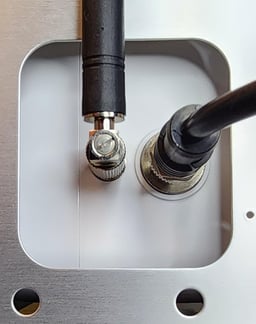
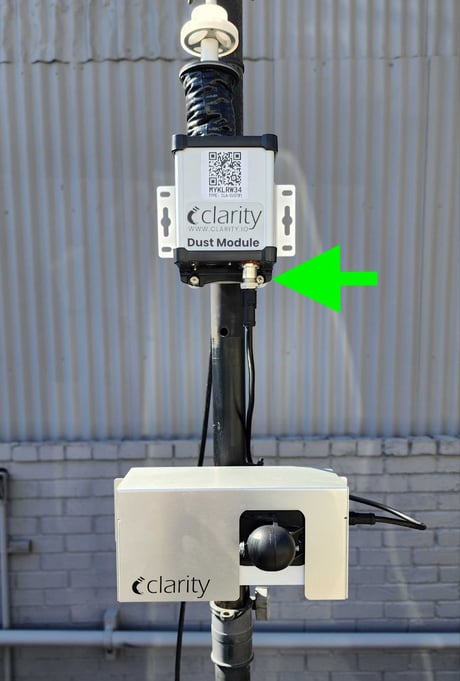
- Unscrew the cap covering the module port and plug the accessory cable into the Node-S body, align the cable pins and tighten the threaded connector nut several turns until finger-tight. Do not use a wrench. Make sure the adjacent antenna connector is finger-tight and the antenna points vertically up.
- Plug the other end of the cable into the Dust Module and tighten with the threaded connector nut.
- You'll hear the Node-S Power On sound again as the device resets.
- Wait while the Node-S establishes a cellular connection. This can take 2-10 minutes depending on signal strength.
- Connection Failure sound: Confirm the device was configured in the Dashboard first. If that doesn't help, contact support@clarity.io.
- Low Battery sound: Charge the device for at least 24 hours before proceeding.
- Connection Successful sound: Proceed to deploy.
- After a successful cloud connection, the node tries to talk to the module. Listen for one of:
- Successful Module Connection (six variable-tone beeps): the module is working.
- Failed Module Connection (four variable-tone beeps): check the cable connection between the Node-S and module.
- Module Configuration Error (four single-tone beeps): the Node-S isn't configured properly. Confirm the module and node are paired in the Dashboard, then unplug and replug the Node-S power cable. If that doesn't resolve it, contact support@clarity.io.
Connecting the cable — remove the module-port cap and align the cable on the Node-S, keep the antenna finger-tight and pointing up, then plug the other end into the Dust Module:
What if it doesn't work?
- I hear the Connection Failure sound (beep beep beep). Confirm the module was paired on Dashboard first, then re-seat the cable firmly.
- The module shows an alarm on the Dashboard. See Troubleshooting accessory module alarms.
- Weak or no signal at the site. See Troubleshooting a weak signal alarm.
What success looks like
You heard the connection sounds, and the Dust Module reports as healthy on the Devices page (Status dot on your node's row).
Deploy the Node-S + Dust Module in the field
The Node-S + Dust Module must be sited correctly to provide accurate data.
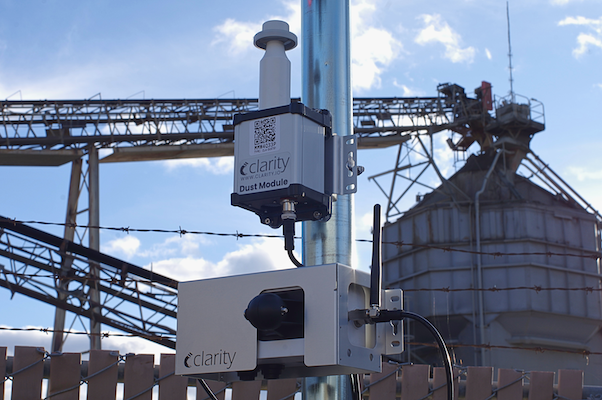
- Make sure the Dust Module is properly oriented:
- The text must be legible when viewed from the front.
- The inlet tube must point directly toward the sky. Failure to do so may cause water damage.
- Keep the inlet tube unobstructed for adequate airflow. Aim for >270° of free airflow around the inlet; never less than 180°.
- Maintain a vertical gap of at least 25 cm (10 in) above the Dust Module so the inlet airflow stays unobstructed and rain can't splash between the devices.
- Mount the Node-S to your pole, wall, or panel.
- To make installation easier, you can temporarily detach the Dust Module cable from the Node-S module port.
- Use stainless-steel zip ties, hose clamps, or screws (not provided).
- Ensure the cable can reach the Dust Module. More on Node-S deployment here.
- Mount the Dust Module to the pole or wall.
- Reattach the Dust Module cable to the Node-S body once both devices are securely installed.
- Listen for these sounds in succession:
- Node-S Power On
- Node-S Connection Successful
- Successful Module Connection
Congratulations! Your Dust Module and Node-S are online and uploading data. To see your data, check out How to access the data from your Clarity devices. You can also open the node's location in Monitoring Locations, or use Open in Live Data / Load historical data from the node's row on the Devices page.
What if it doesn't work?
- No module data after 20 minutes. Confirm you're viewing the right monitoring location on the Dashboard. See Confirming your device is uploading data.
- The Dust Module's inlet tube can't point straight up here. Choose a different mount — any other orientation can let moisture in and voids the warranty. (The Node-S inlet still points down.)
- The node keeps losing power. The Dust Module needs external power — confirm the mains connection or EPS is hooked up and sized for the site (a 50 W EPS may be needed).
What success looks like
The device is mounted securely with the Node-S inlet pointing down and the Dust Module's inlet tube pointing up, and Dust Module data appears on the Dashboard.
What's next
Still need a hand? Email us at support@clarity.io or create a support ticket, and our team will get back to you.
Was this helpful?