Deploying the Clarity Black Carbon Module
- ⚠️ Every time the Black Carbon Module is power cycled, the Filter Tape Cartridge is advanced by one spot. Please minimize the number of power cycles to minimize tape waste.
- You must first configure the Clarity Node-S device before connecting the Black Carbon Module. If you have not yet configured the Node-S, please find instructions here.
- The Black Carbon Module requires the Clarity Node-S to operate on external power. Therefore, the small Node-mounted solar panel is not used and may be removed when using the Clarity Node-S with the Black Carbon module.
- An optional Clarity External Power System (EPS) may be used to power the node and any attached modules, including the Black Carbon Module.
- Please review this entire guide for more detailed instructions for your module as it has been designed to work specifically with the Clarity Node-S.
- If you desire more detailed information about the module's internal AethLabs MA350 Black Carbon micro-aethalometer and the data it produces, please refer to the User Manual.
- However, the MA350 has been modified to work effectively on the Clarity platform, so please use this guide and Clarity support as the final authority and DO NOT make any menu selections or parameter adjustments other than detailed in this Deployment Guide without express and detailed instructions from the Clarity support team. Doing so can result in system malfunction and possibly equipment damage.
In the box
| Item | Image |
|---|---|
1 × Black Carbon Module with mounting hardware:
| 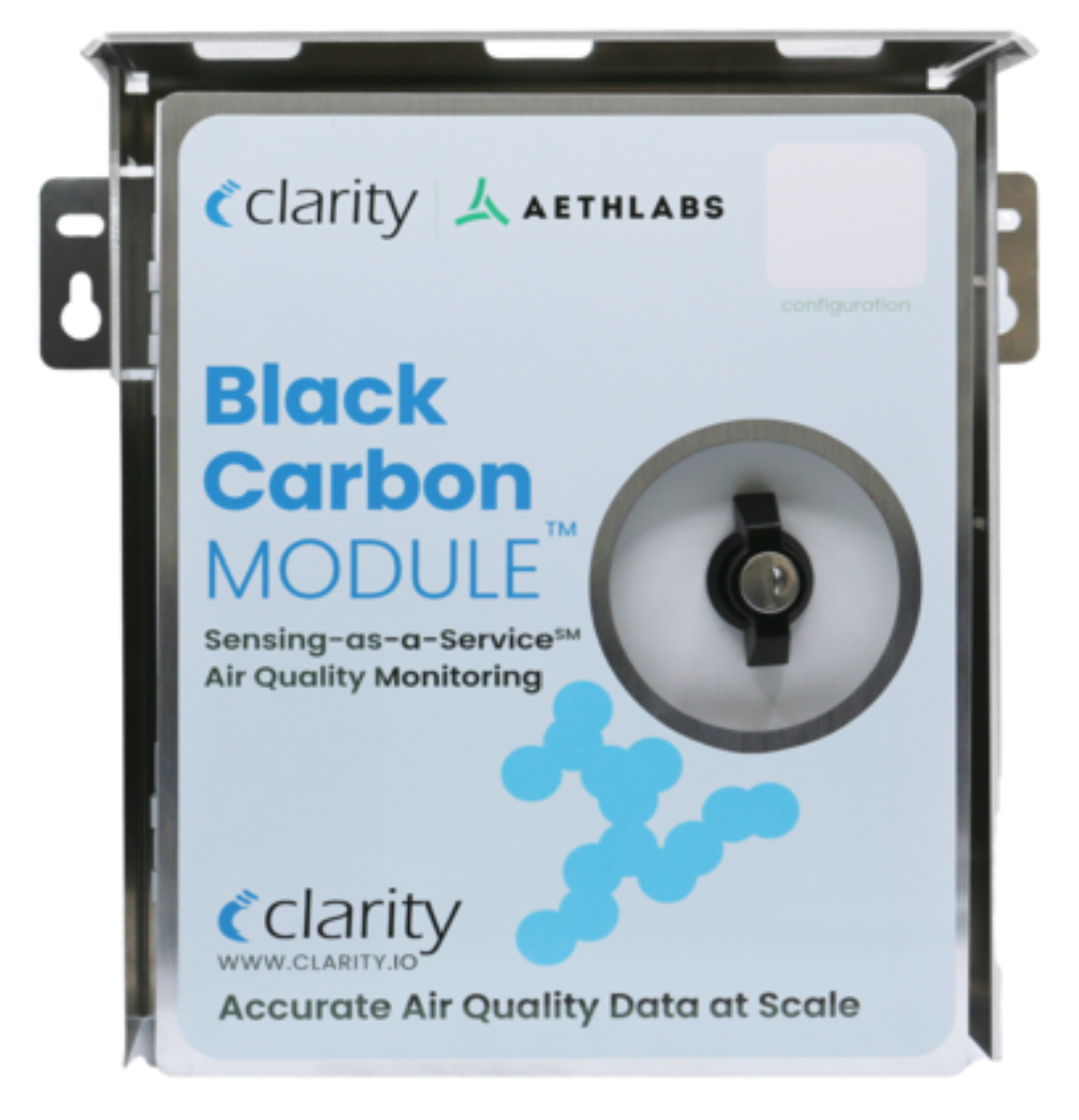 |
| 1 × accessory-module-to-node cable (8-conductor, M12 male-male, 2 m) | 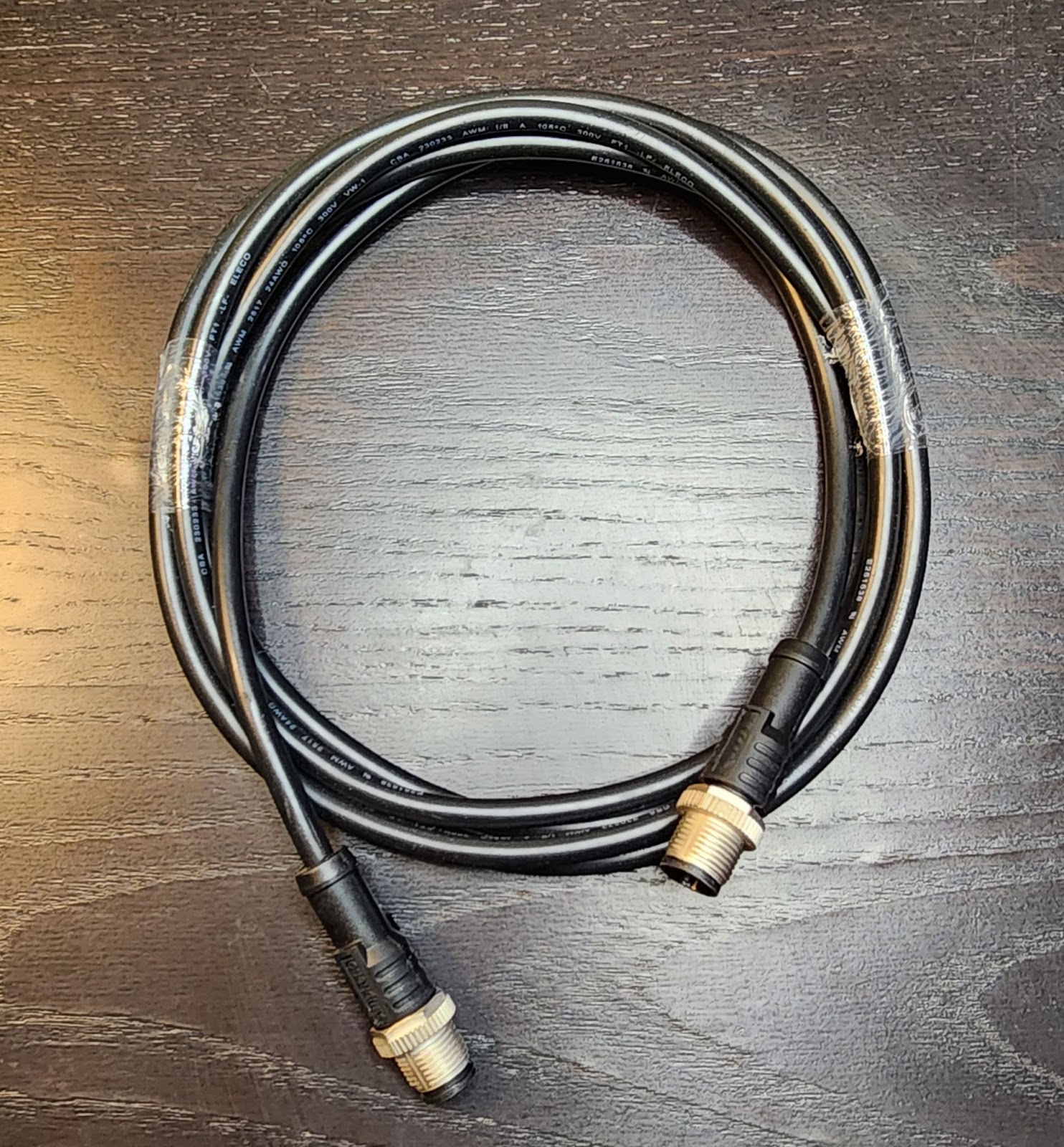 |
| 2 × Filter Tape Cartridges (one pre-installed in the Module) | |
| 1 × Inlet Protection Kit | 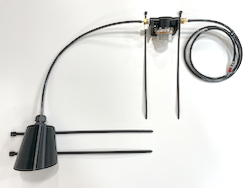 |
| Also needed but not included |
|---|
| A medium-sized Phillips head screwdriver |
| Stainless steel zip ties, hose clamps, or screws for mounting that are appropriate for your site(s) |
When preparing deployment hardware, please refer to the Black Carbon Module mounting interface dimensions found in the deployment section below.
Pair the module to a compatible Node-S in Dashboard
To use an accessory module it needs to be paired with a Node-S device. Pairing tells the Clarity Cloud that the two are connected, configures the Node-S to accept the module, and lets the module begin sending data. Pairing uses the guided Pair module wizard in Dashboard, which works the same way for every module. For the full click-by-click walkthrough, follow Pair a module on Dashboard.
- Configure the Node-S first. It must be set up before you can pair a module — see the Node-S deployment guide.
- You need an org admin or technician role. Without one, the Pair module button is disabled ("Requires org admin or technician role") — ask your org admin.
- Moving a module from another node? See How to unpair your module first.
What to confirm for the Black Carbon Module
When the wizard shows the deployment guide cards and the Confirm before you pair checklist, they cover requirements specific to the Black Carbon Module.
The guide cards are:
- Plan for serious power: Black Carbon is the heaviest-draw module. Plug into mains, a 50 W EPS, or a 100 W EPS for low-solar sites. The standard solar panel alone isn't enough.
- Minimize power cycles: every power cycle advances the filter tape by one slot. Do everything you need in one pass.
- Install the inlet protection kit: shortest possible tubing, gentle bends, water/bug trap parallel to the ground with a slight downward incline toward the instrument.
- Bring help, it's heavy: the module is ~5 kg and ~25 × 29 × 14 cm; pole-mounting at height is usually a two-person job.
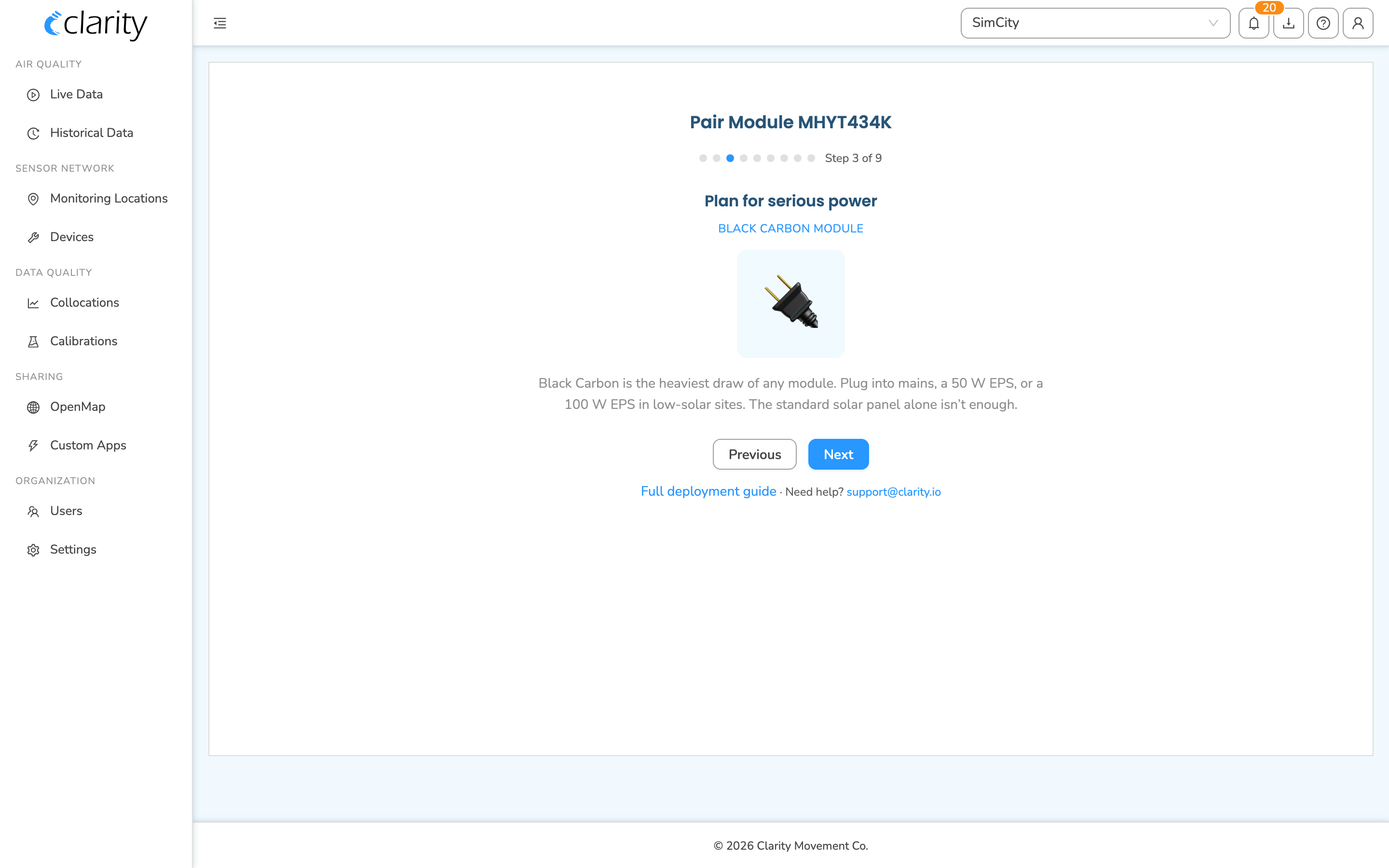
Every item on the Confirm before you pair checklist must be ticked to enable the Pair button. For the Black Carbon Module the items are:
- The Node-S is on mains or a 50 W / 100 W EPS (not standard solar alone).
- I will install the inlet protection kit (short tubing, water/bug trap).
- I'll avoid power-cycling the module to preserve the filter tape.
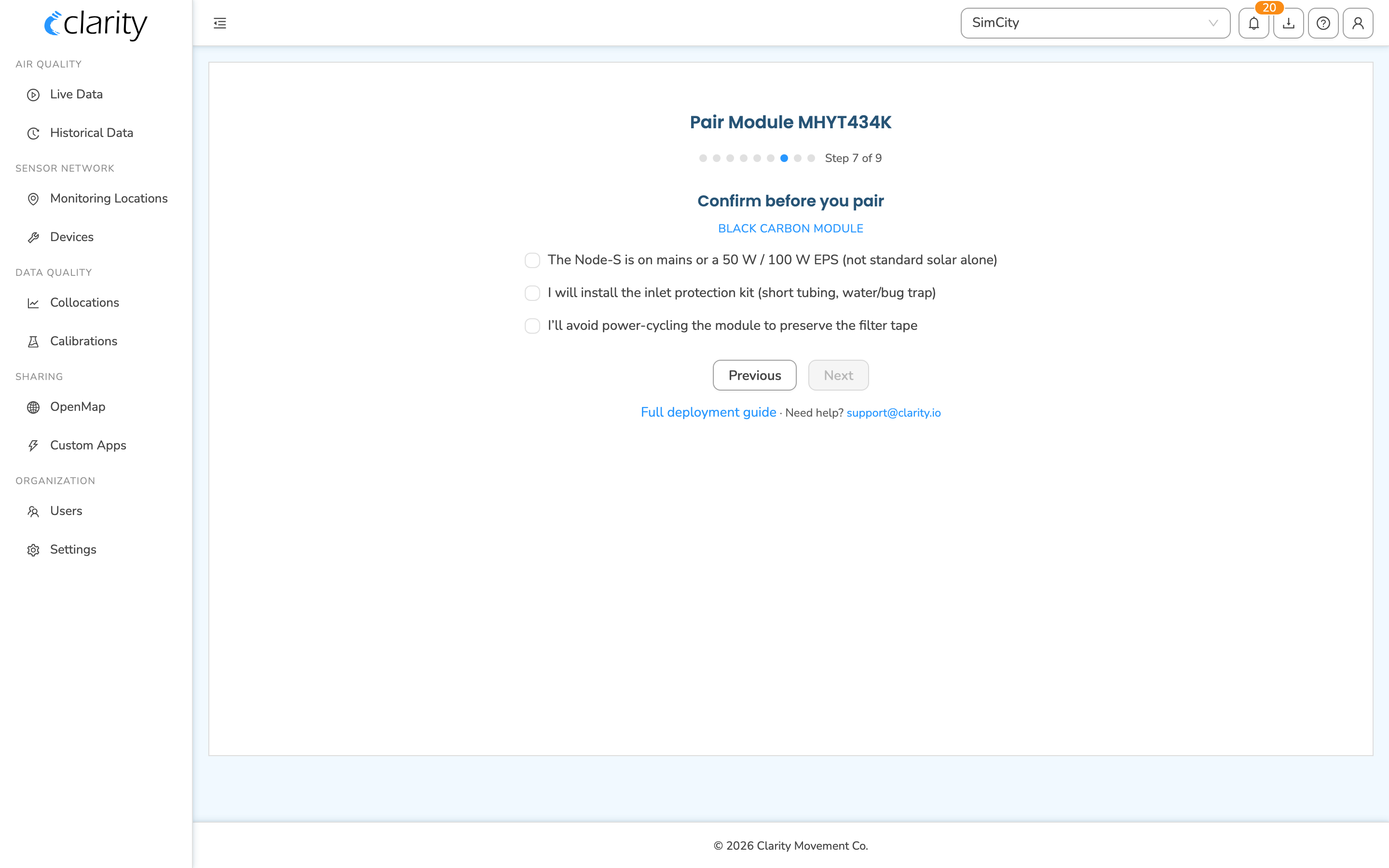
When the node is still on the standard solar panel, the wizard also shows a power-compatibility advisory reminding you that Black Carbon needs external power; you can change the node's power source right from that warning.
What if it doesn't work?
- The module isn't in the wizard's "In inventory" group. Confirm you're in the right organization and have the Technician or Org Admin role. If it shows under Already paired, unpair it first.
- The node I want is greyed out. It's either incompatible or already has a module of the same family — check Node and module compatibility.
- Still stuck? Email support@clarity.io with the node and module IDs.
What success looks like
The wizard showed the Module paired confirmation, and the Black Carbon Module appears paired with your Node-S on the Devices page.
Physically connect the module to the Clarity Node-S
We recommend performing a test connection before deployment in the field to ensure data is being uploaded to Clarity Dashboard. There is no need to unconfigure before moving, just remove power and cables and you're ready to transport.
⚠️ Every time the Black Carbon Module is power cycled, the Filter Tape Cartridge is advanced by one spot. Please minimize the number of power cycles to minimize tape waste.
-
Assemble and configure the Clarity Node-S in the Clarity Dashboard that will be paired with the Black Carbon module. Please review the Clarity Node-S deployment guide.
- Note: The Black Carbon module requires the Clarity Node-S be externally powered so the small node-mounted solar panel is not needed.
-
Connect the Black Carbon module to the Clarity Node-S by plugging in the accessory cable to the Clarity accessory port as shown below. Twist the cable connector bushing clockwise into the threaded Node connector several turns until finger-tight, do not use a wrench. While you're at it make sure the adjacent Node antenna connector is also finger-tight and the antenna is pointing vertically.
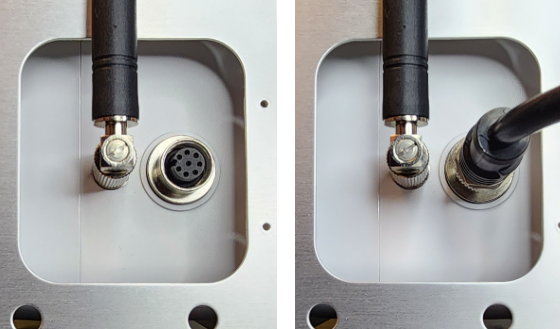
-
Once you plug in the Module cable to the Clarity Node-S, a Node-S Power On sound will occur and the device will restart connection to the Clarity Cloud. You can confirm the module has power by observing that the display is lit up and showing information.
-
Wait as the Clarity Node-S first establishes cellular connection at your site. This may take anywhere from 2-10 minutes depending on cellular signal strength.
-
If the Node-S Connection Failure sound plays, please confirm that the device has been configured on the Dashboard first.
-
If no sound plays, the node is not able to connect to the cellular network. Make sure you are in an area with cellular connectivity coverage.
-
If the Node-S Connection Successful sound plays, proceed to deploy the device.
-
If you are unable to get the node to play the Connection Successful sound, please contact us at support@clarity.io.
-
-
After successful connection of the Clarity Node-S, the device will connect with the Module.
- A successful module connection will play a Successful Module Connection sound.
- A failed module connection will play a Failed Module Connection sound. If failed, please check the cable connection between the Clarity Node-S and the Module.
- If you hear the Module Configuration Error sound, the Clarity Node-S is not configured to accept modules. Please ensure you completed the pairing procedure described above.
- If you are not able to get a Successful Module Connection sound, please contact us at support@clarity.io.
Confirm data is uploading
After the module is successfully connected, confirm that data from the Node-S and the Black Carbon module is uploading:
-
Sign in to the Clarity Dashboard.
-
In the left sidebar, under AIR QUALITY, open Historical Data.
-
Load the highest-resolution Black Carbon data for the relevant time period, then select the device connected to the Black Carbon module to plot its values. Once data has uploaded you'll see values appear.
-
Reload the most recent time period to refresh; do not use your browser's refresh button; instead re-run the load for the latest period.
As an alternative confirmation, you can open the node's location card in Monitoring Locations from the success view's "Go to Monitoring Locations", or use the Open in Live Data / Load historical data row actions on the Devices page.
During the first 30 minutes after starting the Black Carbon Module, it is warming up. Please disregard data from this time period.
What if it doesn't work?
- I hear the Connection Failure sound (beep beep beep). Confirm the module was paired on Dashboard first, then re-seat the cable firmly.
- The module shows an alarm on the Dashboard. See Troubleshooting accessory module alarms.
- Weak or no signal at the site. See Troubleshooting a weak signal alarm.
What success looks like
You heard the connection sounds, the module's display is lit, and black carbon values appear in Historical Data after the 30-minute warm-up.
Deploy the Node-S + Black Carbon Module in the field
-
Review the Black Carbon Module siting tips to select a deployment site.
-
After the site has been selected, plan the installation of the Clarity Node-S device to the designated pole or other structure.
- To make installation easier, you can temporarily detach the Black Carbon module cable from the node accessory port.
- Prepare stainless steel zip ties, hose clamps, or screws (not provided).
- Ensure the inlet and outlet will be facing downwards and unobstructed.
- Ensure that the cable will be able to reach the Black Carbon Module once it is installed.
- More instructions on deploying the Clarity Node-S are here.
-
Mount the Black Carbon Module to the designated pole or panel. Please refer to the dimensions and images below to select proper mounting hardware for the Black Carbon module depending on where you plan to install it.
-
Dimensions: 25.4 cm (W) x 29.2 cm (H) x 14.4 cm (D). Weight: 11 lbs / 5 kg
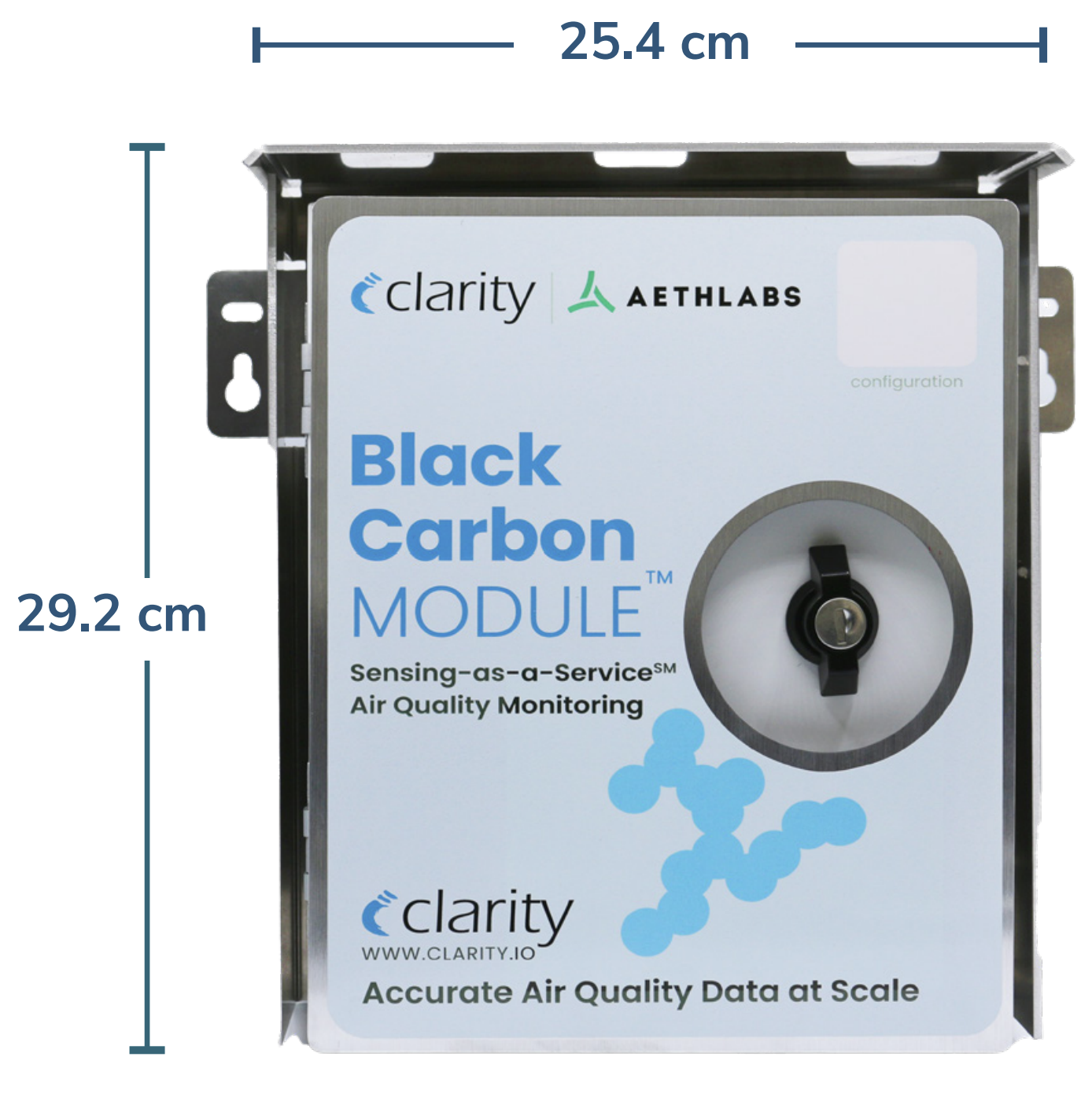
-
Pole mounting brackets (included) and hose clamps (not included) may be used with the pre-drilled and tapped holes in the back side of the sun shield for vertical or horizontal pole mounting — as shown below. Alternatively the mounting "ears" can be used to attach the module to a flat surface or other bracketry that can properly support the weight.
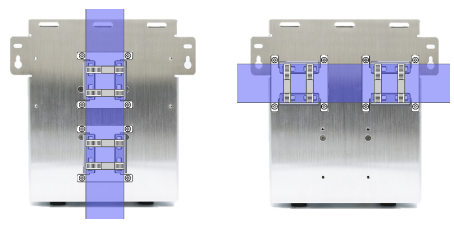
-
-
If applicable, plan the installation of the optional Clarity External Power System (EPS).
-
Clarity External Power System (EPS) Dimensions:
- Solar Panel: 838.2 mm (W) x 736.6 mm (H) x 25.4 mm (D)
- Battery Enclosure: 533.4 mm (W) x 139.7 mm (H) x 101.6 mm (D)
- Total Weight: 48.5 lbs / 22 kg
-
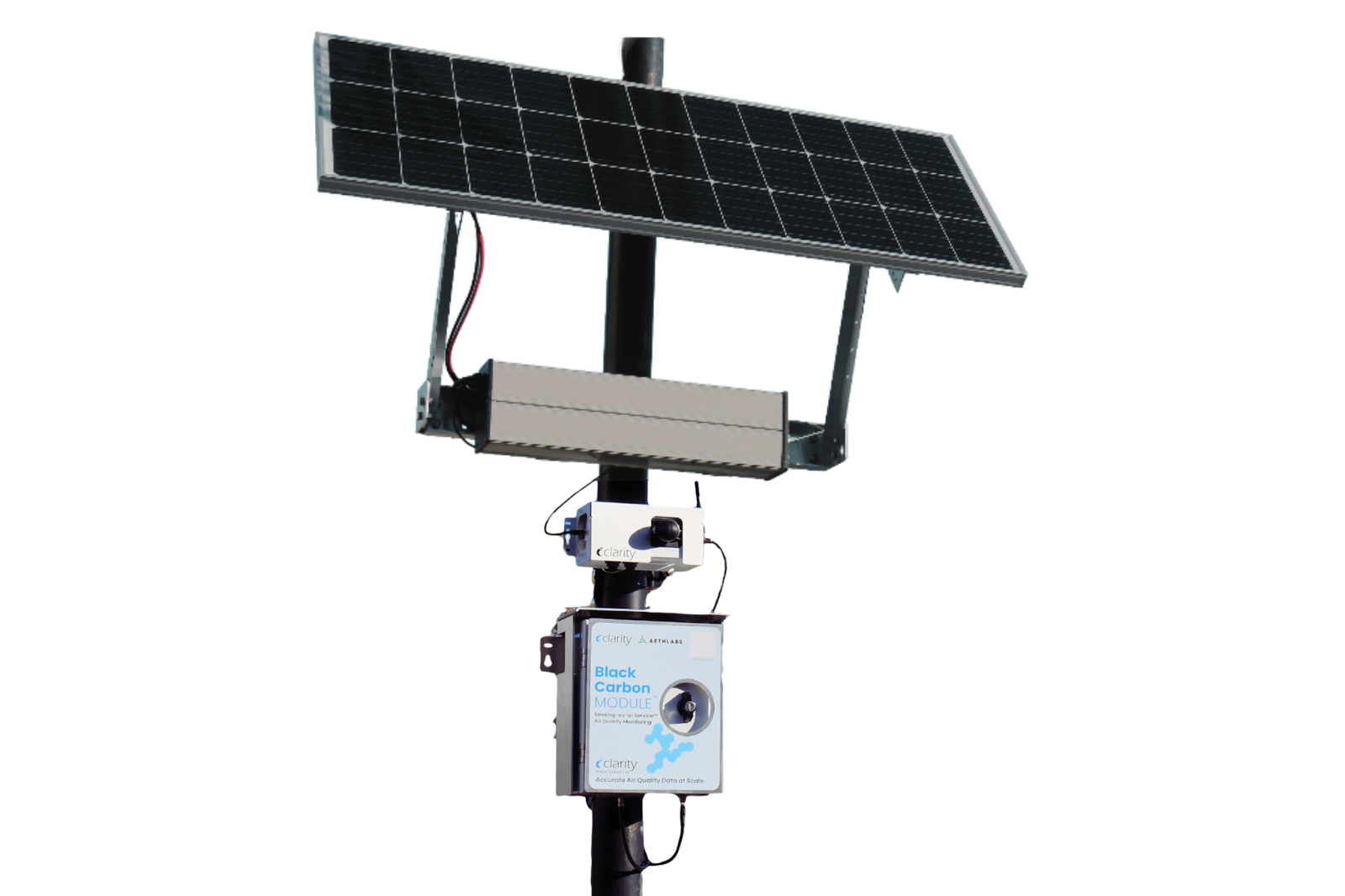
A typical Clarity Node and Black Carbon Module deployment, mounted underneath the optional Clarity External Power System (EPS) is shown below.
-
-
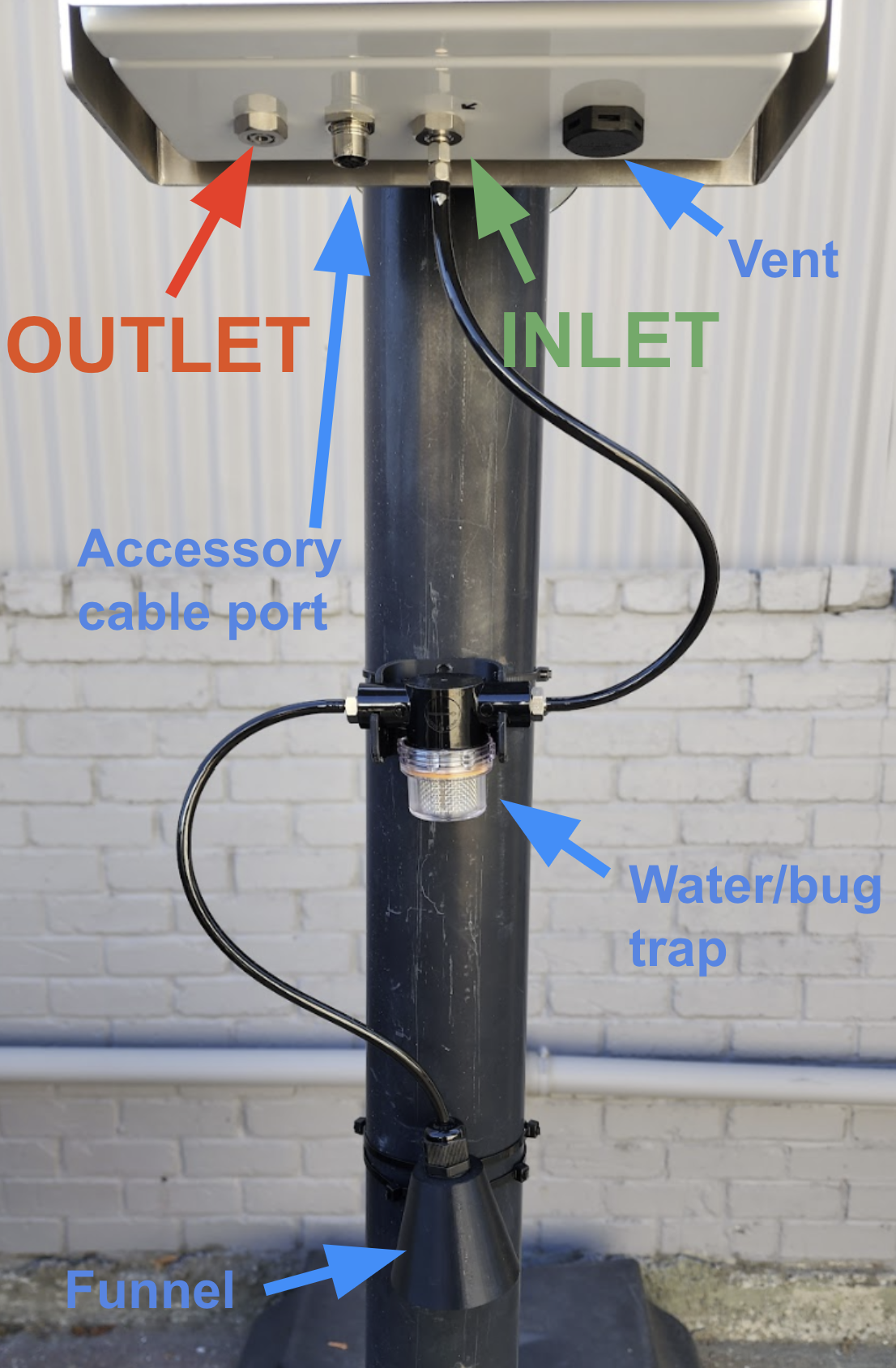
Install the included Inlet Protection Kit — designed to help protect the instrument and data from moderate water and bug intrusion and in-line condensation throughout the sampling train. This kit includes a protection cone, water/bug trap, all necessary tubing and connectors, along with mount and cable ties for installation. Detailed instructions are provided in the next section of this document, a summary is below:
-
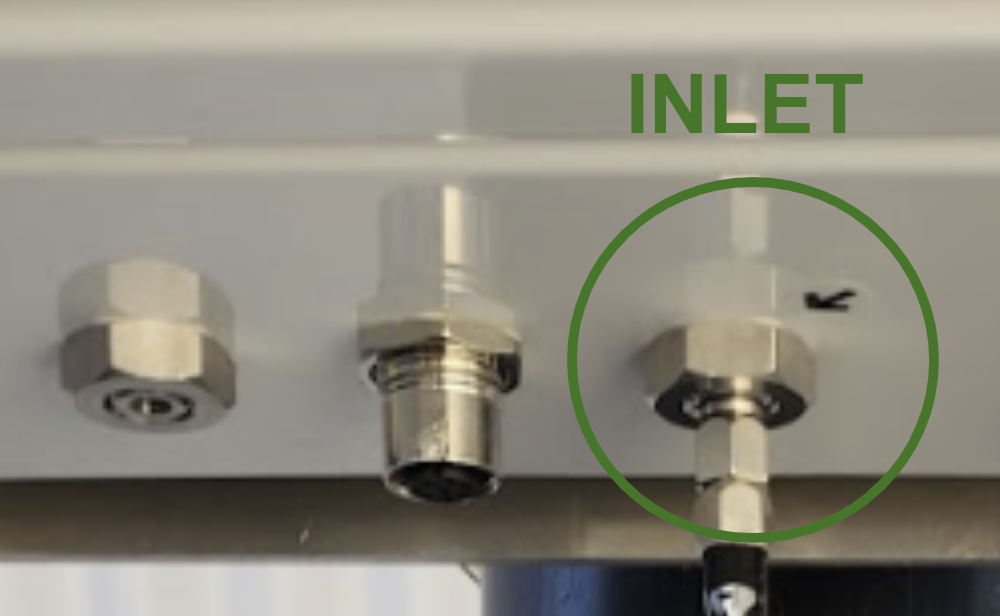
Connect the water/bug trap to the module's inlet.
-
The small black arrow on the bottom of the Module indicates the inlet, as shown in the image.
-
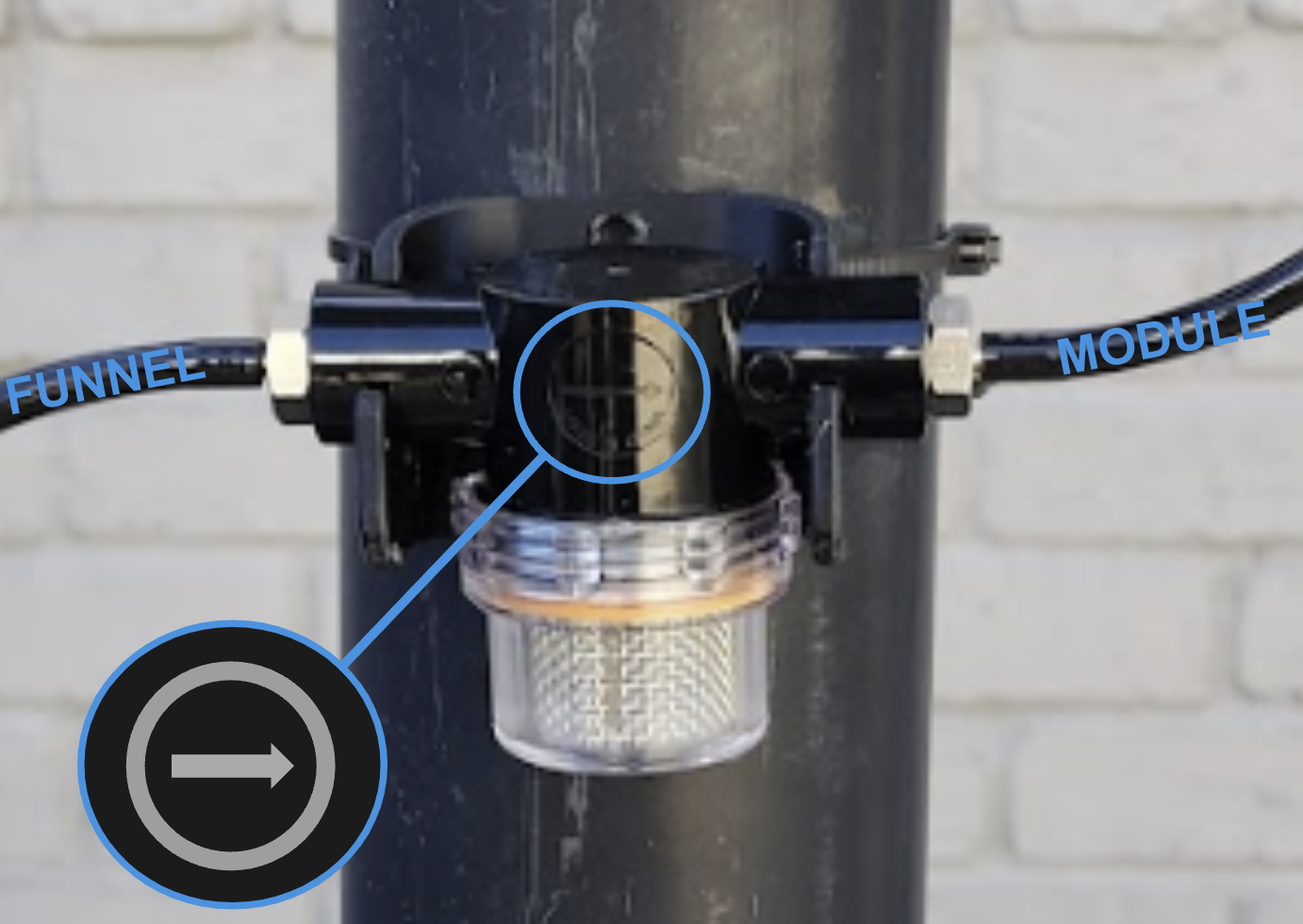
The large arrow on the front of the bug/water trap indicates the direction of airflow, and therefore should point towards the tube section that plugs into the Black Carbon Module's inlet.
-
-
Ensure that the funnel is mounted below the Black Carbon module with the water/bug trap in between, so that gravity can drain out water and debris.
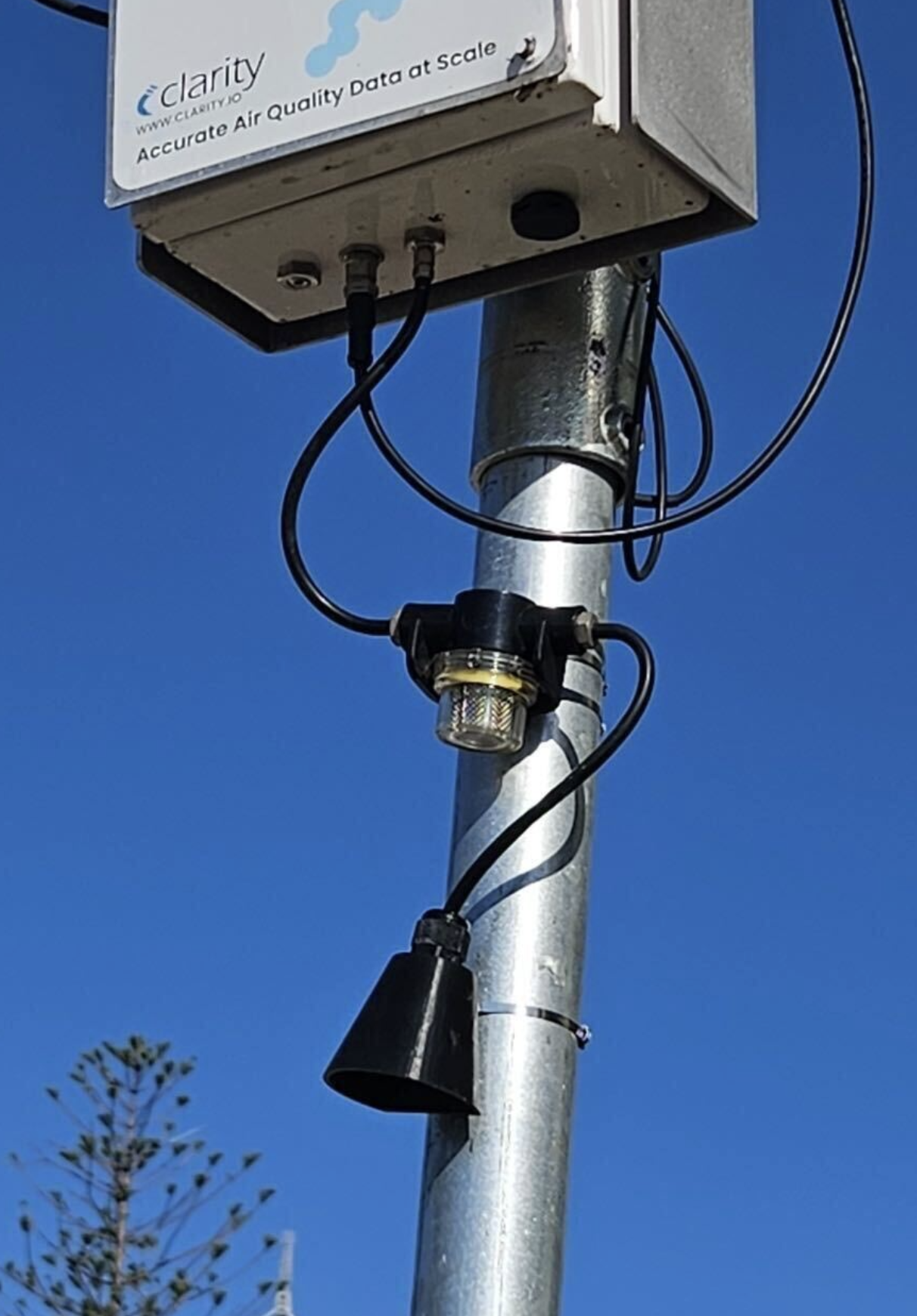
-
Tubing between all of these should be as short and straight as possible. It is suggested to cut tubes at will to achieve this. When required, bending should be as gentle as possible.
-
-
Re-attach the Black Carbon Module cable to the Clarity Node-S after both devices are securely installed.
-
Listen for the following sounds in succession:
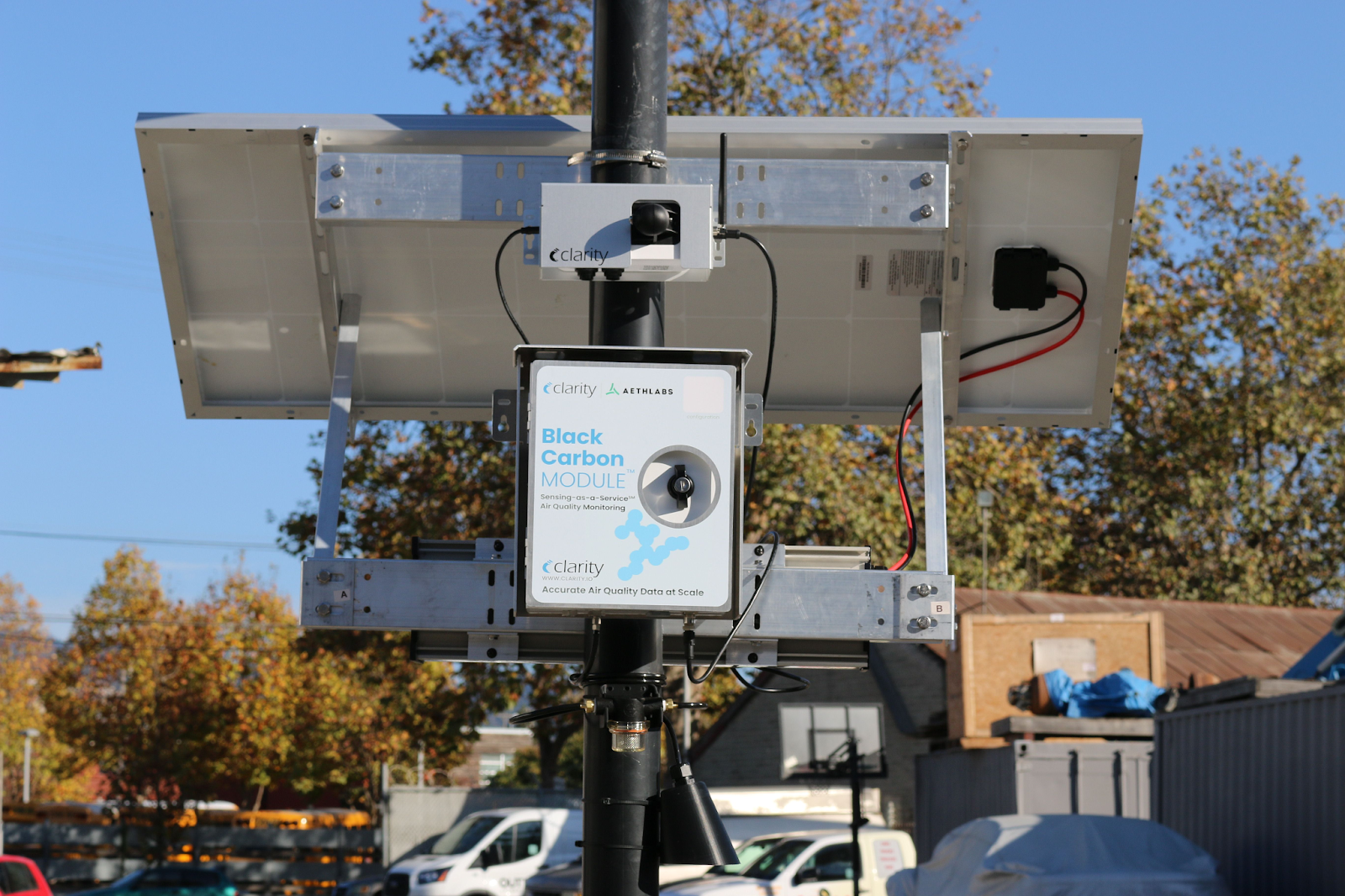
Clarity Node and Black Carbon Module successfully deployed underneath the optional External Power System.
What if it doesn't work?
- No module data after the 30-minute warm-up. Confirm you're viewing the right monitoring location on the Dashboard. See Confirming your device is uploading data.
- A kit part seems missing or won't fit. Check the In the box list at the top of this guide and the Inlet Protection Kit details below; if still unsure, email support@clarity.io before mounting.
- The inlet and outlet can't face down at this spot. Choose a different mount — any other orientation can let moisture in.
- The node keeps losing power. The Black Carbon Module needs external power — confirm the mains connection or EPS is hooked up and sized for the site (a 100 W EPS may be needed in low-solar locations). Remember every power cycle advances the filter tape.
What success looks like
The module is mounted securely with the inlet and outlet facing down, the Inlet Protection Kit is installed with the water/bug trap parallel to the ground, and black carbon data appears on the Dashboard after the warm-up.
Inlet Protection Kit details
The Inlet Protection Kit is designed to help protect the BC1 from moderate water/bug intrusion and from in-line condensation throughout the sampling train.
The kit consists of the following items:
- 1 × protection cone with a compressible gland fitting and 1 18" length of static dissipative tubing installed
- 1 × water/bug trap with 2 fittings
- 1 × installation mount for water/bug trap
- 4 × large cable ties for mount and cone
- 1 × 40" length of static dissipative tubing with 1 barb fitting swivel connector installed
To optimize protection of your instrument and data, please read the below installation recommendations:
- Always use the shortest possible tubing lengths.
- Avoid sharp turns in tubing where possible.
- To install the protection cone, insert the tubing into the fitting at the base of the cone so that a small amount (~1 inch) extrudes within the cone interior. Secure the tubing in the compressible gland fitting by rotating the nut on the fitting so it compresses against the tube to form a seal. Do not overtighten. Note: This may be installed already. The large open end of the cone should be pointed facing the ground. The path of air flow from the opening of the cone to the tubing inlet itself should be vertical to the ground or in the orientation that best protects it from moisture such as precipitation or splashing.
- Install the water/bug trap in the sampling train as closely as possible to the instrument itself. We recommend no more than a few inches of tubing separate the instrument inlet from the trap, or as needed to minimize sharp turns within the tube.
- Position the water/bug trap in the sampling train so that the air flow through the trap to the instrument is in the direction of the arrow indicated on the front side of the trap. The water/bug trap is designed for one-way usage.
- Firmly mount the inlet/outlet arms and the base of the water/bug trap so that they are parallel to the ground. Gravity plays an important role and requires that the air flow through the trap arms is parallel to the ground.
- Use the provided custom mount and cable ties for stable, secure installation of the water/bug trap. If using screws in lieu of cable ties for installation, be sure to source appropriate screws and do not overtighten. Be sure not to cinch the cable ties around any of the tubing lengths. After the mount has been installed, clip the trap arms securely into the mount.
- Ensure that the tubing always has at least a slight incline from the tubing inlet to the water/bug trap, and from the trap to the instrument. This orientation of the tubing leverages gravity to provide additional protection against water. Loops, u-shaped depressions or sharp bends in the tubing line should be avoided, as water can accumulate in these areas causing condensed moisture to be drawn into the instrument.
Maintain your Clarity Black Carbon Module
See this article on Black Carbon Module maintenance.
What's next
Still need a hand? Email us at support@clarity.io or create a support ticket, and our team will get back to you.
Was this helpful?