Clarity Dashboard sign up process frequent questions
This article answers the most common questions about getting into Clarity Dashboard: creating an account, completing the sign up invitation, resetting a password, and working across more than one organization.
What if I collaborate with multiple organizations that use Clarity Sensing-as-a-Service?
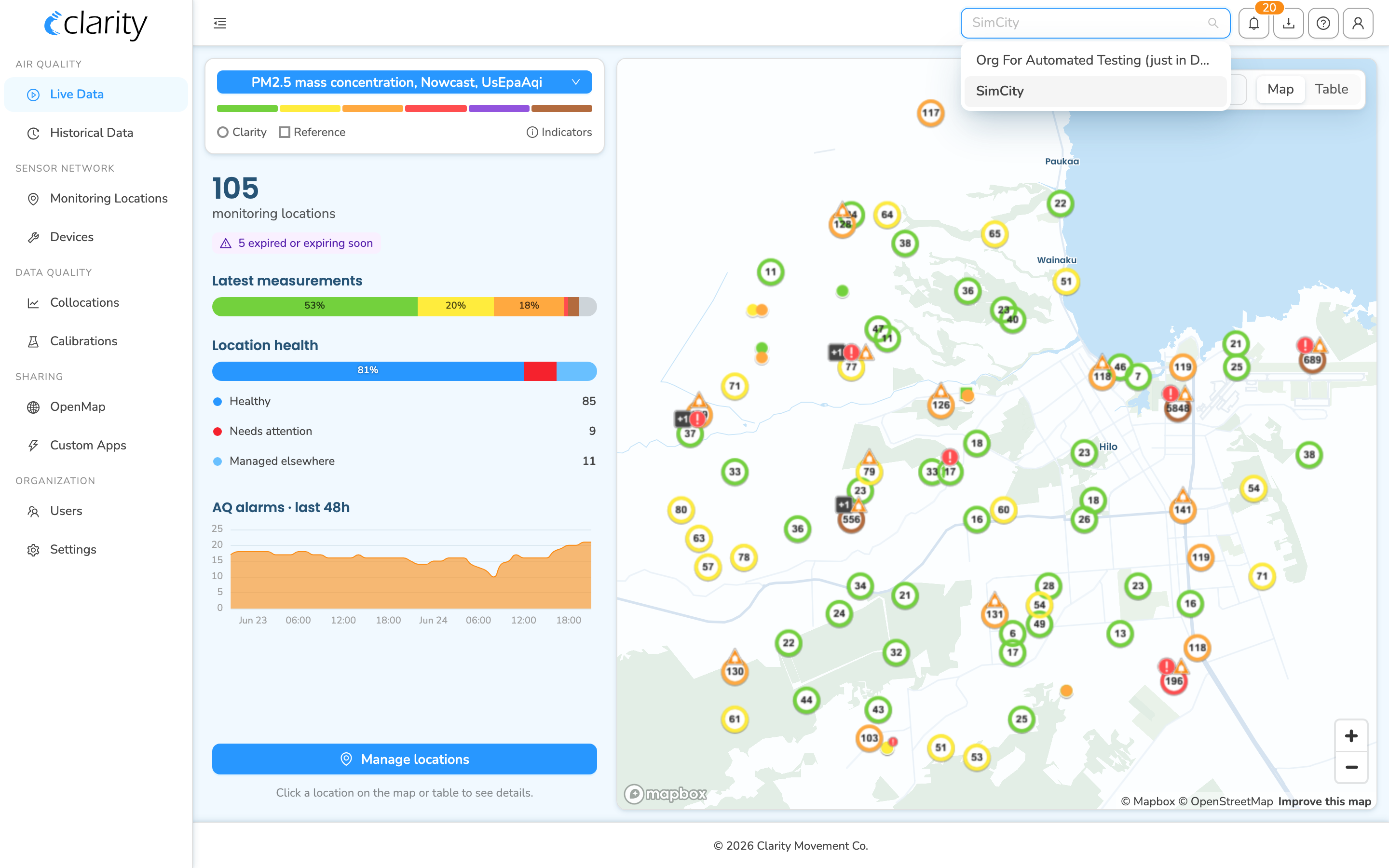
You can use the same login to access different organizations on Dashboard. To switch between the organizations you belong to without logging out, use the organization selector in the top bar, it is the dropdown showing your current organization's name, on the right side of the bar just to the left of the notifications, downloads, help, and profile icons.
Click it and pick the organization you want. Dashboard keeps you on the same page you were viewing and reloads it for the newly selected organization. If you belong to only one organization, the selector still appears, simply with a single entry.
How do I get a Clarity Dashboard account?
Your email address must first be added to an organization before you can sign up. There are two ways this happens:
- Clarity adds you as the Org Admin during the initial setup of your organization.
- An existing Org Admin adds your email address to the organization.
Once your email has been added, you receive an automated email inviting you to complete sign up. You must sign up using the exact email address the invitation was sent to. Sign up finishes with three quick steps:
- Create your account: confirm your email, choose a username, set a password (at least 8 characters, containing both letters and numbers), and agree to the privacy policy. Then select Continue.
- Tell us about you: enter your first name, last name, and job title, then select Create account.
- Check your email: Dashboard sends a verification link to your address. Open that link to activate your account, then return to the sign in screen and log in.
If you try to sign up with an email that has not been added to an organization yet, Dashboard tells you the email was not found and reminds you that your email must first be added by an Org Admin, and that you should use the exact address your welcome email was sent to.
Why isn't my email address accepted during the sign up process?
You are added to an organization by Clarity or by your Org Admin using a specific email address. You must sign up with that same email address for sign up to succeed. If a different email is used, Dashboard cannot match you to an organization and sign up will not complete. If you are unsure which address was used, check the welcome email from Clarity Dashboard, or ask your Org Admin which address they added.
I'm expecting an automated email from Clarity Dashboard, but I don't see it in my inbox. What should I do?
- Wait a few minutes, allowing up to 30 minutes.
- Check your spam or junk folder.
- Look for an email titled "Email verification link" from no-reply@clarity.io.
- Check with your IT department to make sure "clarity.io" is allowed to send automated emails to your company's mail system.
I forgot my password. How can I get it back?
You can reset it from the sign in screen:
- Go to Clarity Dashboard: Sign in.
- Select Forgot your password?, the link below the password field.
- Enter your username or email, then select Send verification code.
- Check your email for the verification code, enter it along with your new password, and select Reset password.
If the code does not arrive, you can choose Resend verification code on the same screen.
Someone stole my password. What should I do?
Reset your password immediately using the steps above: go to Clarity Dashboard: Sign in, select Forgot your password?, enter your username or email, and follow the verification-code flow to set a new password.
If you reuse that password on other platforms, we strongly recommend updating it everywhere.
When I log in, I see "No Organizations Available". What does that mean?
This message appears when your account is not a member of any organization, usually because your email was removed from every organization you previously belonged to. Dashboard shows: "You are not a member of an organization. Please talk to your organization admin." Contact your Org Admin and ask them to re-add you so you regain access.
If you have any additional questions, please contact our Support team and we will get back to you shortly.
What's next
Still need a hand? Email us at support@clarity.io or create a support ticket, and our team will get back to you.
Was this helpful?