Custom Apps: discovering and requesting embedded dashboards
The Custom Apps page is where Clarity-built dashboards and tools live inside your workspace. These are bespoke data views and apps that Clarity scopes and builds for your team, for example a tailored reporting dashboard or a purpose-built analysis tool, and then embeds right here so you can open them without leaving the Dashboard.
If Clarity hasn't built any apps for your organization yet, the page becomes a quick way to tell us what you'd like and get the conversation started.
Custom Apps is visible to every member of your organization (anyone with a role in the org other than guest). You don't need to be an Org Admin to view or open apps. This is different from Users > Applications, which is about giving external software API access to your data — see Giving applications access to your data via API for that workflow.
Finding the Custom Apps page
- Log in to the Clarity Dashboard.
- In the left sidebar, find the SHARING group.
- Select Custom Apps.
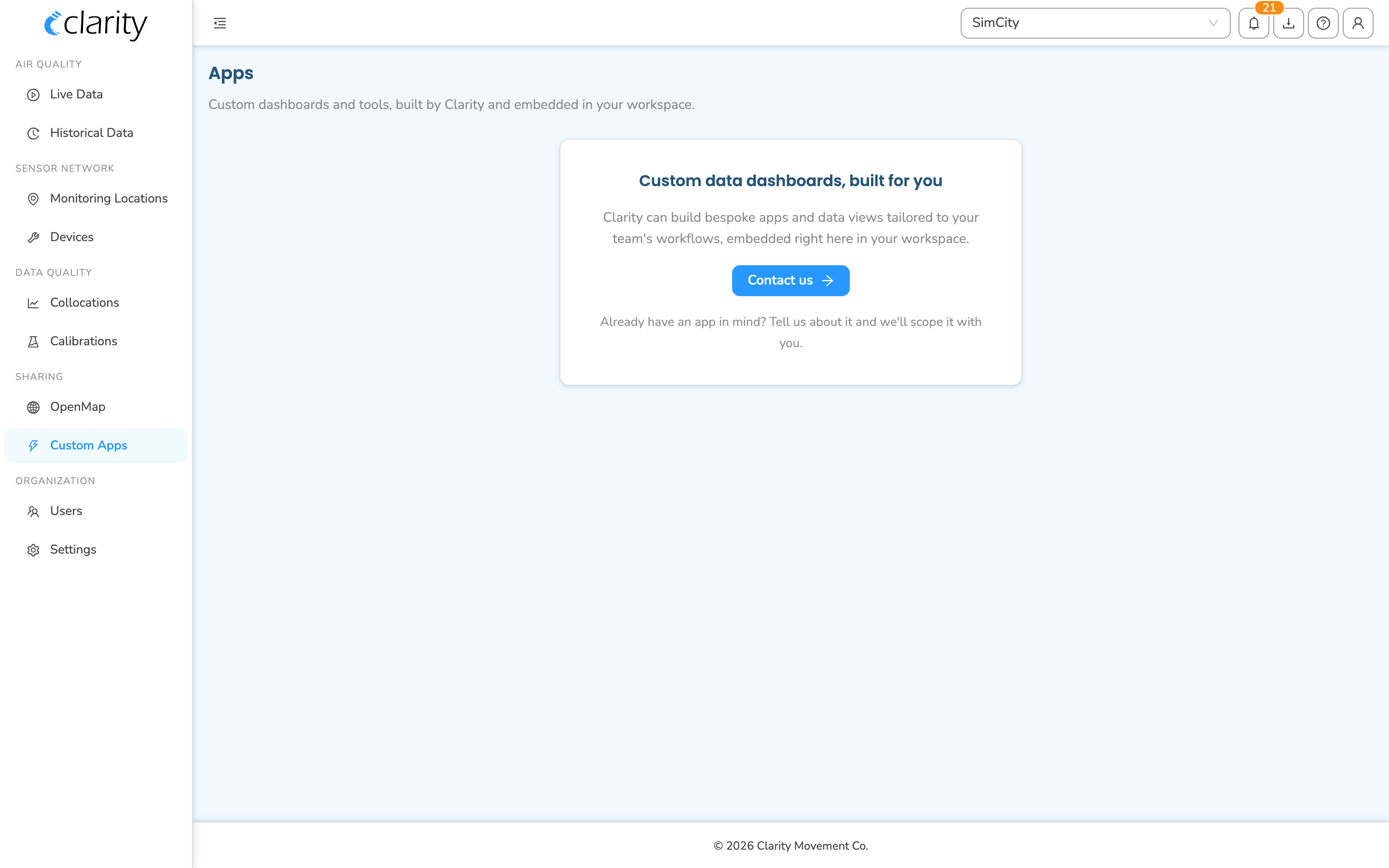
The page header reads Apps, with the subtitle "Custom dashboards and tools, built by Clarity and embedded in your workspace." What you see below the header depends on whether Clarity has provisioned any apps for your organization.
If your organization has custom apps
When Clarity has built one or more apps for you, they appear as a stacked list of cards in the center of the page. Each card shows:
- The app name as a heading.
- A short "Opens in a new tab" hint.
- An Open action.
To launch an app:
- Click anywhere on the app's card, or select the Open button on the right of the card.
- The app opens in a new browser tab. Apps live outside the main Dashboard, so they always open in their own tab.
If an app doesn't open, check that your browser isn't blocking pop-ups for the Dashboard, then try the Open button again.
If you don't have any custom apps yet
When no apps have been provisioned for your organization, the page shows a single promo card titled "Custom data dashboards, built for you." It explains that Clarity can build bespoke apps and data views tailored to your team's workflows, embedded directly in your workspace.
This is the state most organizations see, and it's the starting point for requesting an app.
Requesting a custom app
You request a custom app the same way whether or not you already have apps; the only difference is where the link appears on the page.
From the empty-state promo card, if you have no apps yet:
- On the Custom Apps page, select the Contact us button on the promo card.
- Clarity's contact page opens in a new tab. Tell us about the dashboard or tool you have in mind, and we'll scope it with you.
From the footer, if you already have apps:
- Scroll to the bottom of the app list, beneath your existing apps.
- Select the Contact us → link next to "Need another dashboard?"
- Clarity's contact page opens in a new tab so you can describe what you'd like added.
Both the Contact us button and the footer link go to the same place — Clarity's contact page (clarity.io/contact-us). There's no in-Dashboard request form to fill out; requesting an app is a conversation with the Clarity team, who scope and build the app for you.
What to expect after you request an app
Custom apps are designed and built by Clarity, not self-service. After you reach out:
- The Clarity team works with you to scope the dashboard or tool.
- Once it's built and provisioned for your organization, it appears automatically on the Custom Apps page as a new card.
- Every member of your organization can then open it from this page.
What's next
Still need a hand? Email us at support@clarity.io or create a support ticket, and our team will get back to you.
Was this helpful?