Clarity Cloud software overview
Clarity Cloud is the software suite that works alongside your Clarity air quality monitoring hardware. Behind the scenes it acts as an integrated data pipeline — calibrating and quality-checking sensor data, storing it securely, and making it consistently available to you. For your day-to-day work it gives you one place to manage your sensor network, organize and visualize your monitoring data, and share air quality insights with stakeholders or the public.
The primary components of Clarity Cloud are:
- Clarity Dashboard — an intuitive, real-time web app where you access and interpret monitoring data, manage your sensor network, review device status, and control who can see your data.
- Clarity API — a REST API for programmatic access, so you can integrate Clarity data with your own systems or run advanced analyses in R, Python, GIS tools, and more.
- Clarity OpenMap — a public, interactive map for sharing air quality data with your community.
Clarity emphasizes data ownership and security: your organization is the exclusive owner of its data. Clarity does not share your data with third parties without your consent, and you have full access to all raw data from your Node-S devices and Modules — nothing is hidden.
Clarity Dashboard
Clarity Dashboard is a password-protected web application that simplifies air quality data visualization and sensor-network management. After your organization is set up, members create accounts to sign in. The first step is configuring your Node-S devices and modules alongside field deployment. Once deployed, devices stream air quality measurements and telemetry over the cellular network, and that data appears on the Dashboard.
Finding your way around
The Dashboard has a grouped left sidebar. The groups (and the pages in each) are:
- Air quality — Live Data, Historical Data
- Sensor network — Monitoring Locations, Devices
- Data quality — Collocations, Calibrations
- Sharing — OpenMap, Custom Apps
- Organization — Users, Settings (and Billing, when your org has self-service billing enabled)
Which entries you see depends on your role. Guests see only Live Data and Historical Data; most management pages require an org member role, and a few (Users, Settings, Billing) require org admin.
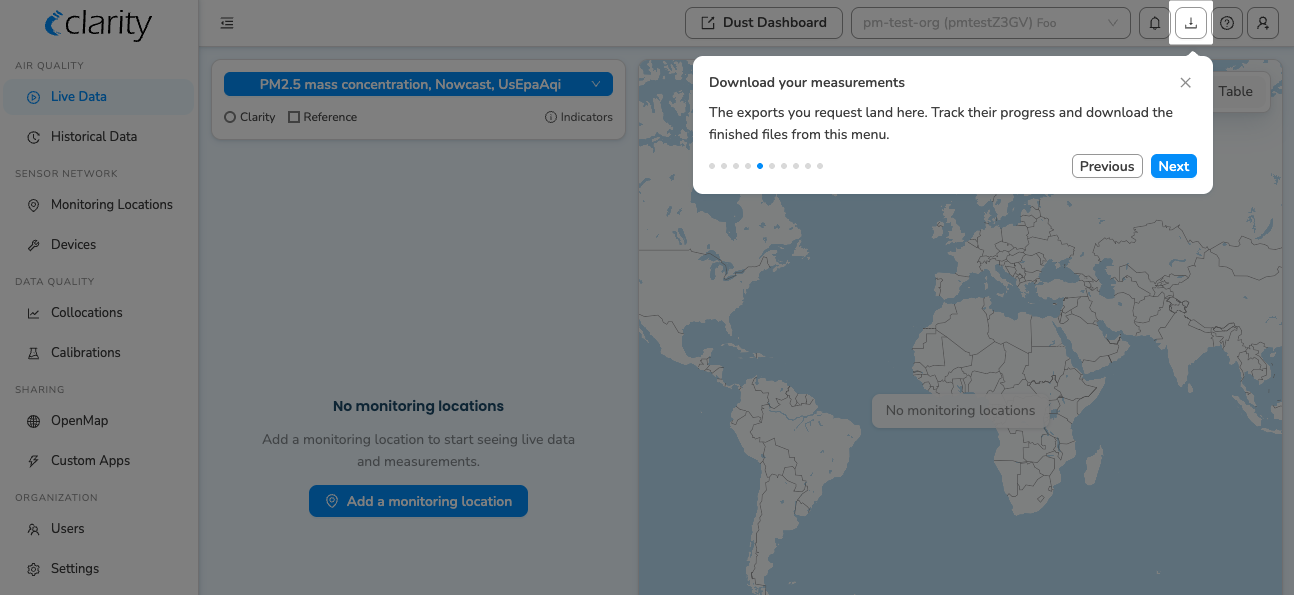
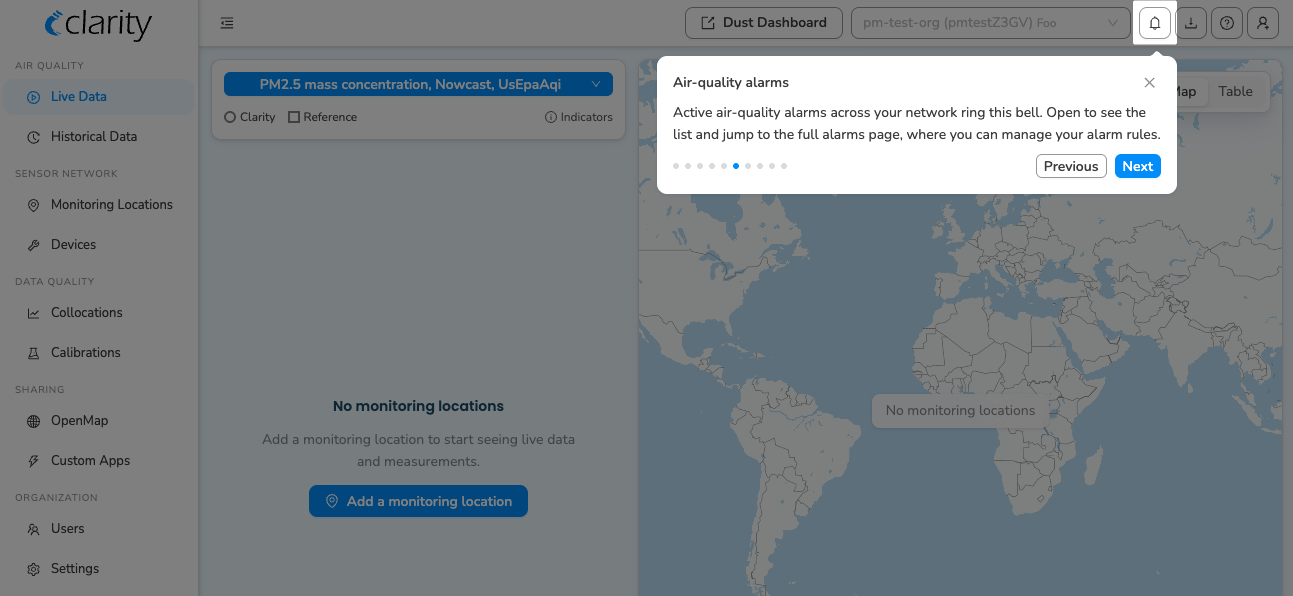
The top bar carries the org switcher, a notifications/alarm bell, a downloads (export) tray, a help link, and your account menu. Two pages — AQ Alarms and Downloads — don't have their own sidebar entries; you reach them from the top bar (the alarm bell and the download tray respectively).
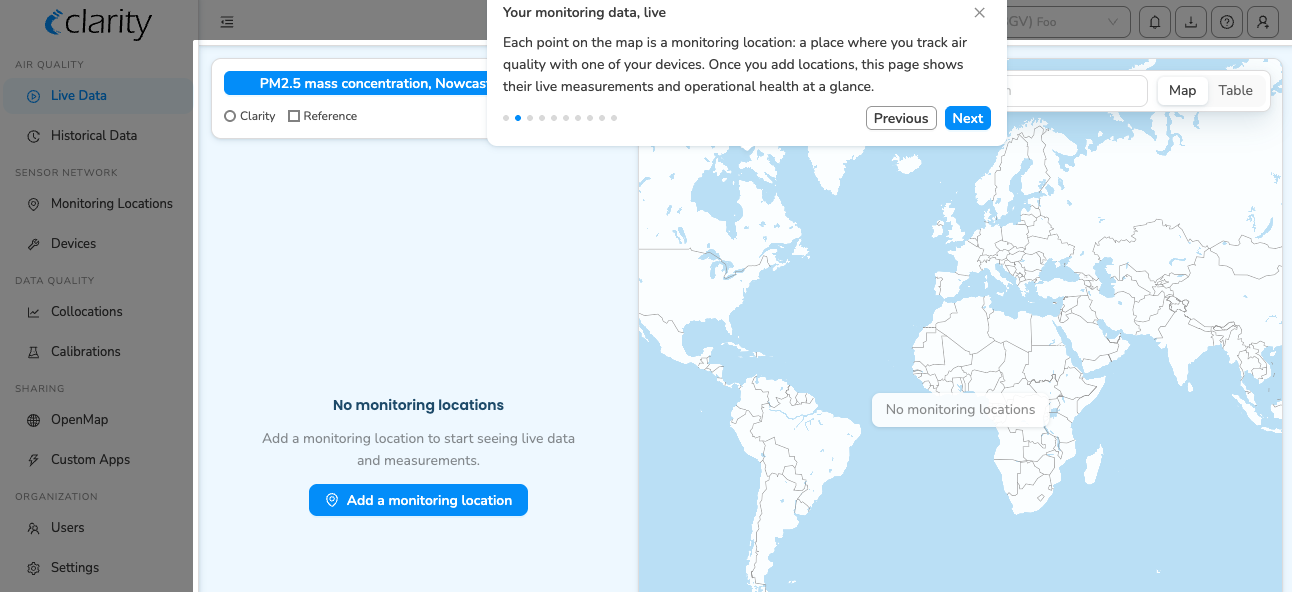
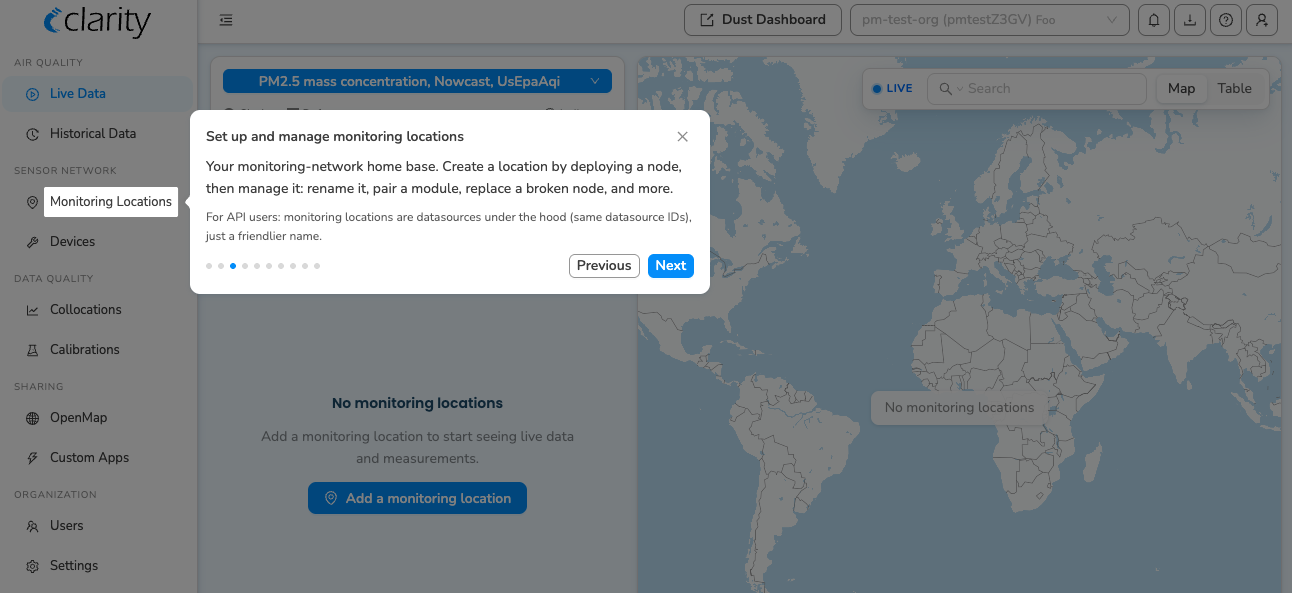
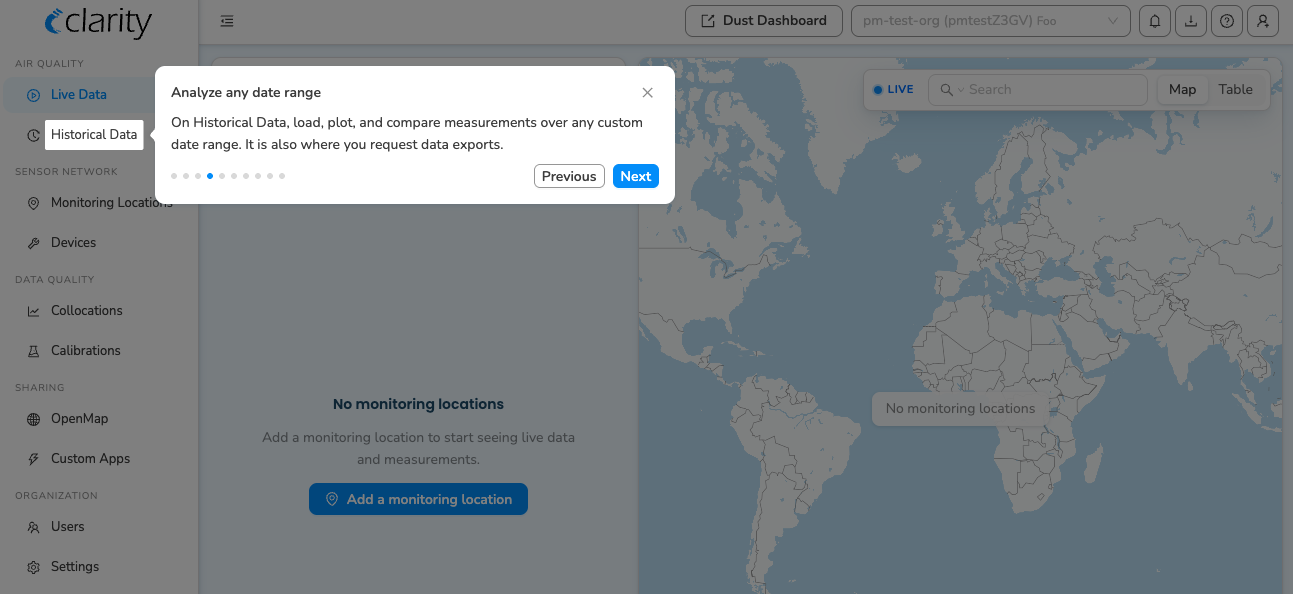
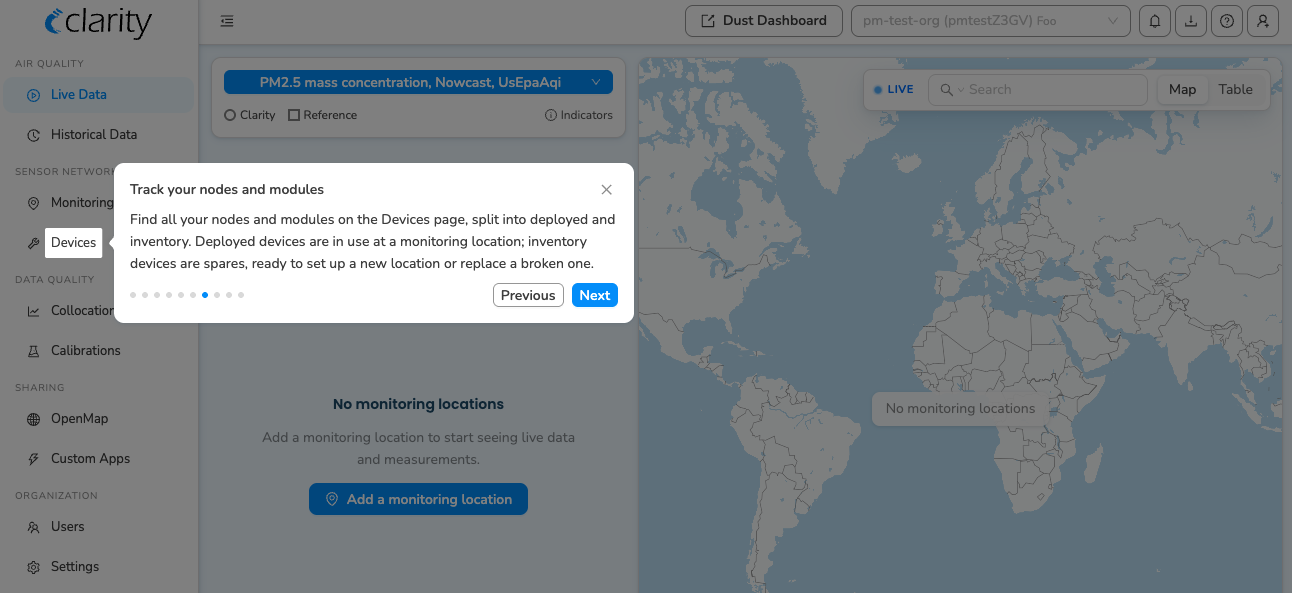
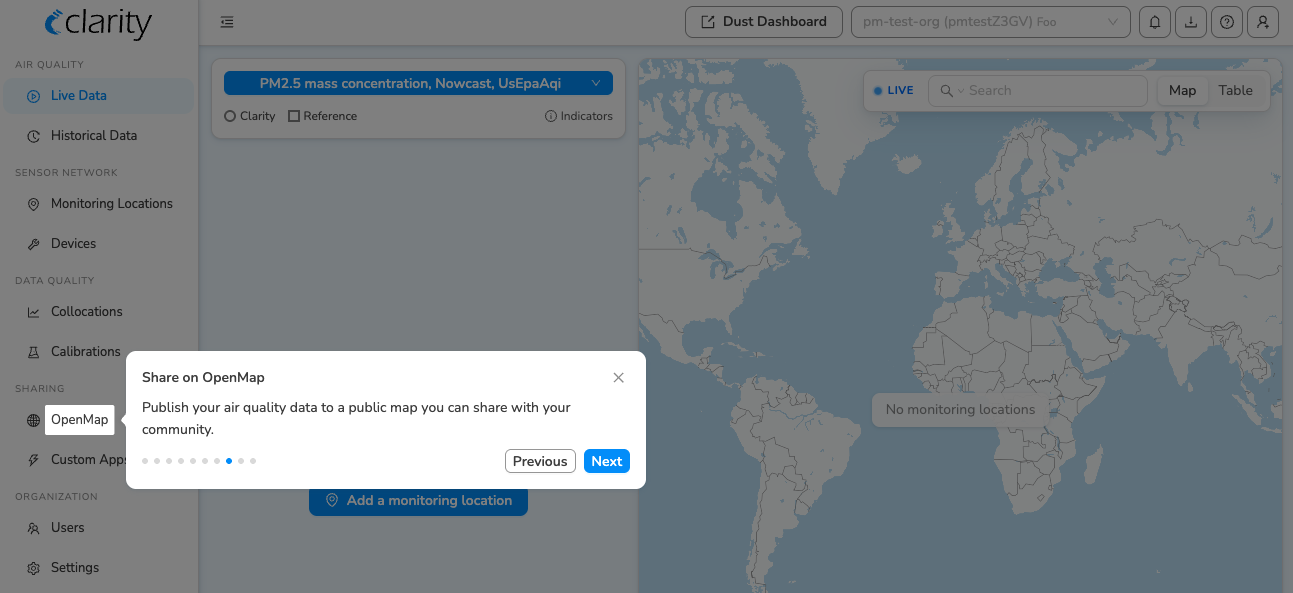
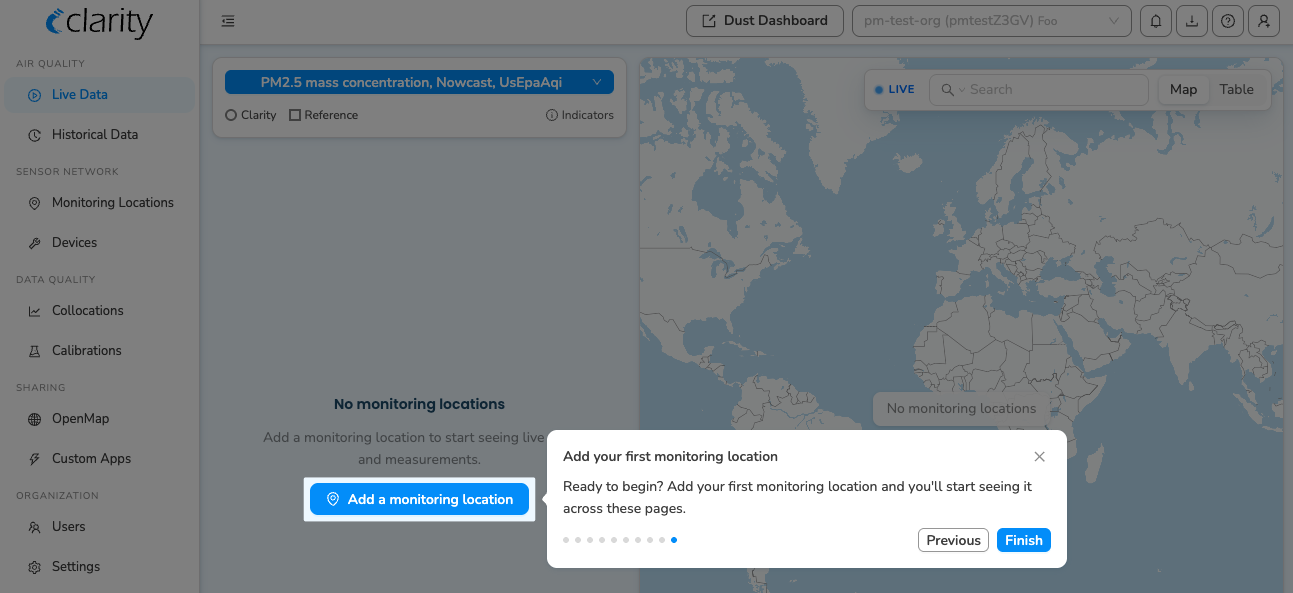
The first time you sign in, a short guided tour introduces these pages (click any step to enlarge):
The main features of the Clarity Dashboard:
Real-time data access (Live Data)
Where: Air quality → Live Data
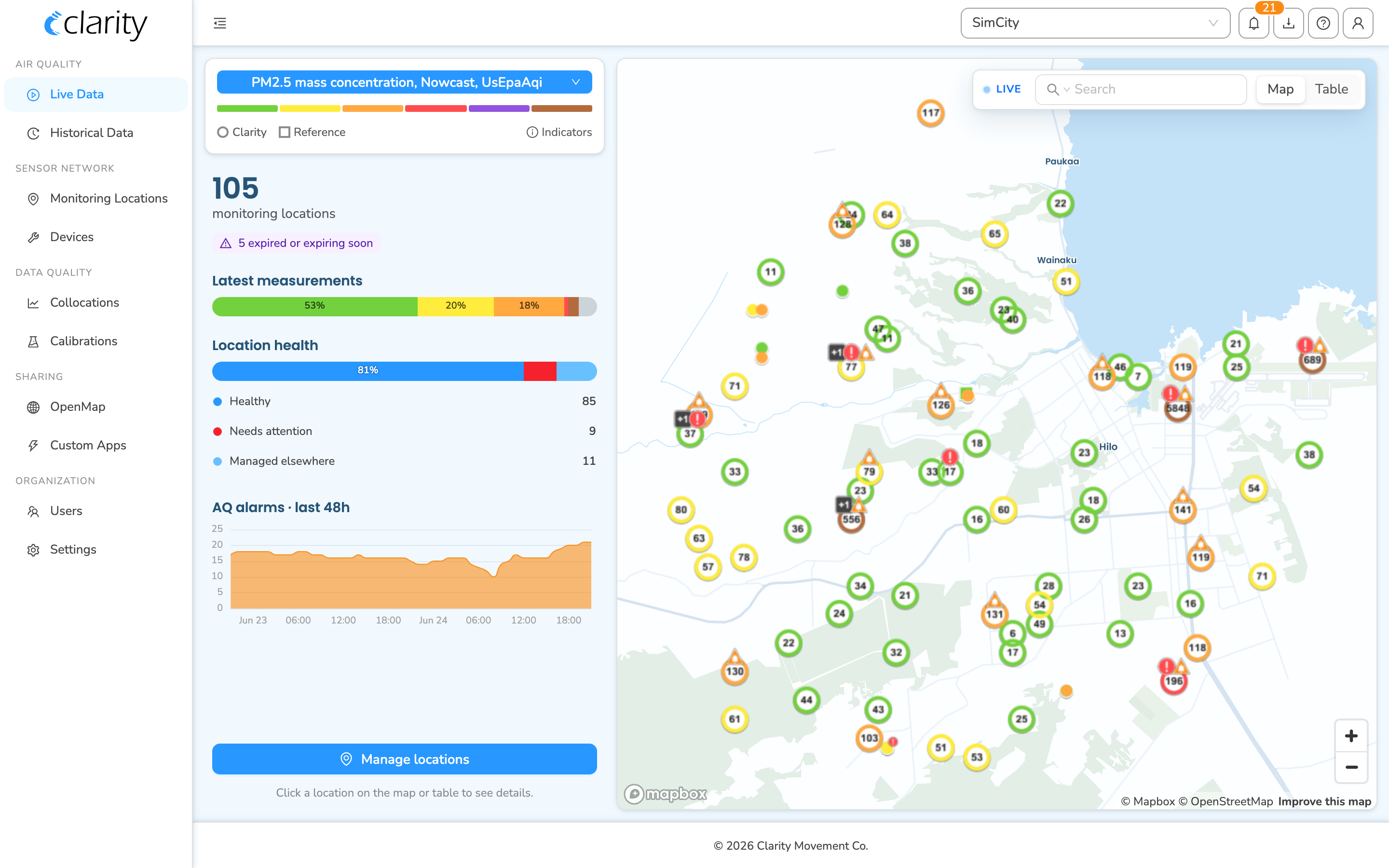
Live Data is your at-a-glance view of the whole network's most recent measurements. A map (or sortable table) shows every monitoring location coloured by its latest reading for the selected parameter, alongside a summary panel that breaks the network down by location health and recent AQ alarms. Click any location to drill into its detail, or use the search box to filter by name, group, tag, or ID.
Air quality data analysis (Historical Data)
Where: Air quality → Historical Data
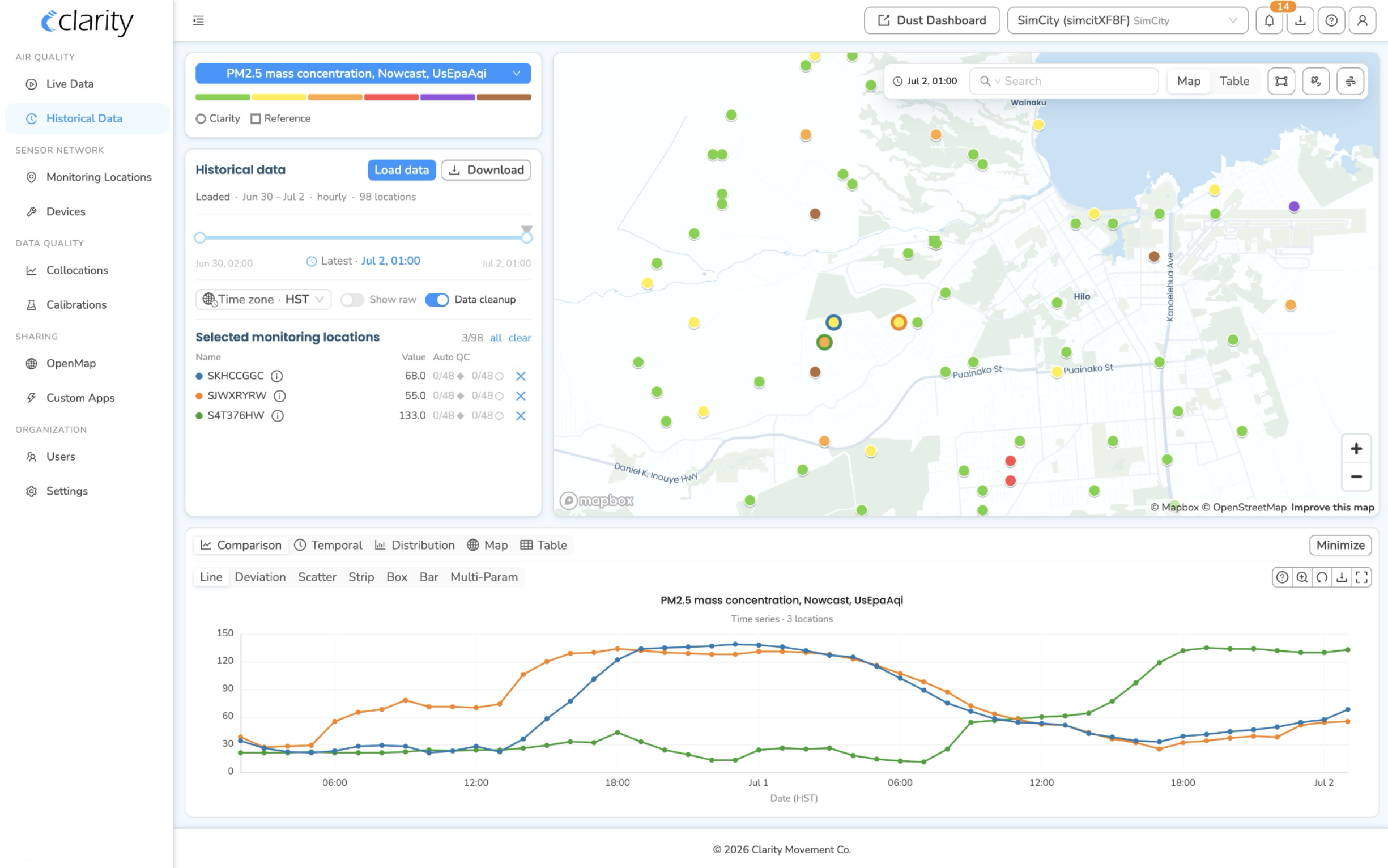
Historical Data is the workspace for exploring measurements over a chosen time window. Select locations on the map, load a date range, and plot them in the chart below — with an Advanced workspace offering time-series, multi-parameter, heat-map, deviation, scatter, wind-rose, and (for Black Carbon) source-apportionment views. The page mirrors your selection into the URL, so copying the address bar reproduces the same view for a colleague.
Automated quality control
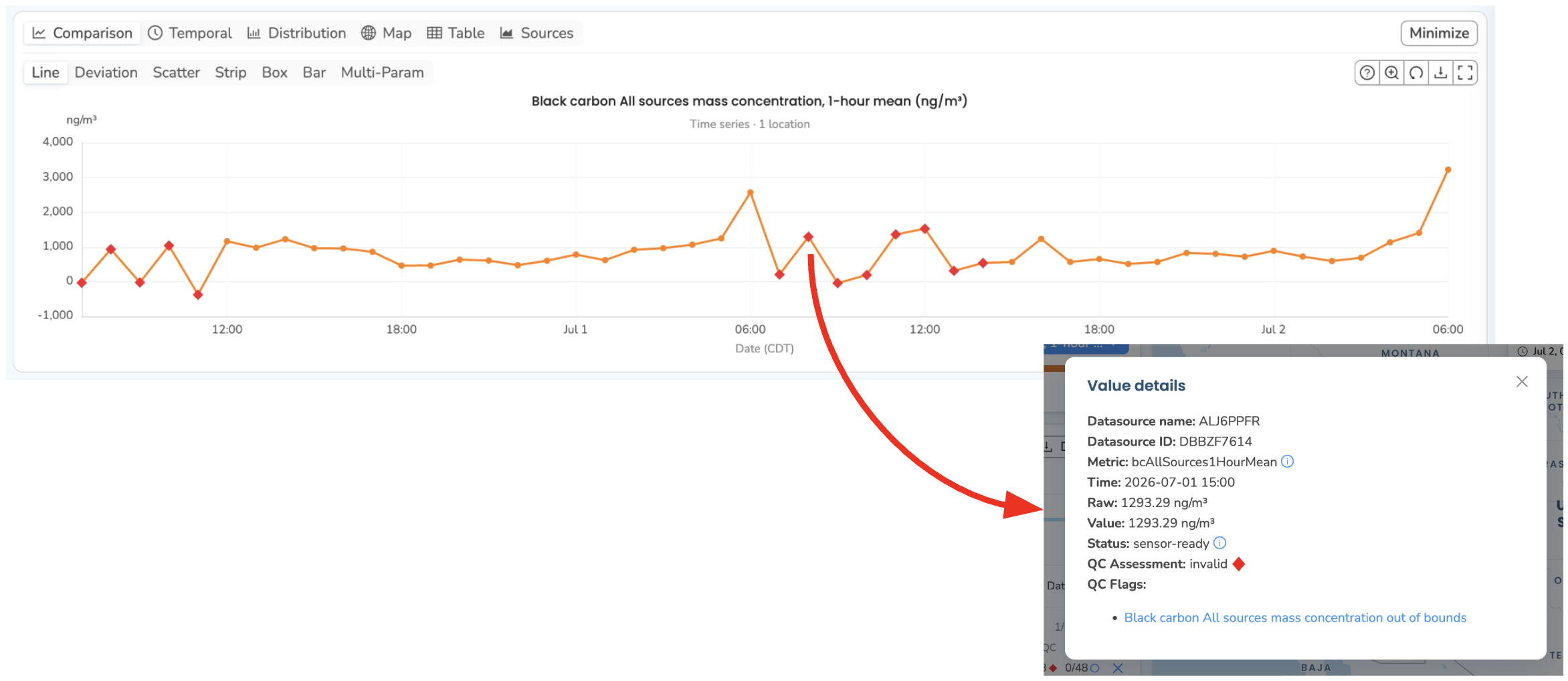
Clarity automatically applies QC flags to measured values based on our understanding of air pollution, sensor technology, and known failure modes, then rolls them up into an overall QC assessment — making it easy to filter invalid measurements out of analyses and public sharing. In Historical Data, clicking a data point opens its Value Details with that point's assessment and individual flags.
Remote device management (Devices)
Where: Sensor network → Devices
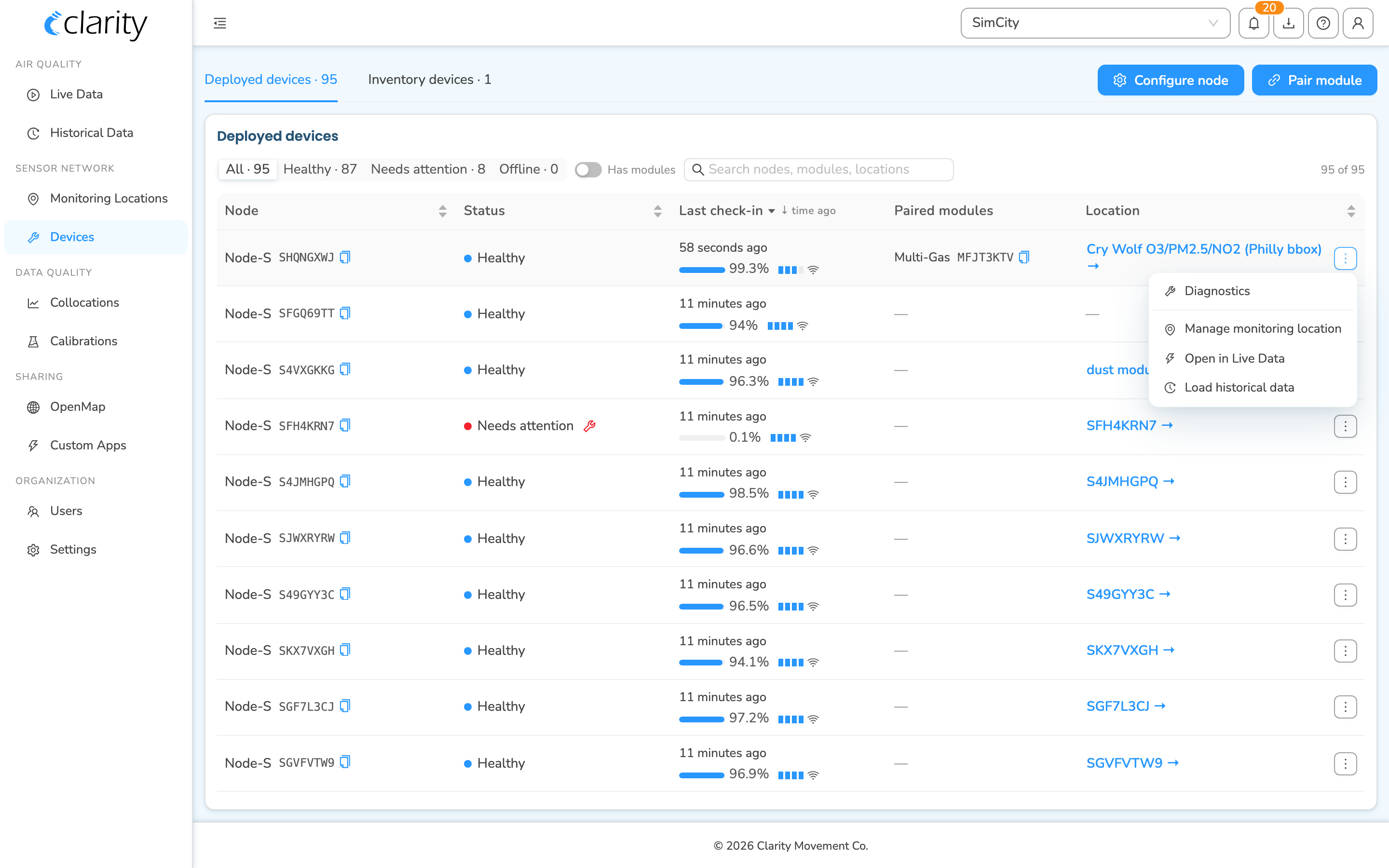
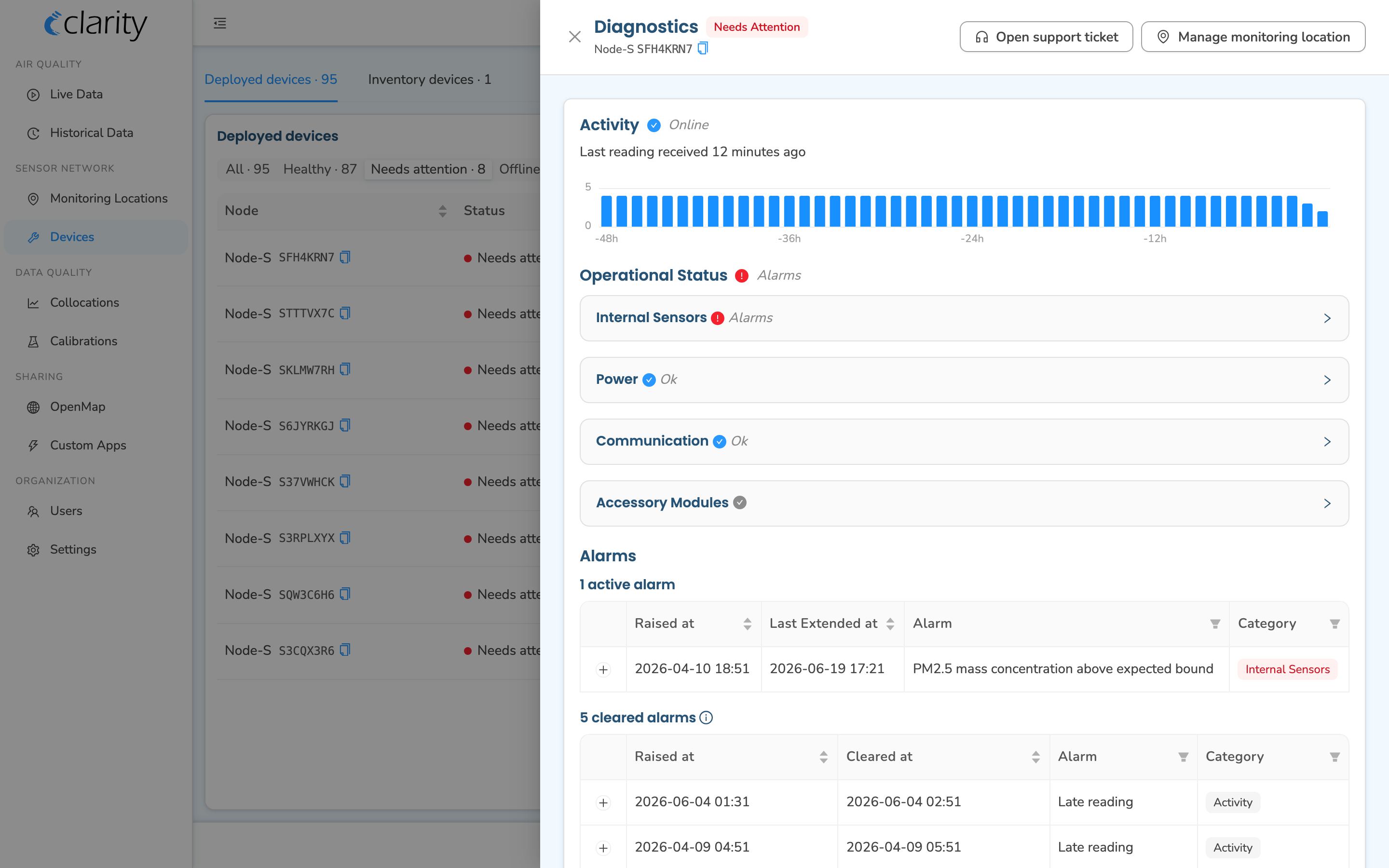
Devices is one unified page for every node and module your org owns, split into Deployed devices (what's currently running, with health, last check-in, and paired modules) and Inventory devices (what's available but not yet deployed). From here you configure nodes and pair modules (org admin or technician only), and each deployed row's ⋮ menu opens diagnostics or jumps to that device in Live Data, Historical Data, or Monitoring Locations.
Managing a location (Monitoring Locations)
Where: Sensor network → Monitoring Locations
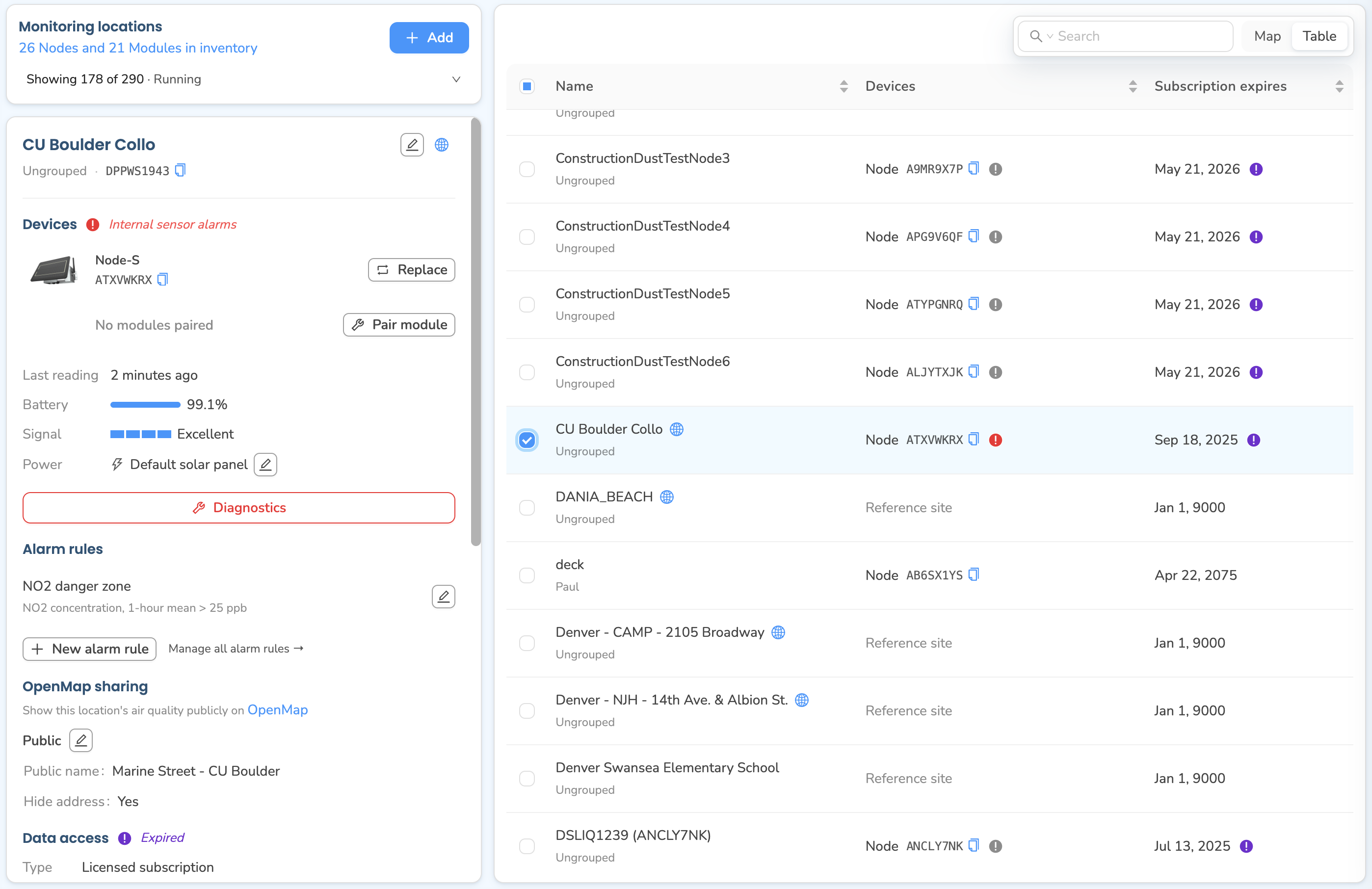
Monitoring Locations is the roster of your deployed sites (called "Datasources" in the API). Selecting a location opens its card — the home for most per-location work: editing identity, replacing nodes or pairing modules, changing power, diagnostics, alarm rules, OpenMap sharing, subscription and deployment details, and data download. Use + Add to bring a new location online.
Historical data download (Downloads)
Where: top-bar download tray → Downloads (route /downloads)
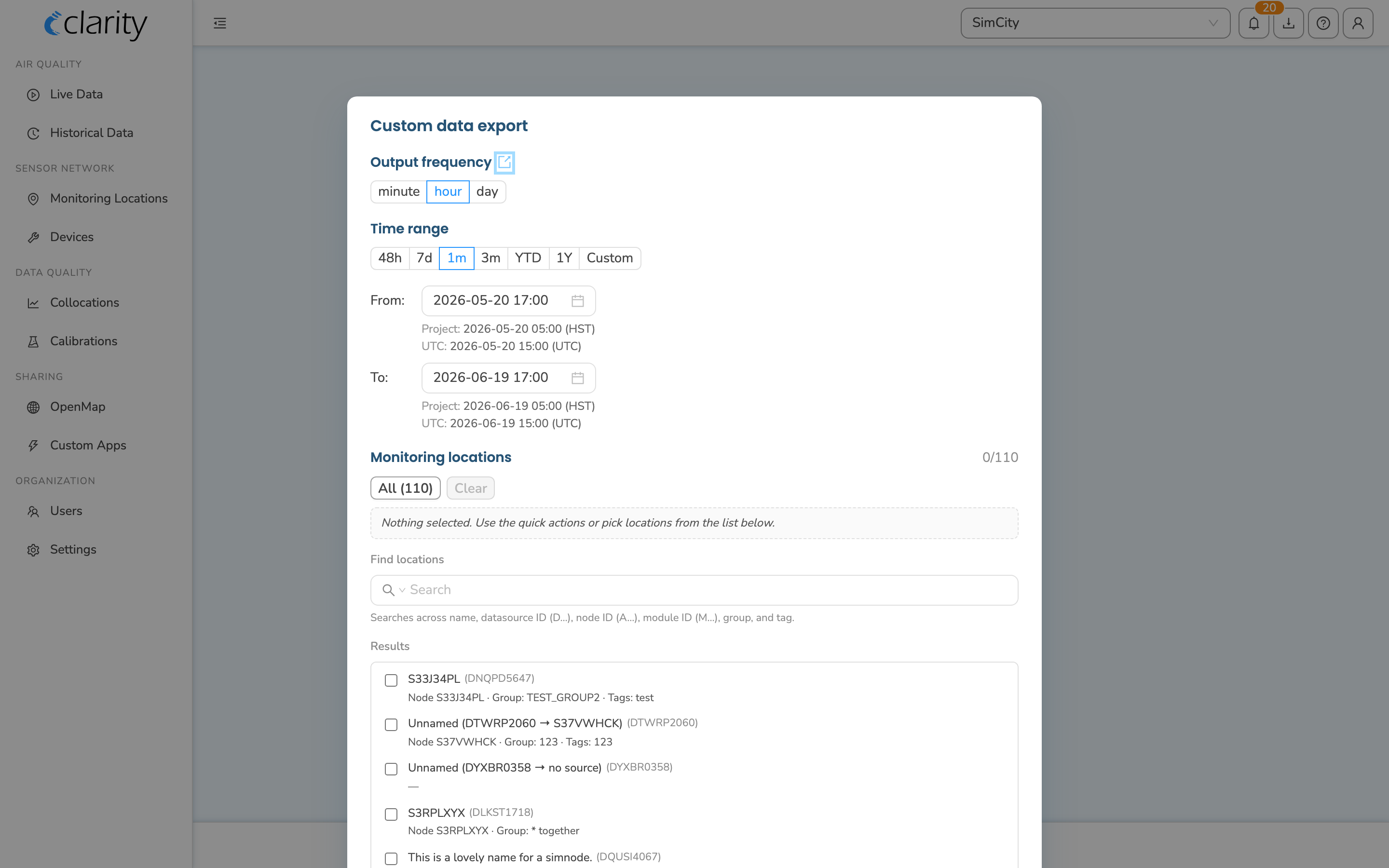
Downloads is your queue of ad-hoc data exports. Request an export — by monitoring location or by node — and it processes in the background, then appears ready to download as CSV or Parquet. You can also start one scoped to a single location from that location's Download data button in Monitoring Locations.
Collaboration and data-sharing control (Users)
Where: Organization → Users
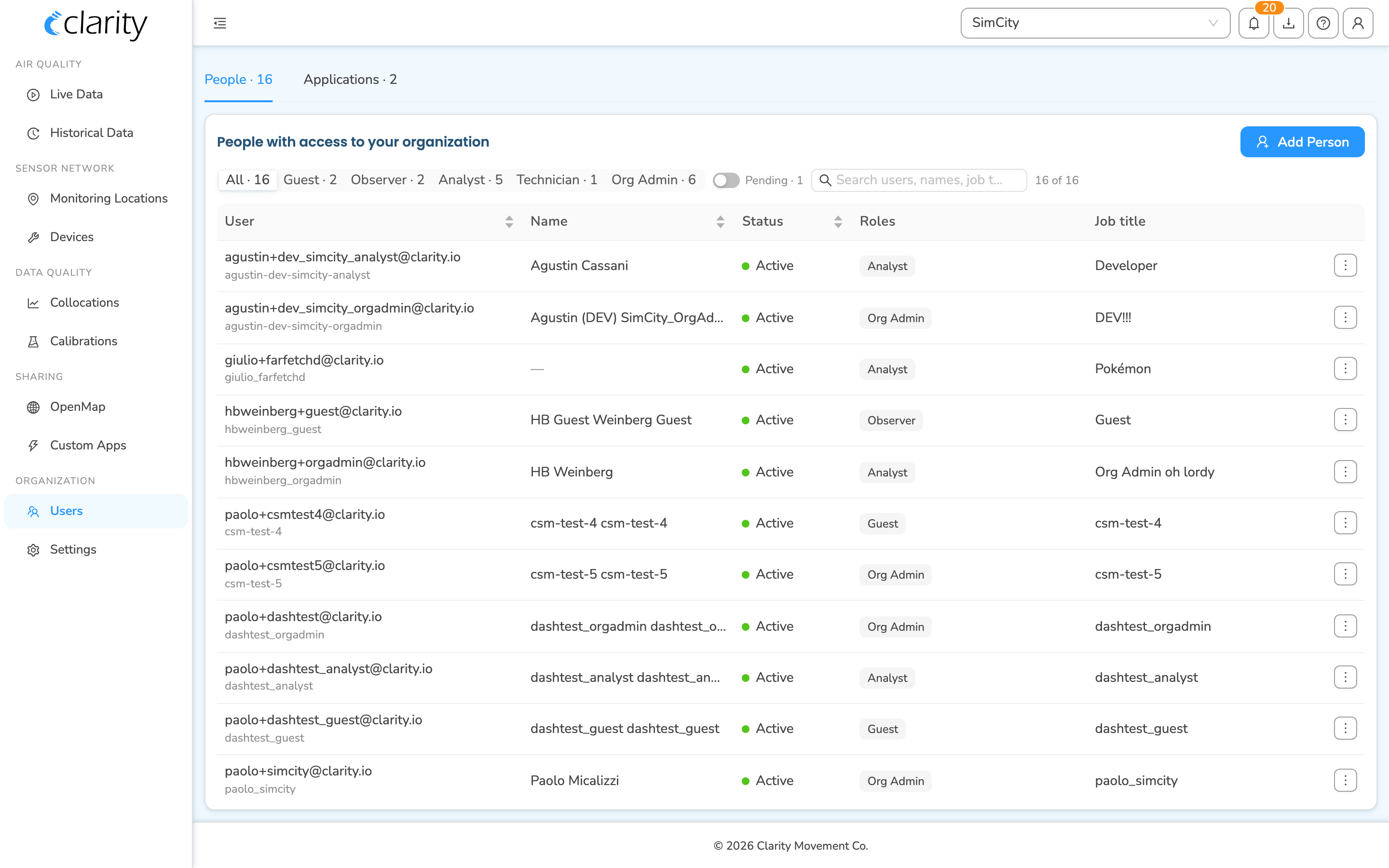
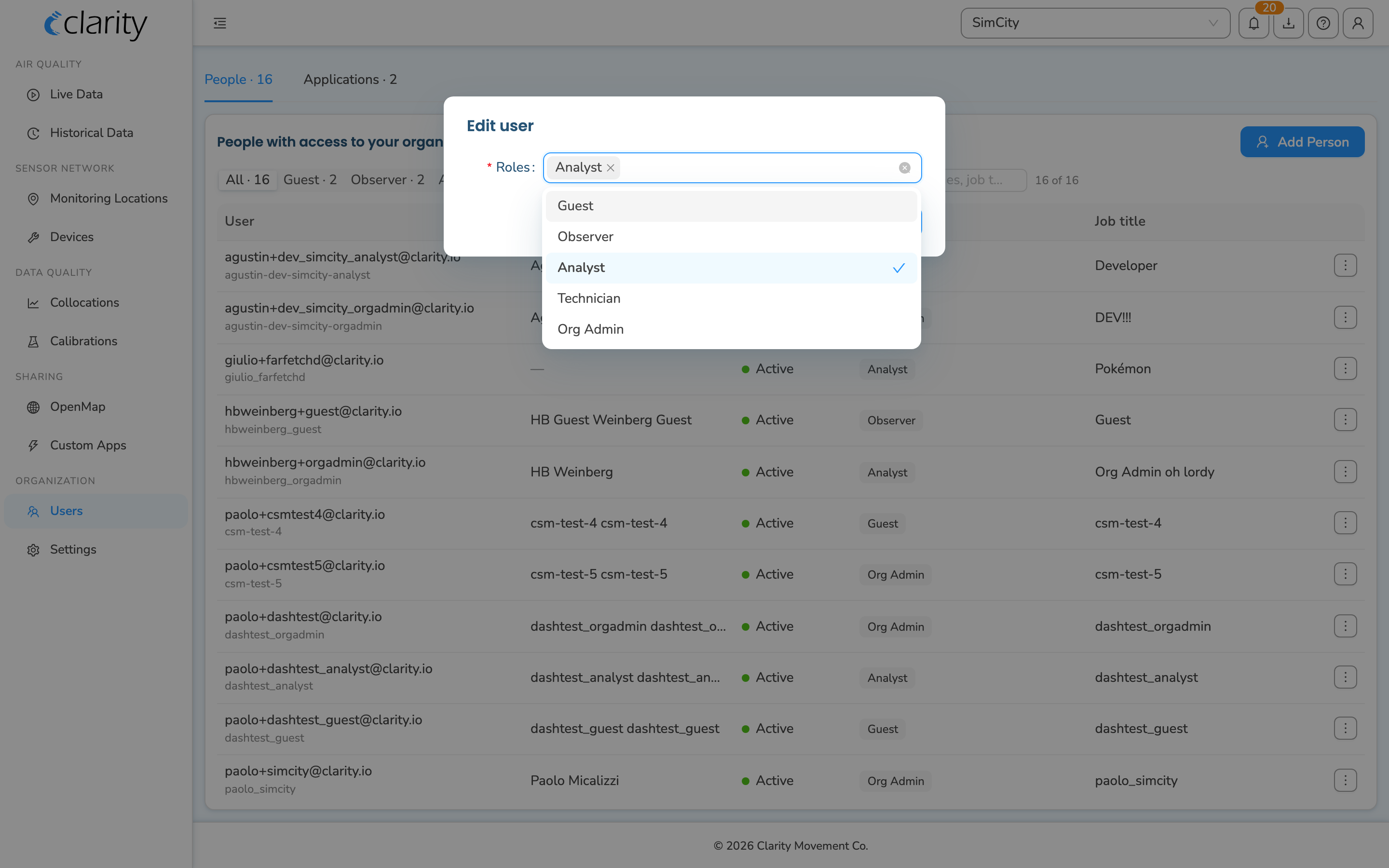
The Users page folds People (members and pending invitations) and Applications (API apps connected to your org) into one tabbed surface. Add teammates with Add Person and set each one's role — Guest, Observer, Analyst, Technician, or Org Admin — to control what they can see and do.
Data quality (Collocations & Calibrations)
Where: Data quality → Collocations / Calibrations
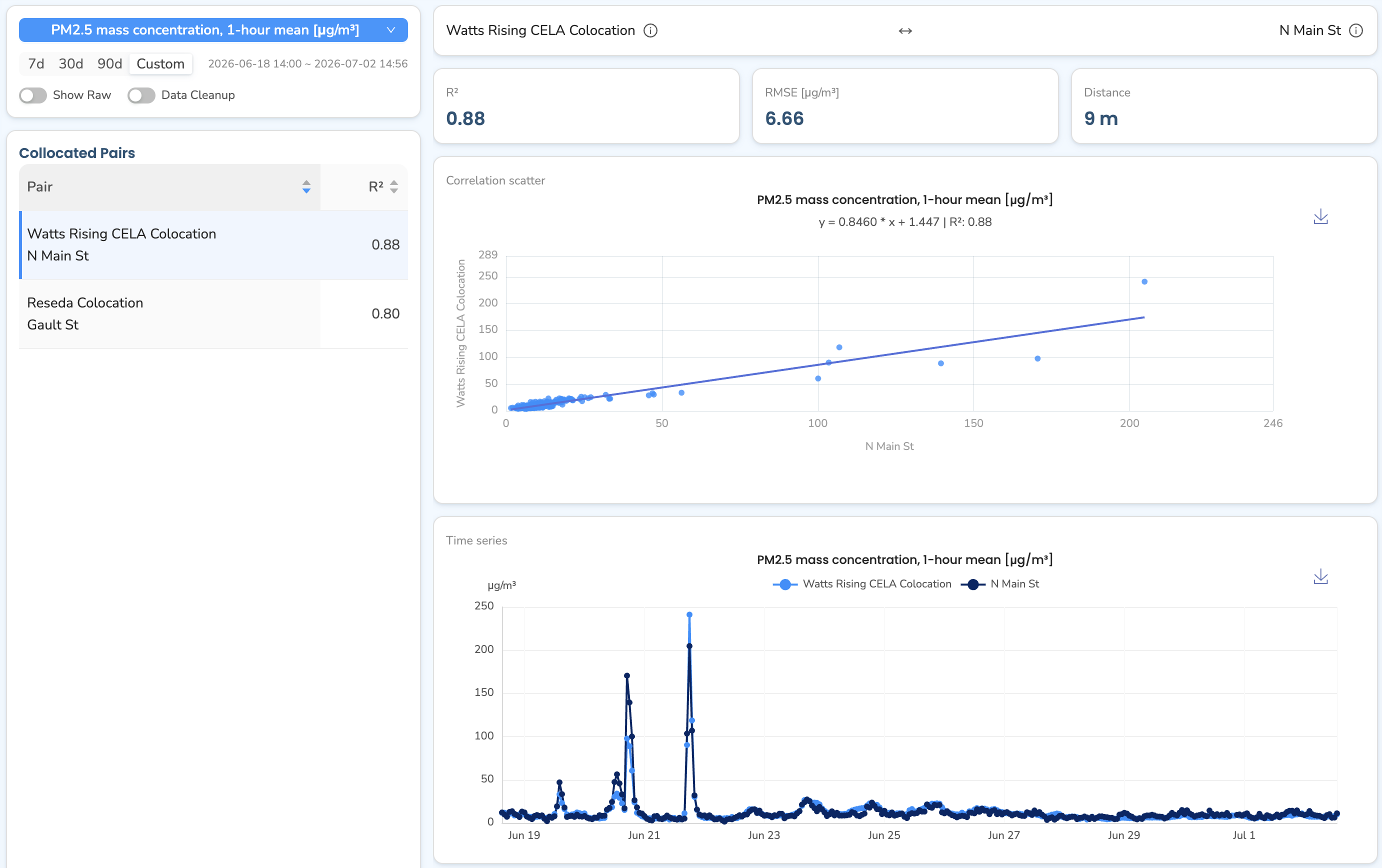
Collocations automatically surfaces any Clarity node within 200 m of a reference site, letting you compare the paired measurements with histogram, time-series, correlation, and deviation views. Calibrations is a separate page for cloud calibration.
OpenMap
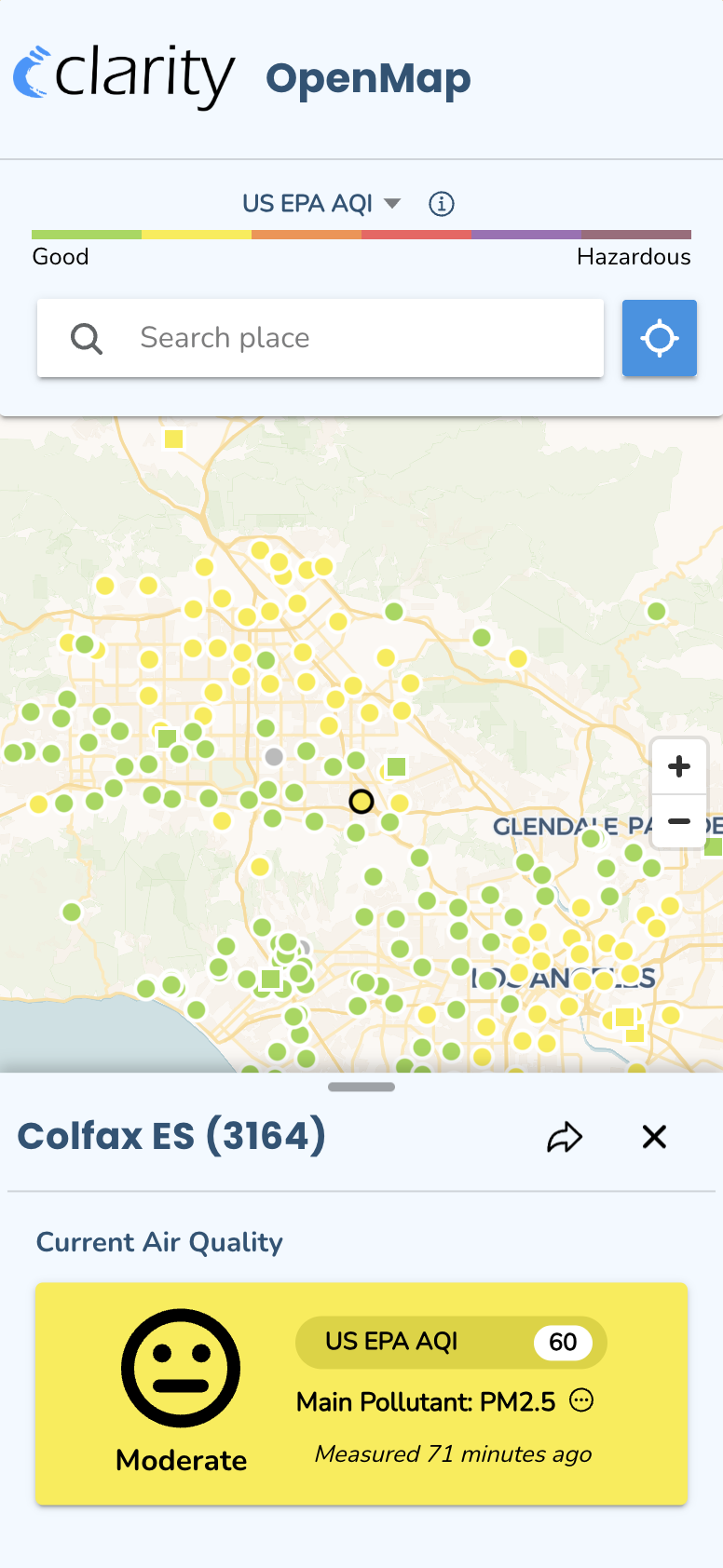
Clarity OpenMap is a public air quality data-sharing platform for community access to real-time PM2.5 and AQI information. You can choose to share a location's data on OpenMap with a simple toggle on the location's card in Monitoring Locations (under OpenMap sharing). OpenMap empowers communities with accurate air quality insights, letting residents monitor current conditions and track long-term trends — supporting local advocacy for cleaner air.
Key features:
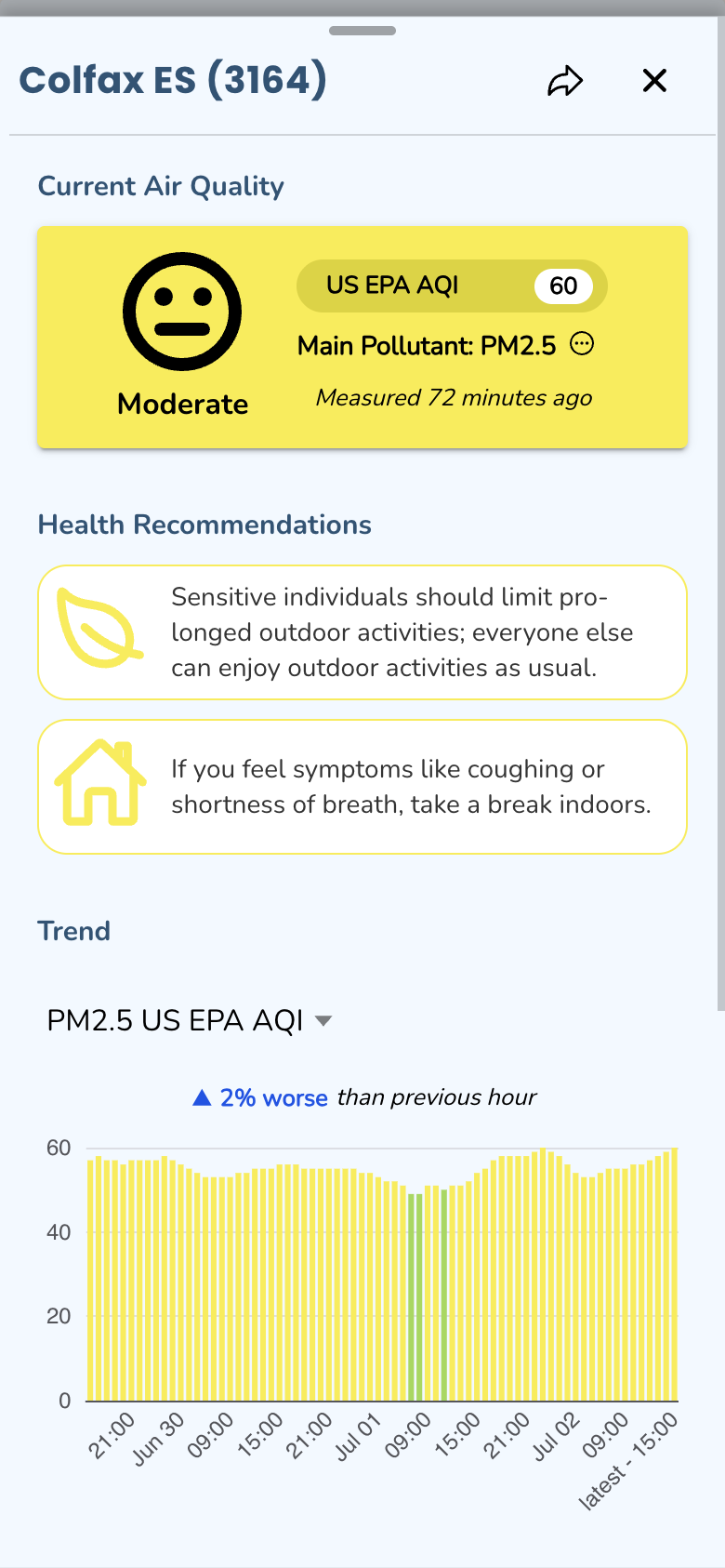
- Real-time air quality data — hourly NowCast AQIs for up-to-date conditions.
- Historical trends — day, week, month, and year views reveal patterns over time.
- Accessibility — simplified visuals make it easy to explore and compare locations.
- Transparency — information on calculation methods and data sources builds trust.
OpenMap can be embedded directly into your organization's website via iFrame, making it easy to share insights with a broader audience.
API
The Clarity API is a REST API that lets you access data from your Clarity air monitoring network. It offers endpoints returning resources in JSON and tabular formats, designed to be easy to integrate. Use it to retrieve recent and historical air quality measurements and network-management data, and to continuously integrate your Clarity data with existing systems, data-analysis notebooks, GIS applications, environmental models, or third-party dashboards. API applications connected to your org are listed under Users → Applications.
What's next
Still need a hand? Email us at support@clarity.io or create a support ticket, and our team will get back to you.
Was this helpful?