How do I check when my Clarity data licenses expire and need to renew?
Your Clarity Sensing-as-a-Service data licenses (also called data subscriptions) keep your devices reporting new data into the Dashboard and API. This article shows you how to:
- See at a glance which monitoring locations are expired or expiring soon.
- Check the exact expiration date for any single location.
- Request a renewal, if your account has billing access.
Quick check: who's expired or expiring soon
The fastest way to see which of your locations are expired or expiring soon is the Monitoring Locations page.
- Log into the Clarity Dashboard.
- In the left sidebar, under SENSOR NETWORK, click Monitoring Locations.
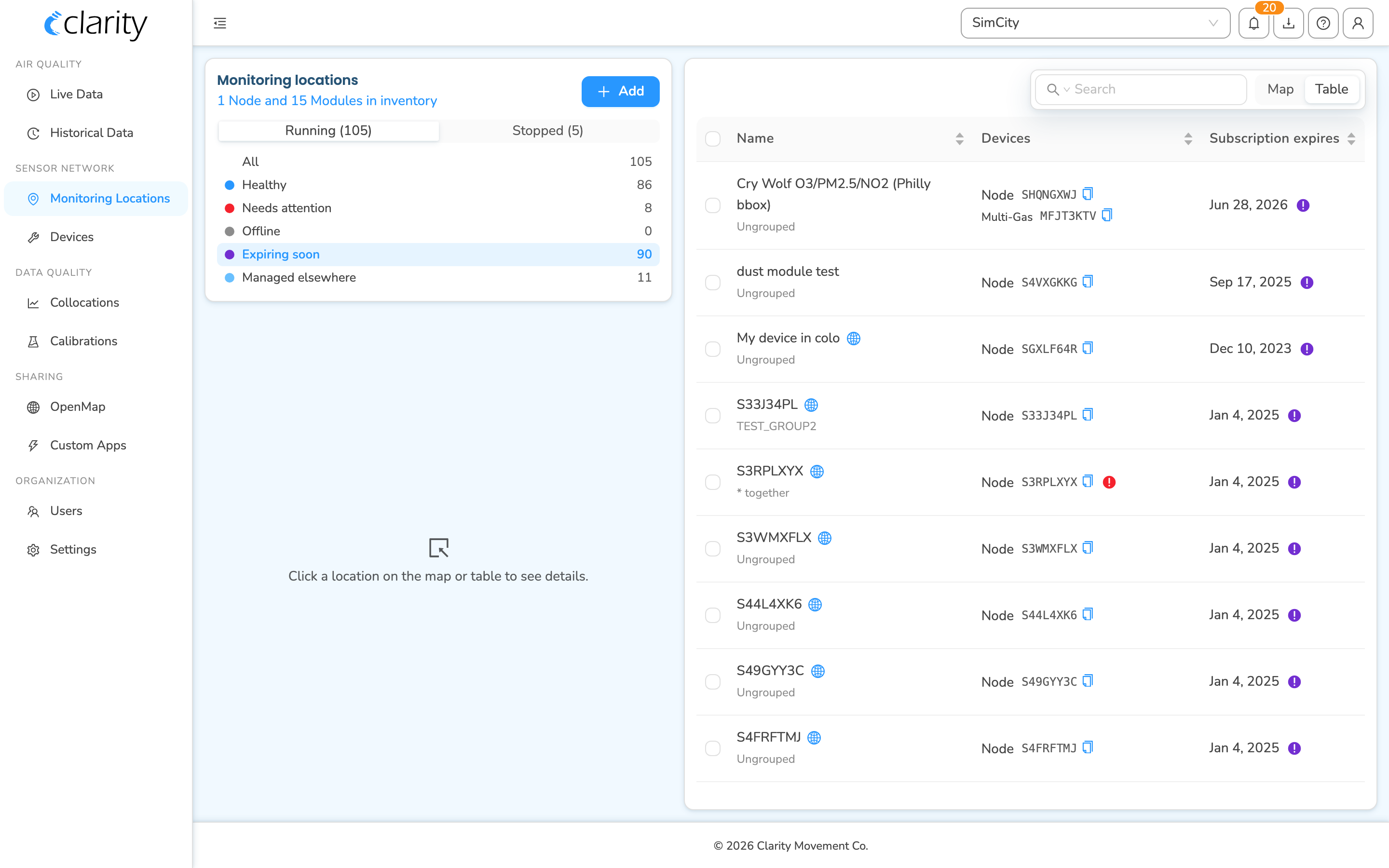
- Make sure the Running tab is selected, which it is by default, then click the Expiring soon filter in the list below it.
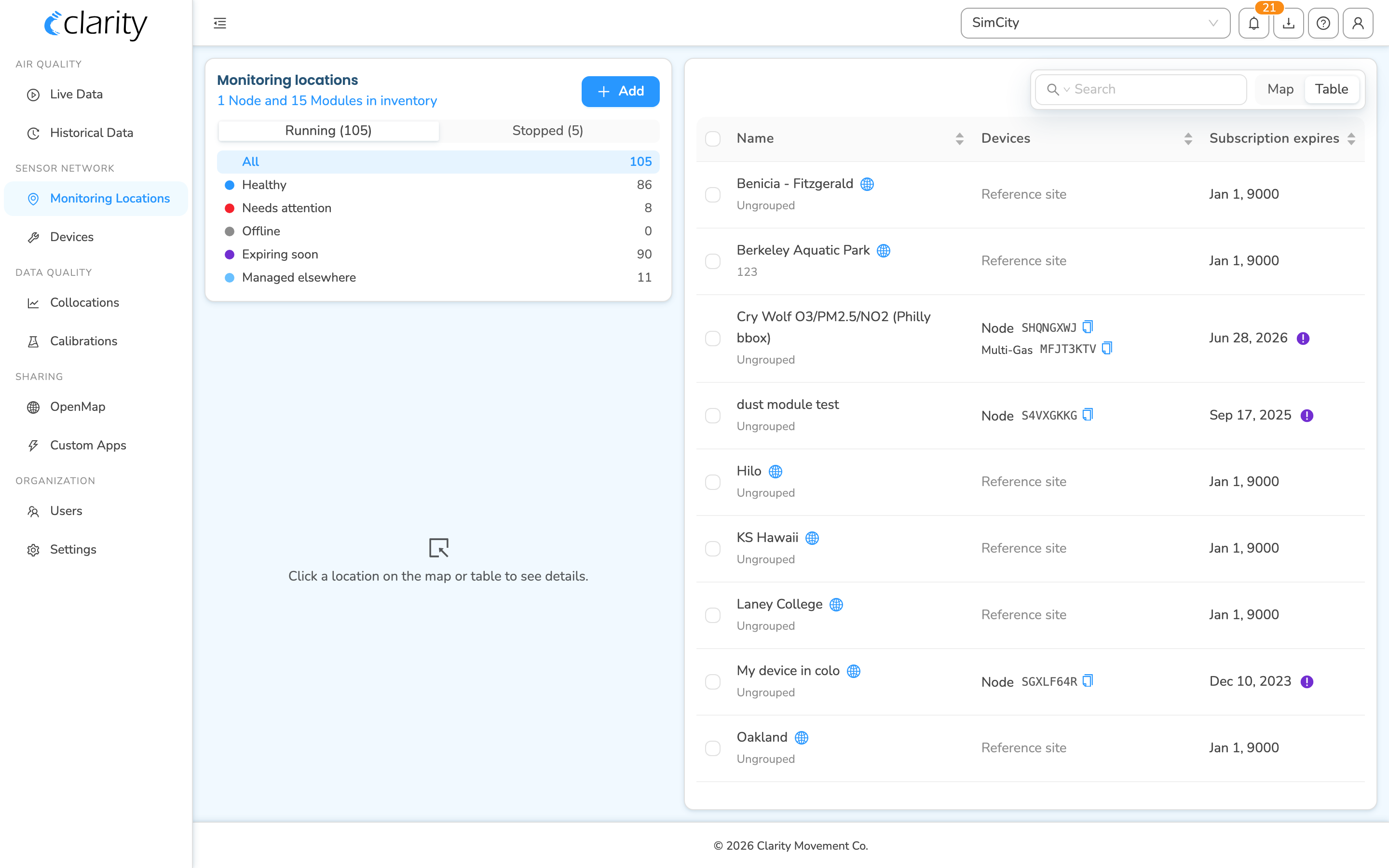
The control card on the left lists every status bucket with a running count:
- All
- Healthy
- Needs attention
- Offline
- Expiring soon: locations that need renewing soon
- Managed elsewhere: reference sites and locations another organization owns
Click Expiring soon to narrow the table to just the locations that have already expired or that expire within the next 30 days.
Reading the table
The locations table has three columns:
| Column | What it shows |
|---|---|
| Name | The location name, and its group if it has one. |
| Devices | The node and any paired modules, with a health indicator. Reference sites and locations managed by another org show a placeholder instead of a node. |
| Subscription expires | The expiration date for that location's data license. A purple ! badge appears next to the date when the subscription is expired or expiring soon; hover the badge to see which. Locations with no current subscription show an em-dash (—). |
You can sort by any column header, click Subscription expires to bring the soonest-to-expire locations to the top.
When you have nothing selected on the Live Data page under AIR QUALITY, the summary panel shows a purple "N expired or expiring soon" chip. Clicking it jumps straight to Monitoring Locations with the Expiring soon filter already applied.
Check the expiration date for a single location
To see the full data-access details for one location:
- On Monitoring Locations, click a row in the table, or a marker on the map.
- The detail panel opens on the left. Scroll to the Data access section.
The Data access section shows:
- Type: the subscription type (for example, Licensed subscription, Public subscription).
- Expires: the exact expiration date. If the subscription is expired or expiring soon, a purple ! badge and an italic Expired / Expiring soon label appear next to the section title.
- Sharing: whether the data is private or shared with/from another organization.
- ID: the subscription ID, useful when contacting support.
What happens when a license expires
When your data licenses lapse, from that point forward you'll no longer be able to access newly collected data on the Dashboard or through the API. You keep full access to the historical data that was collected while your licenses were active.
To avoid a gap in your data, renew before the expiration date.
Request a renewal
Renewals are handled on the Billing page.
Billing only appears in the sidebar for organization administrators whose account has billing/funding visibility enabled. If you don't see Billing under the ORGANIZATION section, or you open it and see a "does not have permission [VIEW_FUNDING]" message, your account isn't set up for self-service billing. In that case, skip to Need help? below and email support and we'll take care of the renewal for you.
To request a renewal:
- In the left sidebar, under ORGANIZATION, click Billing.
- The page is titled Renew Funding. It has two tables:
- Renewal Requests: any renewal requests you've already submitted that are still pending review.
- Funding History: your funding sources, each with its Funding Start, Funding End (with a status tag such as expiring soon), and the devices it covers.
- Find the funding source you want to renew in Funding History and click Request Renewal in its Actions column.
- The button is disabled if a renewal request for that funding source is already pending, and rows that have already been superseded show Already Renewed instead.
The renewal wizard
Clicking Request Renewal opens the Renew your access wizard, which walks through four steps:
- Introduction: confirms the funding source you're renewing and the date you're projected to lose access. You can add free-text instructions for the Ops team here, and the notes box is repeated on every step.
- Monitoring locations & nodes: a table of the locations and nodes covered, including days remaining, or how long ago each expired.
- Accessories: any modules paired to those nodes.
- Confirmation: a summary of nodes, modules, and the extension period.
On the final step, click Request Renewal to submit. Your request lands in the Renewal Requests table for the Clarity Ops team to review and process. Renewing extends your current datasources, nodes, and accessories for a period matching your current subscription term.
Need help?
If you don't have billing access, want to change the renewal term, or have any questions, contact us at support@clarity.io and we'll help you extend or renew your data licenses.
What's next
Still need a hand? Email us at support@clarity.io or create a support ticket, and our team will get back to you.
Was this helpful?