AQ alarms on Dashboard
How to set up, view, and get notified about air quality alarms.
What is an AQ alarm?
An Air Quality (AQ) alarm is triggered when a measurement from one or more of your monitoring locations crosses a threshold you've defined in an alarm rule. AQ alarms help you spot pollution events as they happen so you can take action.
What is an alarm rule?
An alarm rule sets the conditions for triggering an AQ alarm. Each rule has:
- Rule name (e.g. "High PM2.5")
- Metric and output frequency: what to measure and over what window (e.g. PM2.5 mass concentration, 1-hour mean)
- Comparison operator:
>,<,>=, or<= - Threshold value (e.g. 50 µg/m³)
- Monitoring locations in scope: all locations in the organization, all except a list you exclude, or only the ones you pick
A look-back period is also applied automatically. This is the time that must pass without any measurement crossing the threshold before the alarm clears.
How do I get to AQ Alarms?
Open the AQ Alarms entry, the alarm-bell icon, in the left sidebar. The page lives at /aq-alarms.
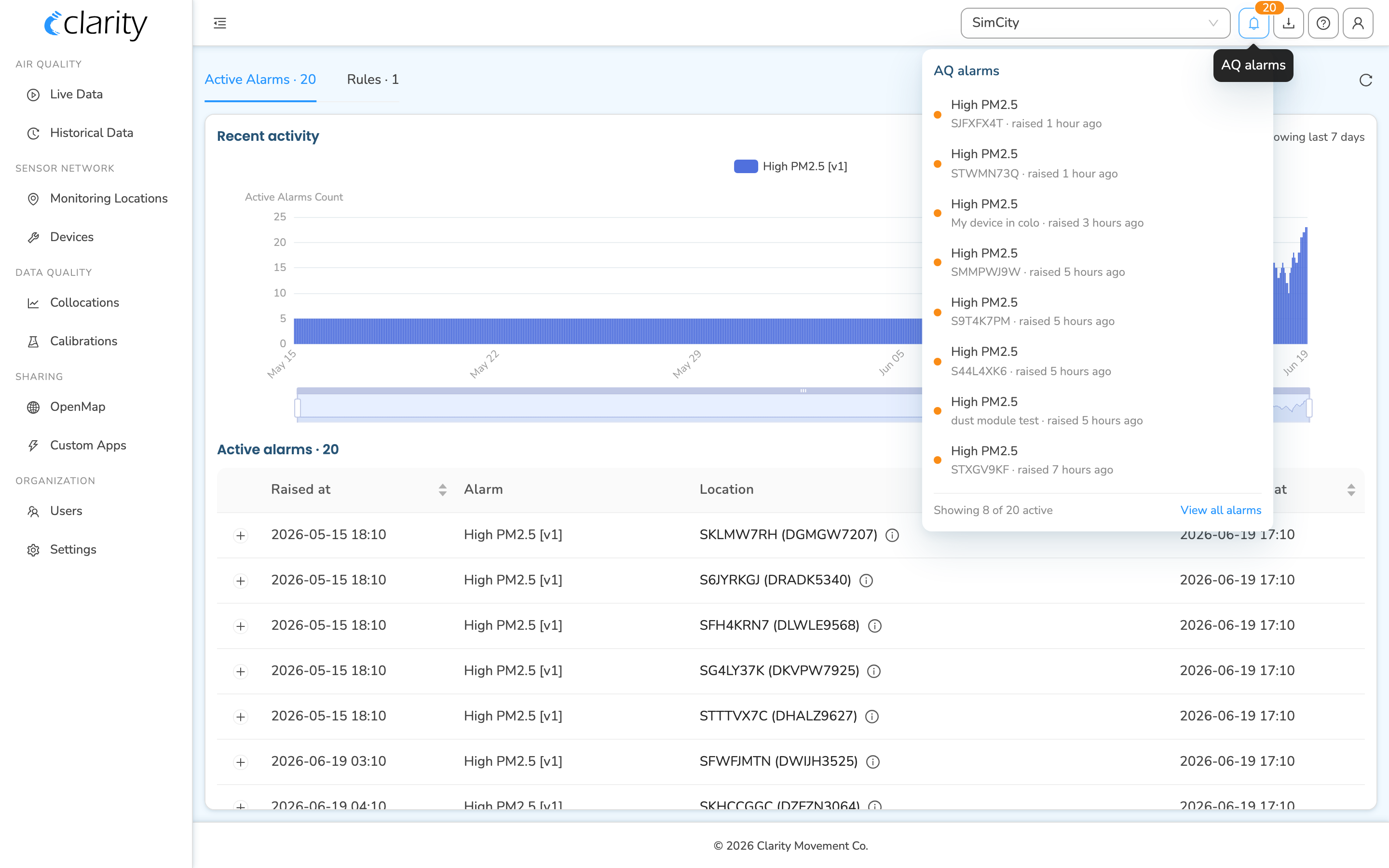
You can also reach it from the alarm bell in the top bar. The bell badges the number of currently-active AQ alarms in your organization; clicking it opens a popover that lists the most recent active alarms, with a View all alarms link to the full page.
Where can I view recent AQ alarms?
The AQ Alarms page has two tabs at the top:
- Active Alarms: the alarm logs and activity chart
- Rules: where you create and manage alarm rules
Each tab label shows a count, e.g. Active Alarms · 3 and Rules · 6. A small circular-arrow refresh button sits at the top-right of the tab bar to reload the data.
Active Alarms tab
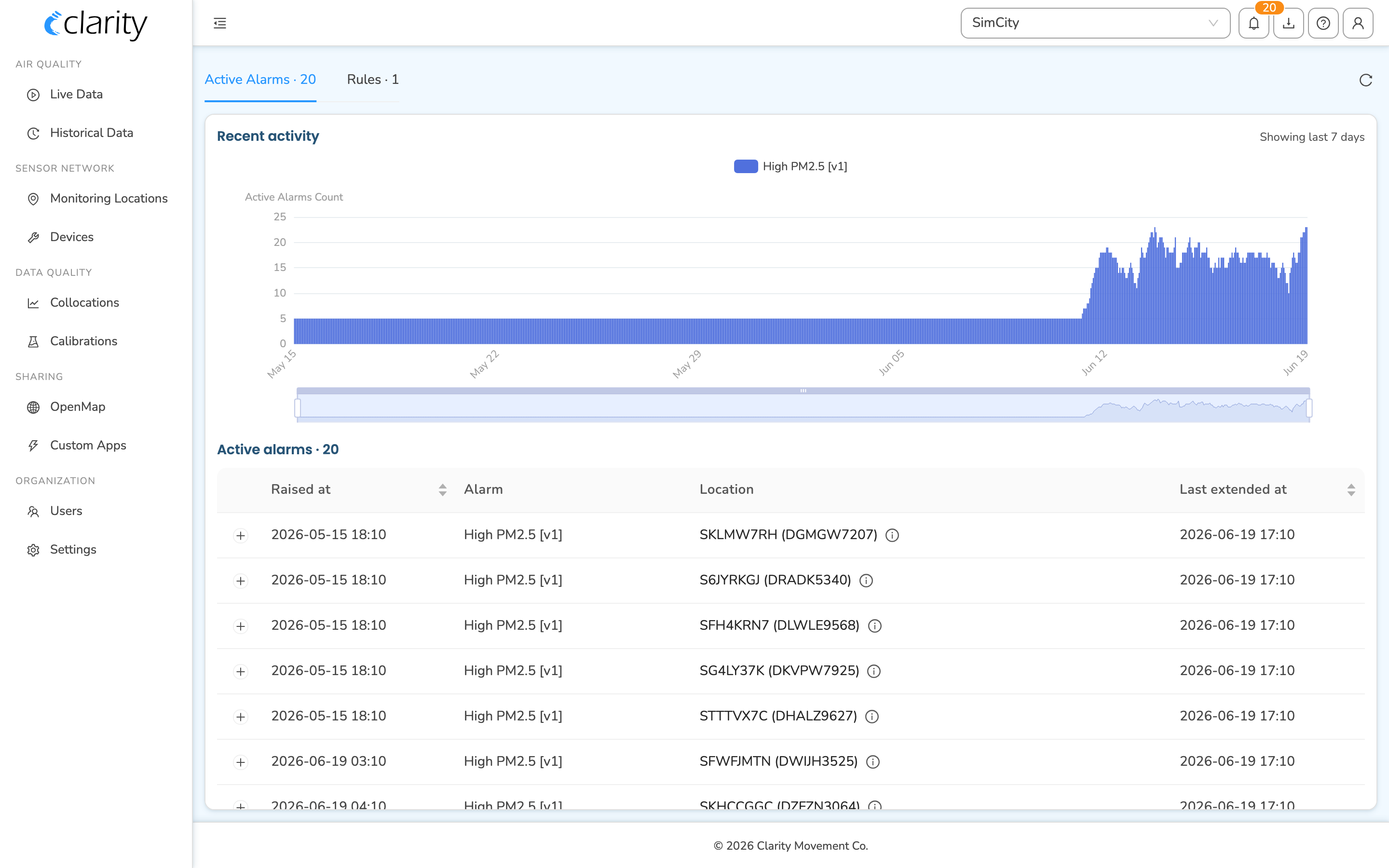
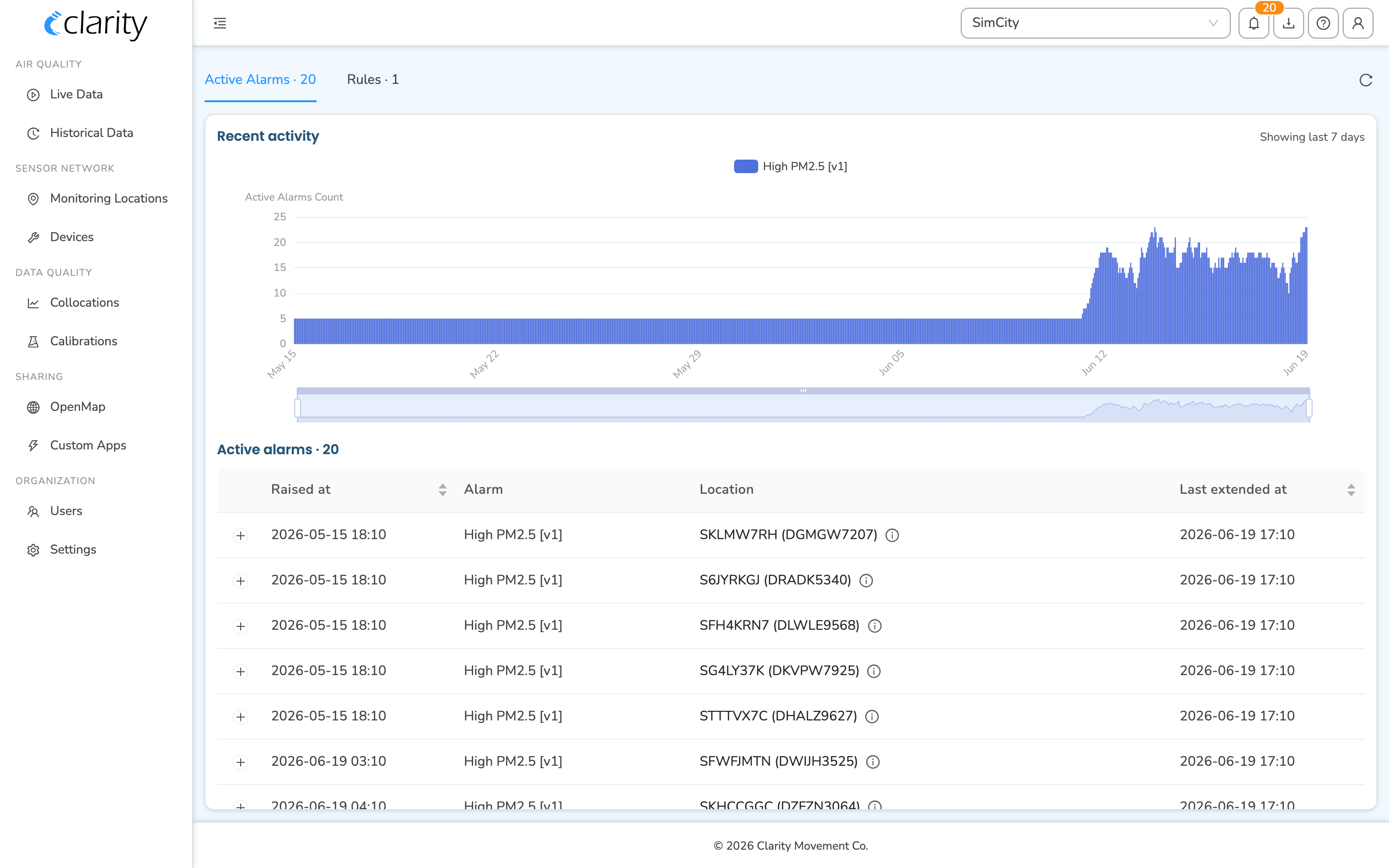
The Active Alarms tab shows everything on one full-width surface:
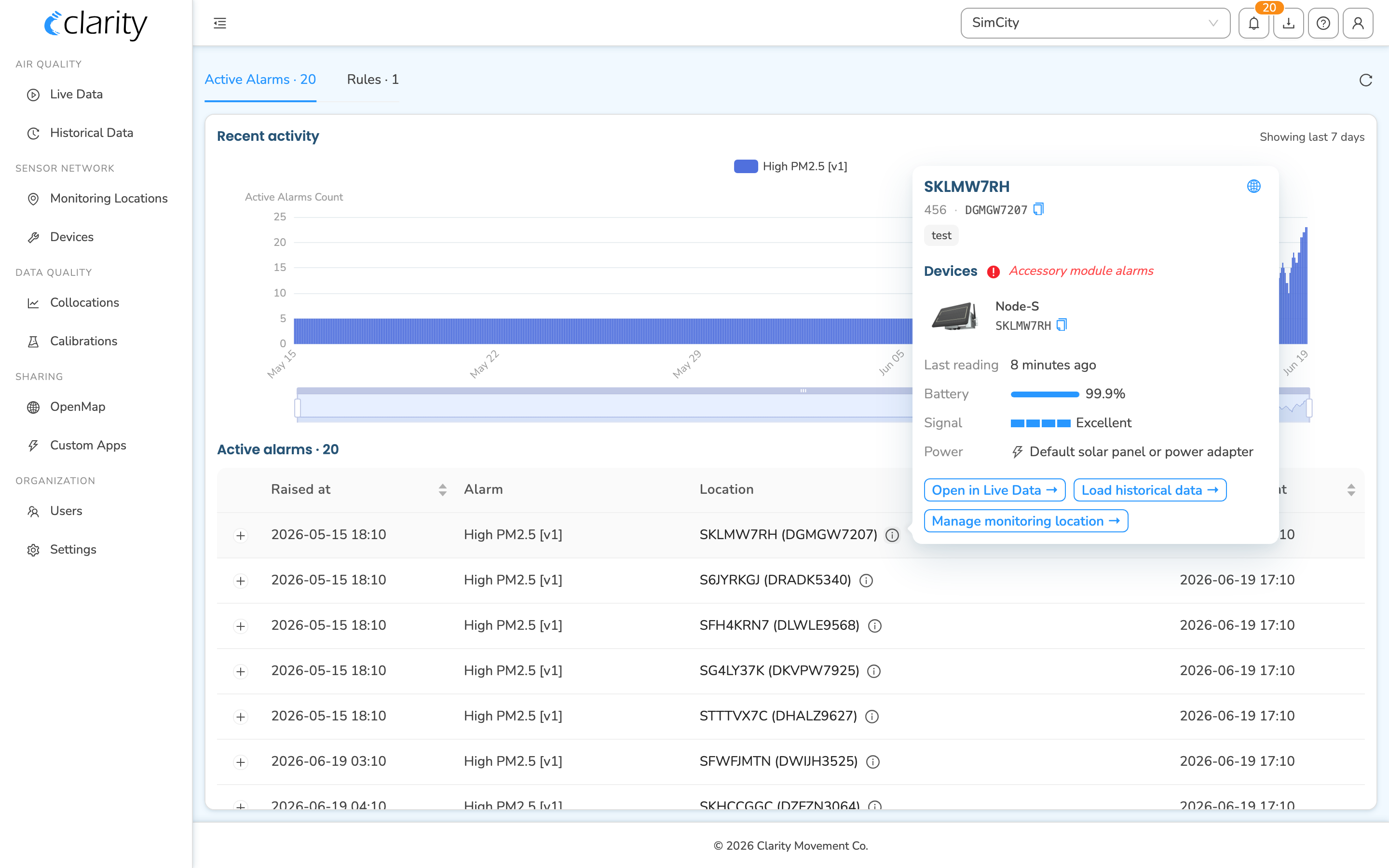
- Recent activity chart at the top: a stacked bar chart of active-alarm counts over the last 7 days, broken down by rule. Use the slider/zoom under the chart to focus on a window. When there's nothing to show, it reads "No active alarms in the last week."
- Active alarms table: one row per currently-ringing alarm, with Raised at, Alarm showing the rule name and version, Location, and Last extended at columns.
- Cleared alarms table: the same layout for alarms that have since cleared, with a Cleared at column instead.
Seeing the details of an alarm
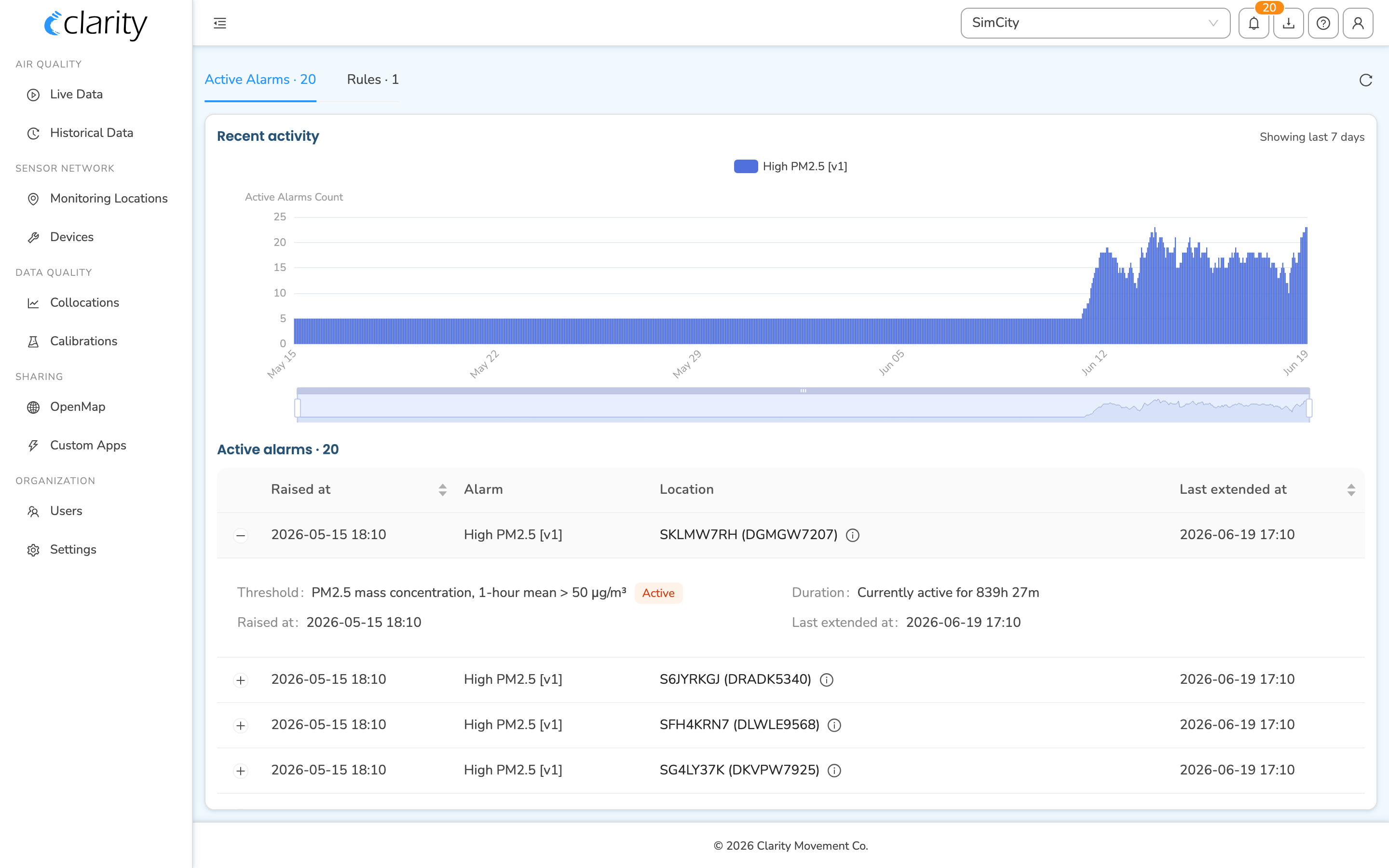
Click any row in the Active or Cleared table to expand an inline details panel right below it. The panel shows the Threshold with an Active/Cleared tag, how long the alarm has been or was active, the Raised at time, and the Last extended at / Cleared at time.
Jumping to the location
In the Location column, click the small (i) info button next to a location name to open a popover with that monitoring location's details, its device, and quick links into Historical Data and the Devices page.
Will I be notified when a new AQ alarm is triggered?
Yes, if you're subscribed, you'll get an email each time a new AQ alarm is raised in an organization you've opted into. AQ alarm stats also appear in your Weekly digest email.
AQ-alarm email notifications are a per-user communication preference managed in your profile.
How do I subscribe to email notifications?
- Open the avatar / account menu in the top bar to bring up the profile drawer.
- Scroll to the communication preferences section. You'll see one row per channel: AQ alarms, Device alarms, and Weekly digest. Each row lists the organizations you're currently subscribed to.
- Click Edit on the AQ alarms row.
- In the dialog, toggle the switch on (or off) for each organization you want to receive AQ-alarm emails from.
Notification preferences are per user and per organization — they don't affect others in your organization.
How do I create or manage an alarm rule?
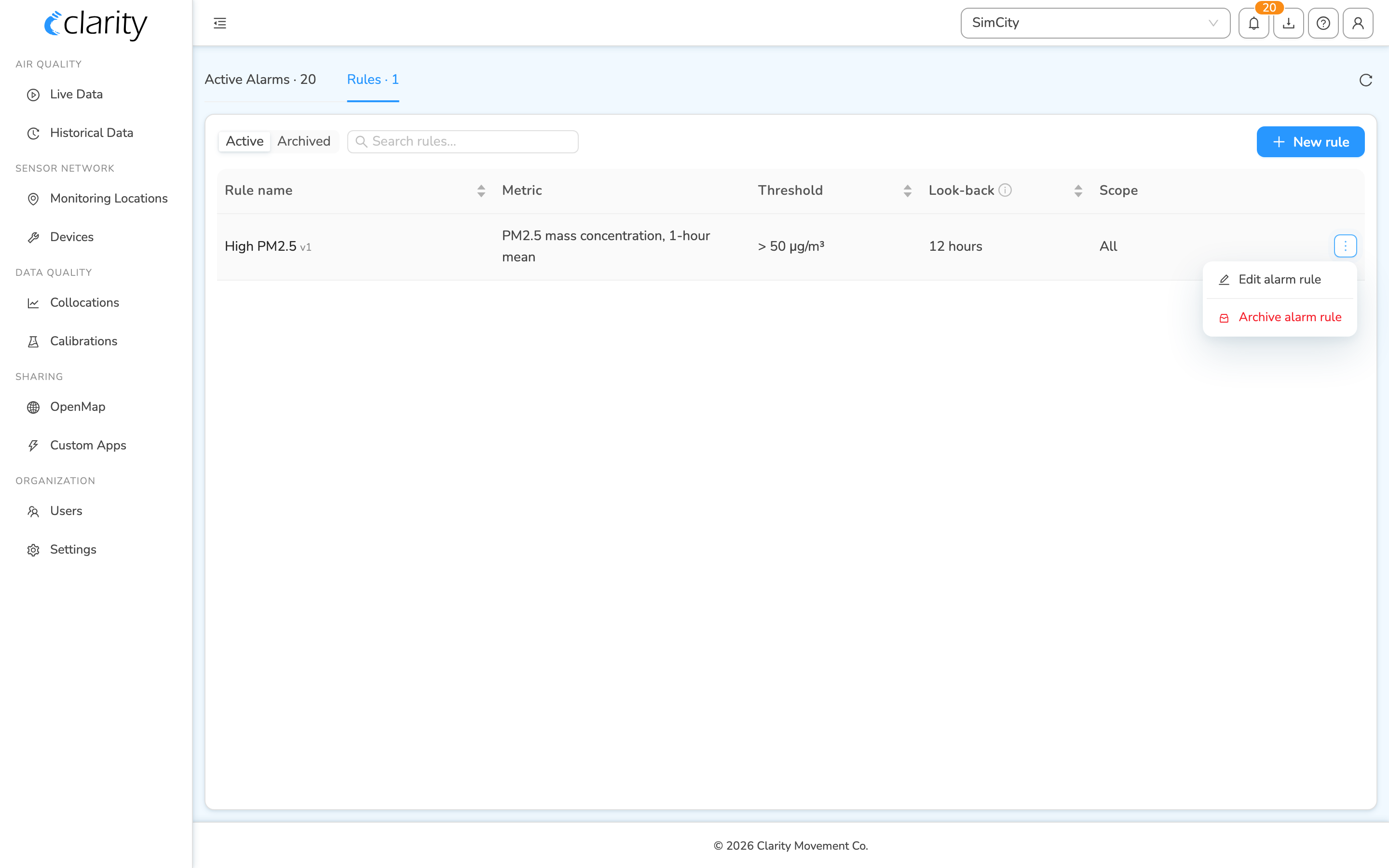
Switch to the Rules tab on the AQ Alarms page. The toolbar has an Active / Archived segmented switch and a search box ("Search rules…") on the left, and a New rule button on the right. The table lists each rule with Rule name and version, Metric, Threshold, Look-back, and Scope. The Scope cell summarizes coverage ("All", "All except N", or "N selected"), click it or its (i) icon to see the exact list of included/excluded monitoring locations.
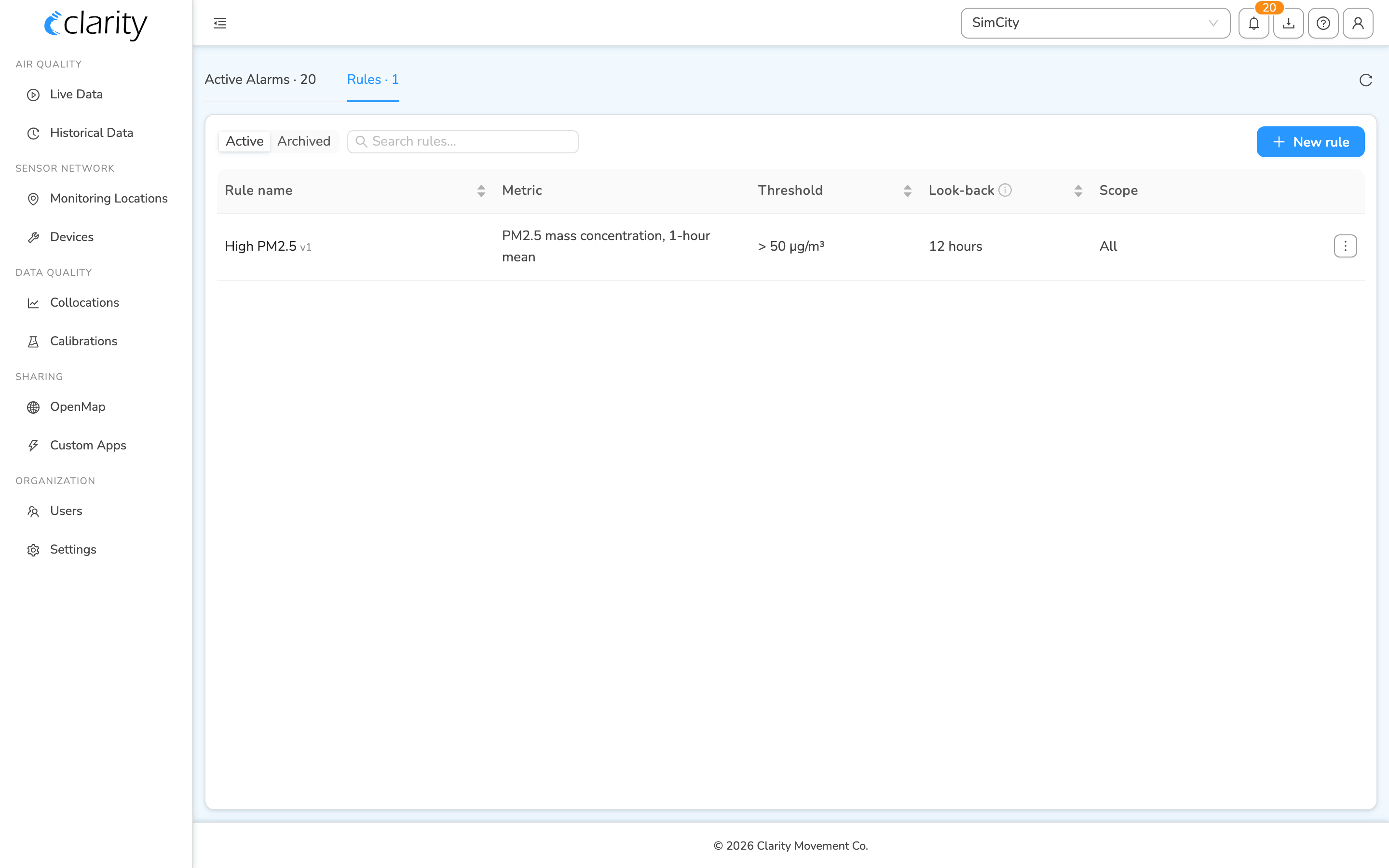
To create a new rule
- On the Rules tab, click New rule in the top-right.
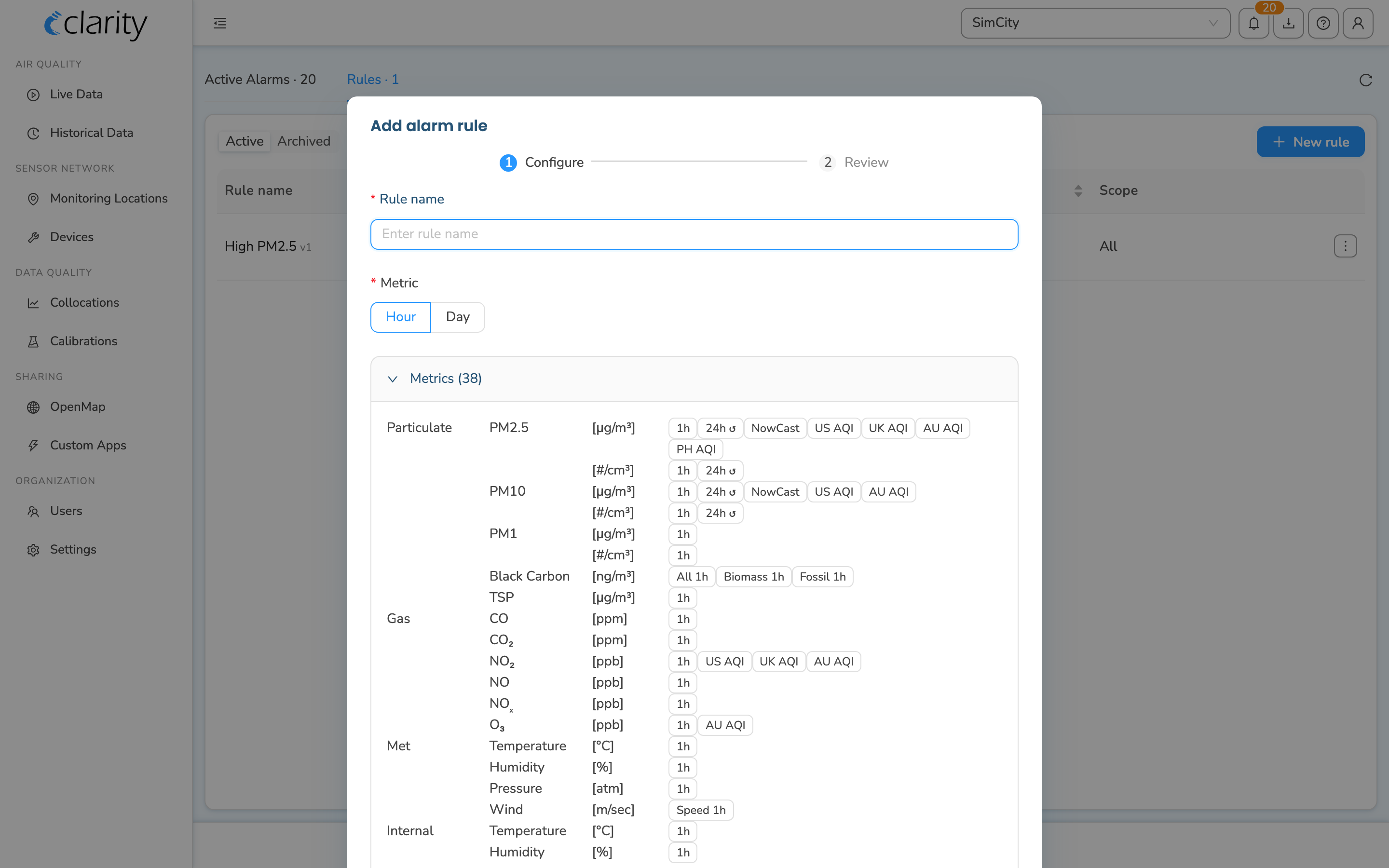
- The Add alarm rule dialog opens on step 1, Configure. Fill in:
- Rule name
- Metric: first pick the output frequency (Hour or Day; Minute appears only if your org has minute-level alarms enabled), then choose the metric from the grid
- Calibration and QC: Calibrated & Valid QC or Raw & Ignore QC
- Comparison: Greater than, Less than, Greater than or equal to, or Less than or equal to
- Threshold: the value, in the metric's unit
- Monitoring locations: All in organization, All except these, or Only these, where the last two reveal a location picker
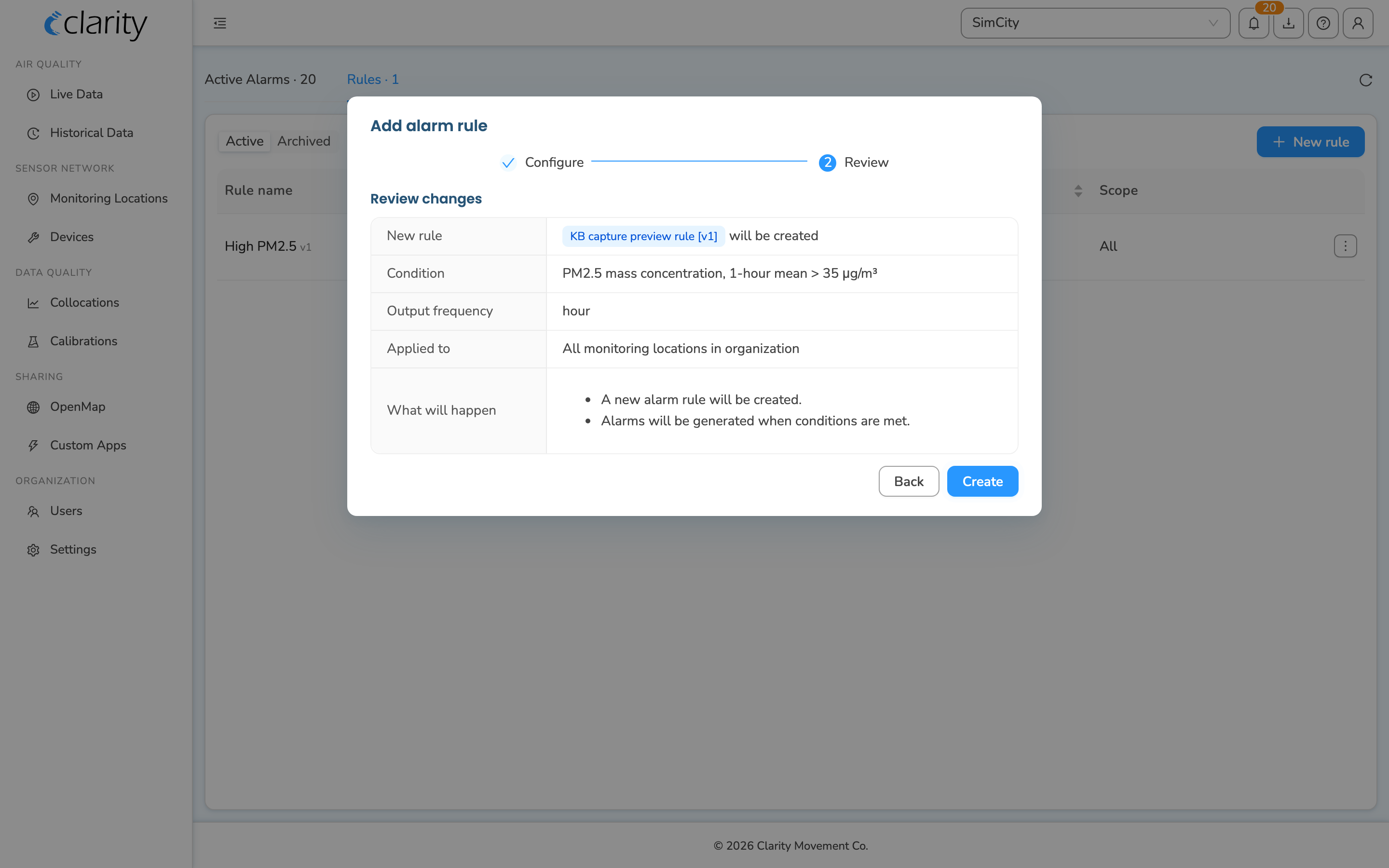
- Click Review to advance to step 2, Review. Check the summary, which covers New rule, Condition, Output frequency, Applied to, and What will happen.
- Click Create.
For gas concentration metrics (NO₂, O₃, CO, NO), the dialog shows both a default-unit and a mass-concentration field and converts between them automatically (e.g. µg/m³ ↔ ppb) so the rule stores a consistent value.
Creating a rule for a single location
You don't have to start on the AQ Alarms page. On a monitoring location's card in Monitoring Locations, use New alarm rule to open the same Add alarm rule dialog with that location pre-selected under "Only these." A Manage all alarm rules → link there takes you to the full AQ Alarms surface.
To edit a rule
- On the Rules tab, with the Active filter selected, find the rule's row.
- Open the row's ⋮ row-actions menu at the far right and choose Edit alarm rule.
- Work through the same two-step Configure → Review flow. The rule name is locked when editing.
- Click Edit on the Review step to save.
Editing creates a new version of the rule (e.g. v2) and archives the previous one for record keeping. Past alarms aren't affected — historical alarms stay tied to the rule version that produced them, and the new version applies only to future data checks.
To archive a rule
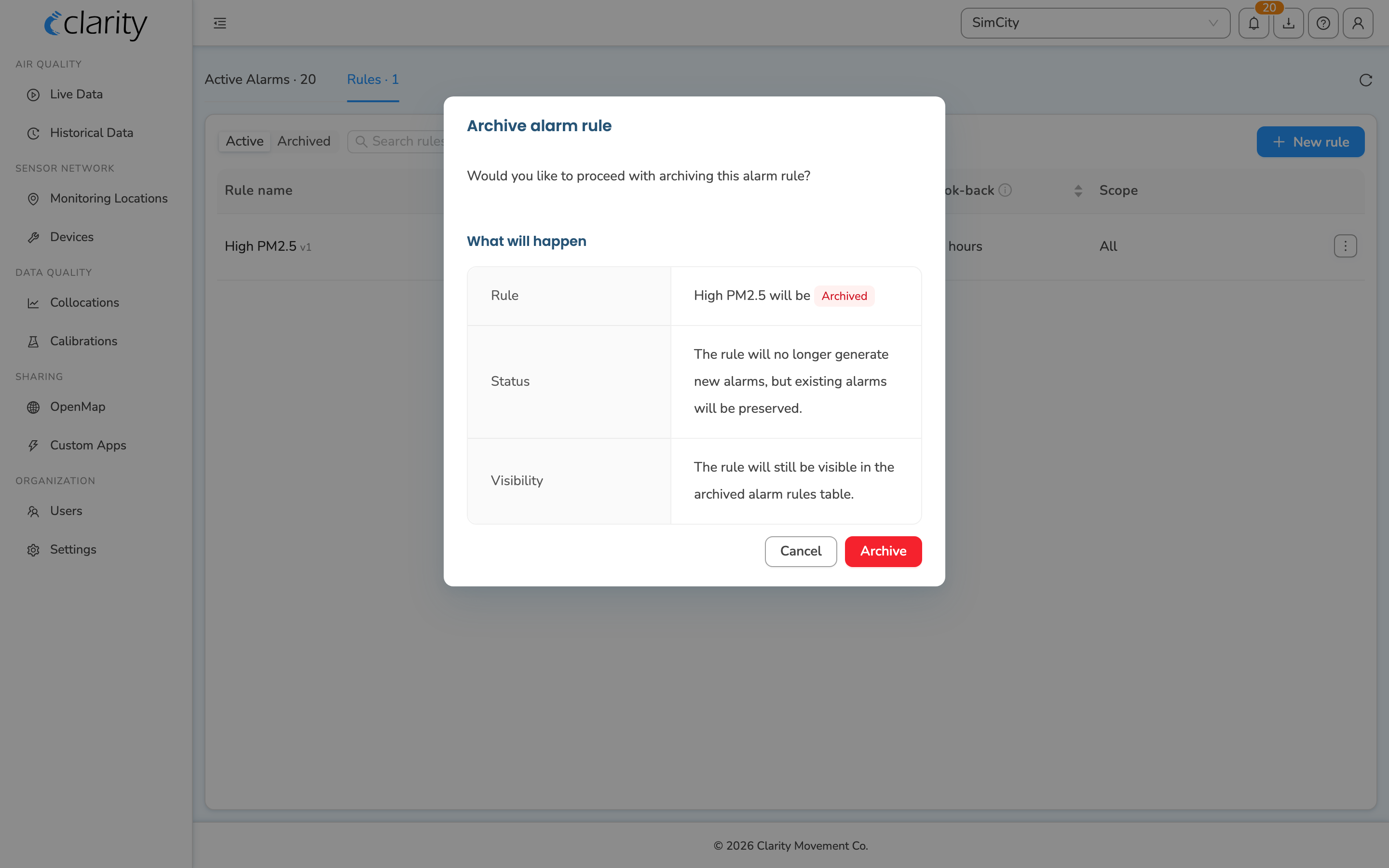
- On the Rules tab, open the rule row's ⋮ row-actions menu and choose Archive alarm rule, shown in red as a destructive action.
- Confirm in the Archive alarm rule dialog.
- The rule stops generating new alarms, but existing alarms are preserved. To see archived rules, switch the Active / Archived segmented control to Archived.
Things to keep in mind
- AQ alarms are not triggered by QC-invalid measurements or measurements missing calibration, unless you choose Raw & Ignore QC when building the rule.
- Alarms involving reference monitoring locations may be delayed due to third-party data latency.
- Creating, editing, and archiving rules requires an Org Admin or Technician role; Clarity staff with the appropriate role can also manage rules. Analyst and Observer roles can view AQ alarms and rules but won't see the New rule button or the row actions menu.
What's next
Still need a hand? Email us at support@clarity.io or create a support ticket, and our team will get back to you.
Was this helpful?